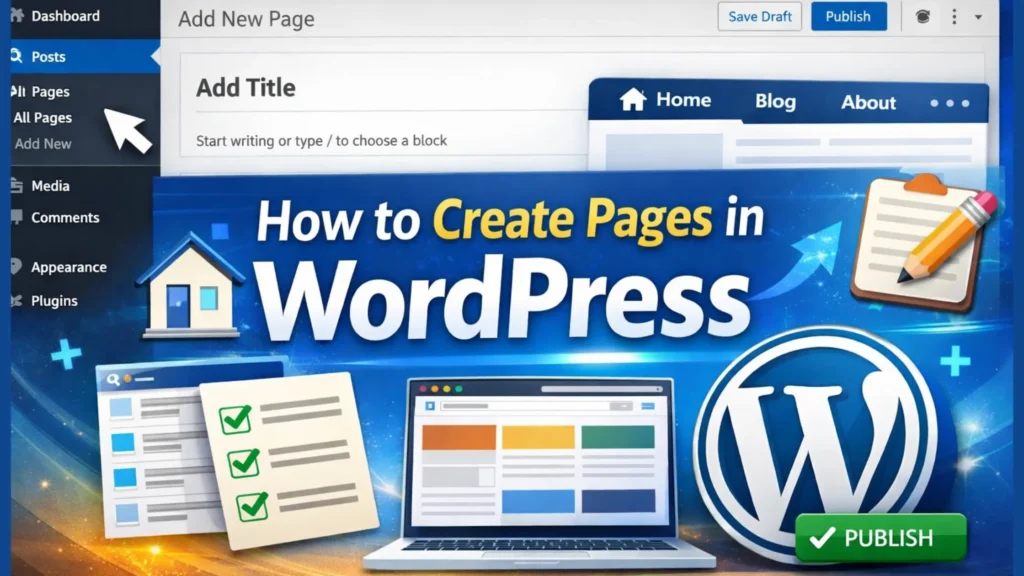

Installing WordPress feels exciting at first, but for most beginners, the confusion starts right after that. You log into the dashboard, see “ Pages ” and “ Posts ” and suddenly you’re unsure where to begin. This is where many people get stuck. Learning how to create pages in WordPress step by step is one of the most important early steps, because pages form the foundation of your website. Your homepage, about page, contact page and blog page all rely on proper page setup, editing and basic WordPress homepage settings. Once you understand how pages work, everything else becomes easier.
After this you will learn ,
- What WordPress pages are and why they matter
- How to add a new page in WordPress correctly
- How to create a blog page in WordPress
- How to edit pages in WordPress without confusion
Finally , you’ll know exactly how to structure your site the right way.
Page creation is smooth only when your hosting performs well. If your dashboard feels slow or pages take time to load, choosing the best website hosting for small business can make a noticeable difference in site speed, reliability and overall WordPress experience.
If you’re reading this before setting up WordPress, start from the basics. This guide assumes WordPress is already installed but learning how to install WordPress for beginners ensures your setup is clean and ready for proper page creation.
Pages represent your brand, and that starts with your domain. Before publishing pages publicly, understanding how to choose a domain name for your WordPress website ensures your site looks professional, trustworthy and easy to remember.
Table of Contents on how to create pages in WordPress
What are pages in WordPress – pages VS posts
When you’re just starting out, WordPress can feel a little overwhelming. You might see “ Pages ” and “ Posts ” and wonder, “ What’s the difference? ” Understanding this is crucial before you start creating content. Pages in WordPress are used for static content information that doesn’t change often, like your homepage, about page or contact page. Posts, on the other hand, are dynamic and appear on your blog page in chronological order.
Learning how to create pages in WordPress properly ensures your website is organized and easy for visitors to navigate. For example, your homepage sets the first impression, your about page tells your story and your blog page displays your latest articles. Without clear pages, even great content can get lost.
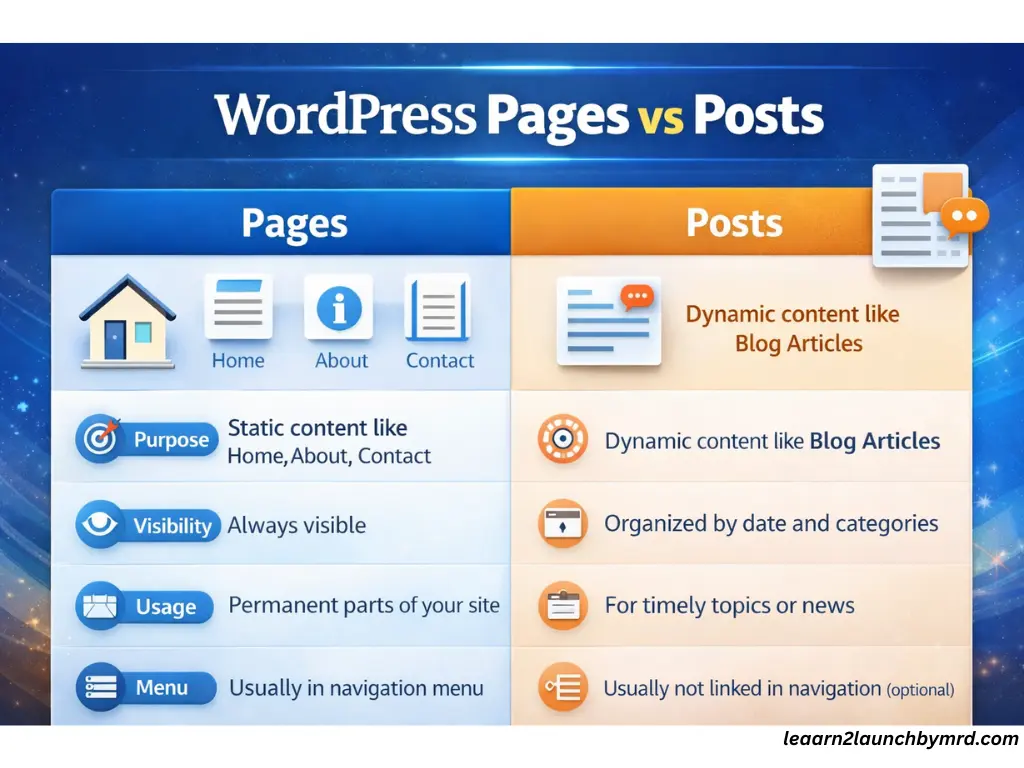
This is the key difference,
- Pages – Permanent content (Home, About, Contact, Blog)
- Posts – Regular updates for your blog
- Navigation – Pages usually appear in your menu, helping visitors find what they need
Once you grasp this, adding new pages and managing your site becomes much simpler.
Not every theme handles pages the same way. Learning how to choose the best WordPress themes for your website helps avoid layout limitations, broken blocks and unnecessary customization issues when building important pages.
How to add a new page in WordPress
Once you understand what pages are, it’s time to get hands-on. Learning how to add a new page in WordPress is easier than it sounds and you don’t need any coding skills. In just a few steps, you can create pages for your homepage, about page, contact page or even your blog page.
Accessing pages – Add new
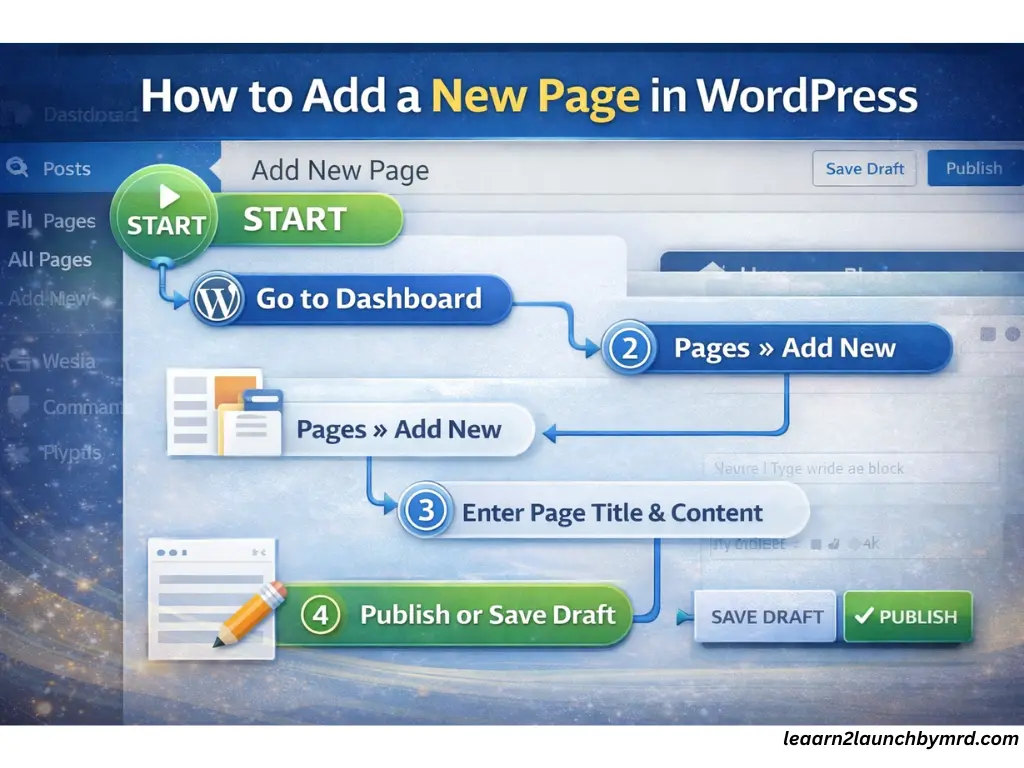
First, log in to your WordPress dashboard. On the left sidebar, click pages , then select add new. This opens a blank page where you can start building your content.
Page title and content area
Next, give your page a clear title, for example, “ About Us ” or “ Contact .” In the content area below, you can add text, images or videos. WordPress uses the Block Editor, so you can drag and drop different blocks like paragraphs, headings and images easily.
Publish VS draft
Before your page goes live, you can save it as a draft to make changes or later or hit Publish to make it visible on your site. This is especially useful for pages like your homepage or blog page, where you may want to preview the layout before publishing.
By following these steps, you’ll not only know how to add new page in WordPress , but you’ll also build a solid foundation for organizing your site. After this, creating and editing other pages becomes fast and intuitive and you’ll feel more confident managing your website as a beginner.
Many page-related issues come from skipped basic settings. Before creating pages, reviewing quick settings after installing WordPress ensures correct permalink structure, visibility options and reading settings making page creation smoother and more SEO-friendly from the start.
Page URL (permalink) optimization tips
When you create a page in WordPress, a URL is automatically generated. This URL (also called a permalink) should be clean and easy to understand for both users and search engines.
Use clean URLs
Keep your page URLs short and clear. A good URL tells visitors exactly what the page is about without extra words or numbers.
Avoid dates and stop Words
Do not include dates, symbols, or unnecessary words like “and,” “the,” or “of.” These make URLs longer and less readable.
Use keyword friendly slugs
Edit the URL slug to include your main keyword in a natural way. This helps search engines understand the page topic and improves SEO without keyword stuffing.
A clean permalink makes your page easier to remember, share, and rank.
How to create a homepage in WordPress
One of the first questions beginners ask is how to make a homepage in WordPress that looks professional and works properly. Knowing how to create pages in WordPress how to create pages in WordPress is important, but setting your homepage correctly is what makes your website feel complete. In WordPress, you can choose between a static homepage or a homepage that shows your latest posts , depending on your website’s purpose.
- Static homepage – Perfect for business sites or portfolios. You can create a dedicated page ( like “Home” ) and set it as your homepage, giving visitors a consistent first impression
- Latest posts homepage – Ideal for bloggers who want their newest articles displayed automatically on the homepage.
To set your homepage, go to your WordPress dashboard, click Settings → Reading and select your homepage displays
Then choose the page you want to use as your homepage. This simple step ensures that your site is organized, user friendly and ready to impress visitors from the first click.
Remember, creating your homepage properly is more than just design ,it’s about guiding visitors to important pages like your About page, Contact page or Blog page.
Your theme directly affects how pages look and function. Before customizing layouts, understanding how to choose the best WordPress themes for your WordPress website ensures your pages remain responsive, fast and compatible with the block editor.
Creating pages is just one part of user experience. If pages load slowly, visitors leave. That’s why learning how to speed up your WordPress website helps ensure your homepage, blog page and core pages load fast and keep users engaged
WordPress homepage settings explained
Understanding WordPress homepage settings is crucial for beginners. These settings let you control exactly what visitors see when they land on your website. You can select a static page to show custom content or chase to display your latest blog posts automatically . Additionally you can assign a posts page if you want a separate blog page
Navigating these settings is simple . Dashboard → Settings → Reading then choose your homepage and blog page. Properly configuring these options improves site usability and SEO, helping Google understand your site structure while making it easy for visitors to find important pages.
How to create Blog page in WordPress
Many beginners get confused when setting up a blog on WordPress. You might already know how to create pages in WordPress , But creating a dedicated blog page is a slightly different step. The blog page is where all your posts will appear automatically, so it’s essential to set it up correctly from the start. Learning how to create blog page in WordPress ensures your content is organized and easy for visitors to find.
Post page VS page content
A common mistake is thinking your blog posts should be added directly to a regular page. In WordPress, pages are static, so your blog posts won’t show up there automatically. Instead, you create a separate page (often titled “ Blog ”) and assign it as your post page . This way , new articles appear in reverse chronological order without you having to update the page manually.
Once your pages are ready, content becomes your growth engine. Exploring Best content creation tools and strategies helps you plan, write and optimize content that fits naturally into your blog and page structure.
Assigning blog page in settings
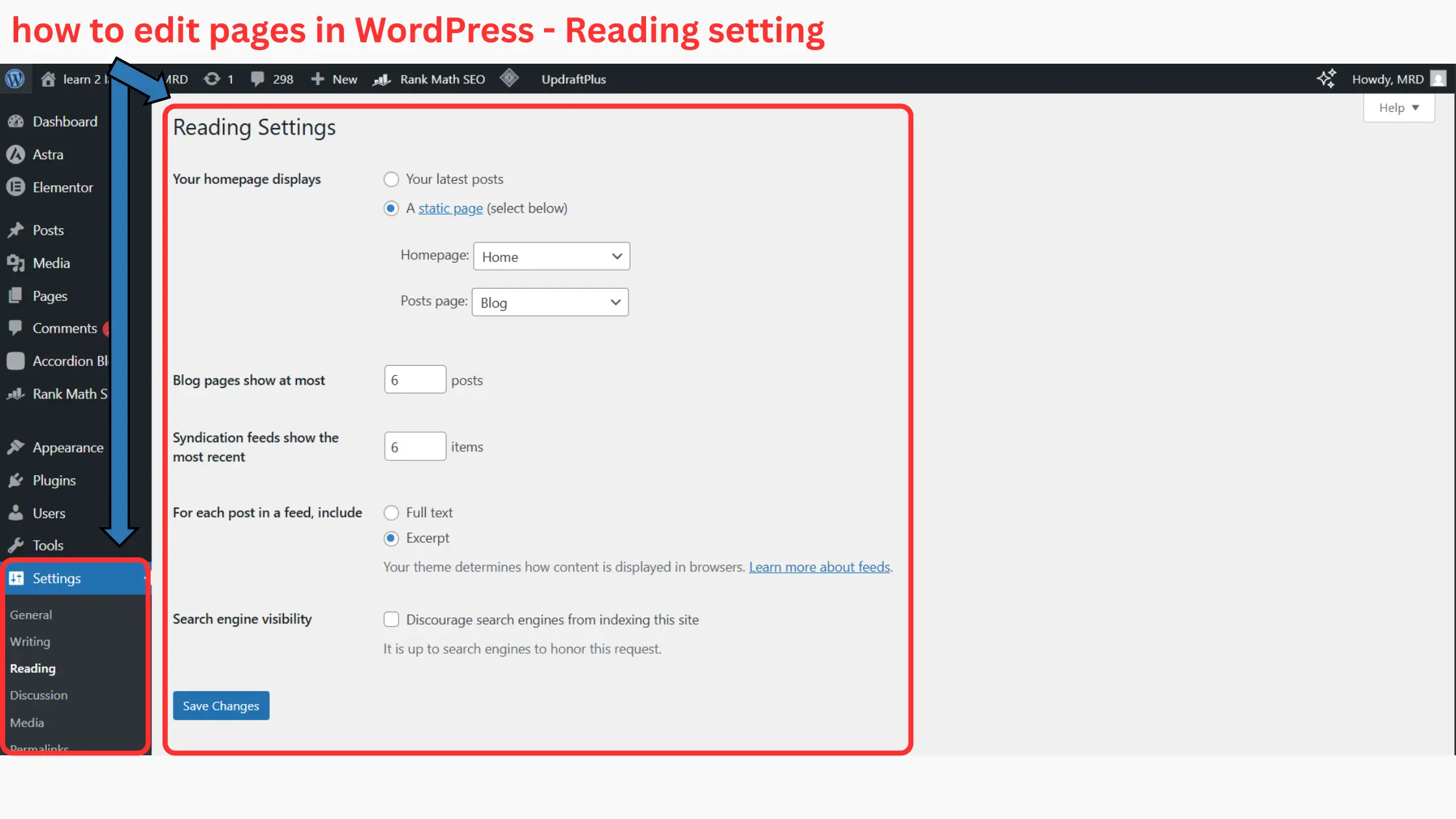
To assign a blog page, go to your WordPress dashboard → Settings → Reading. Under “ Your homepage displays, ” select the page you want as your homepage and the page you want as your posts page. Save the changes, and your blog page is ready to display all your posts neatly.
Beginners can keep their website organized, prevent confusion, and make it simple to link to other important pages like the homepage, About page, or Contact page by following these steps. The structure of your website is strengthened by properly set up blog pages, which improves user experience and SEO.
If your goal is to publish content regularly, understanding pages is only the first step. Once your core pages are ready, the next logical move is learning how to start a WordPress blog for beginners, so you can publish posts that appear correctly on your blog page and attract consistent traffic over time
How to edit pages in WordPress
After creating pages, the next step is learning how to edit pages in WordPress . Editing pages is simple once you understand the basics of the Block Editor and the difference between updating and revising content. Proper editing ensures your pages stay accurate, organized and visually appealing for visitors.
While pages can be created without plugins, the right tools improve functionality. Installing essentials from 10 must have WordPress plugins for beginners helps with page optimization, SEO, security and contact forms without overcomplicating your site.
Block editor basics
WordPress uses the Block editor which allows you to add, move or delete content blocks easily. Each block can be a paragraph, heading, image, video or button. Here’s what beginners should know,
- Click a block to edit its content
- Drag blocks to reorder them on the page
- Add new blocks using the “+” icon
Updating VS revising content
Once you make changes, you have two main options ,
- Update – Saves changes immediately and reflects them on your live site
- Save draft / Review – Allows you to review changes before publishing
You’ll be able to handle pages like your blog page, about page, and homepage with confidence once you’ve learned these methods. Correct page editing keeps the professional look of your WordPress website and improves user experience.
Learning how to edit pages in WordPress, is a small step that makes a big difference in maintaining a polished and organized website.
Pages work best when layout and structure are clear. If you want your homepage and other pages to look organized and professional, learning how to design a website layout with WordPress helps you plan sections, spacing and content flow more effectively.
Adding pages to navigation menus
Creating pages in WordPress is only useful if visitors can actually find them. That’s why adding your pages to a navigation menu is an important final step.
Go to appearance → menus
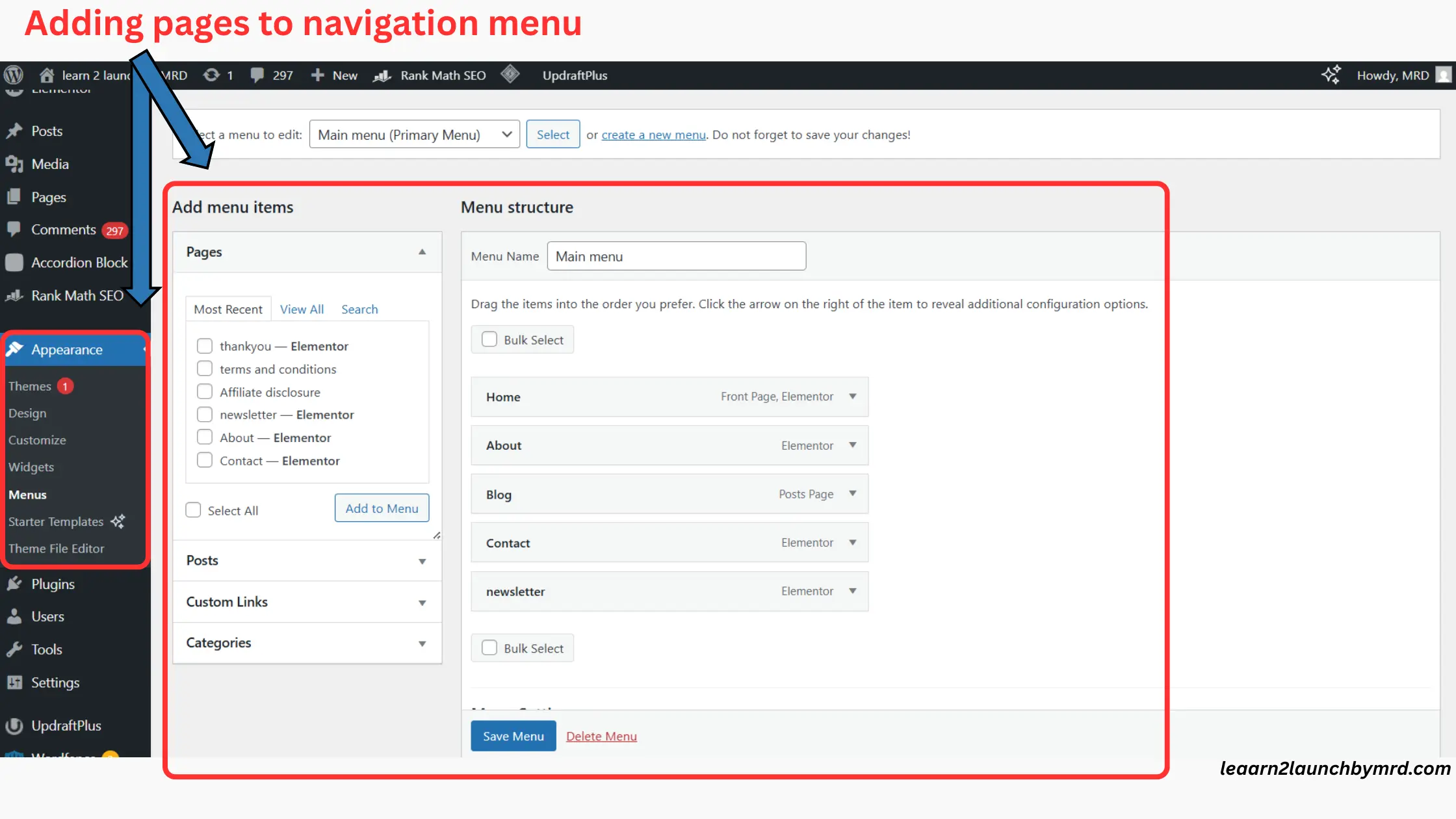
From your WordPress dashboard, go to Appearance → Menus. Here, you can choose an existing menu or create a new one. This is where you control which pages appear on your website.
Primary menu VS footer menu
The primary menu usually appears at the top of your website and is best for important pages like Home, About and Contact. The footer menu appears at the bottom and is often used for less important pages like Privacy Policy or Terms.
Reordering pages
You can easily change the order of pages by dragging and dropping them inside the menu. Arrange pages in a logical order so visitors can navigate your site easily.
Once done, don’t forget to save the menu so your changes go live.
Basic page SEO for beginners
After creating a page in WordPress, it’s important to do a few basic SEO checks so search engines can understand your content better. You don’t need to be an SEO expert, just follow these simple steps to improve visibility and user experience.
01 . Page title optimization
Make sure your page title clearly explains what the page is about. Use simple words and include your main keyword naturally. Keep the title short, clear and useful for readers.
02 . H1 VS H2 usage
Use one H1 heading for the main page title. Break your content into sections using H2 headings. This helps readers scan the page easily and helps search engines understand the structure.
03 . Internal linking
Link to other relevant pages or blog posts on your website where it makes sense. Internal links help users explore more content and help search engines discover and rank your pages better.
04 . Image ALT text
Always add alt text to images. Describe what the image shows in simple words. This improves SEO and makes your website more accessible to users using screen readers.
Common beginner mistakes when creating pages
Even after learning how to create pages in WordPress , beginners often make simple mistakes that can confuse visitors or affect their website’s organization. Recognizing these early can save time and improve your site’s usability.
Most common mistakes ,
- Using posts instead of pages – Beginners sometimes add static content like “About” or “ Contact ” as a post. Remember, posts are for blog content and pages are for permanent site sections.
- Forgetting homepage setting – Not assigning a static homepage can leave visitors seeing your latest posts first, which may not be ideal for business or portfolio sites.
- Publishing empty pages – Avoid publishing pages without content. Even a short introduction helps visitors and improves SEO.
By being aware of these mistakes, you’ll build a better-organized website, enhance visitor experience and establish yourself as a confident WordPress beginner.
Once your pages are published, security becomes critical. Pages like Contact or About often collect information, which is why learning how to secure your WordPress website early helps protect your content, user data and site access from common threats.
Many page-related issues come from beginner errors. Reading 10 Common WordPress mistakes beginners make and how to avoid them helps prevent problems like using posts instead of pages or forgetting homepage settings.
Frequently asked questions on How to create pages in WordPress
How do I create pages in WordPress as a beginner?
Pages are used for static content like About or Contact pages, while posts are for blog content that updates regularly. Understanding this difference helps beginners avoid using posts instead of pages when building a website.
How do I create a Blog page in WordPress?
To create a blog page in WordPress, first create a new page and name it “ Blog ”. Then go to Settings – Reading, choose a static homepage, and assign the Blog page as your posts page. WordPress will display all blog posts there automatically.
How do I se homepage settings in WordPress?
You can change WordPress homepage settings by going to Settings – Reading. Select “ A static page ” and choose which page should be your homepage and which page should show blog posts. Save changes to apply them.
How do I edit pages in WordPress after publishing?
To edit pages in WordPress, go to Pages – All Pages, click the page you want to edit, update the content using the block editor and click Update. You can edit pages anytime without affecting your posts.
What is the difference between WordPress pages and posts ?
Pages are used for static content like About or Contact pages, while posts are for blog content that updates regularly. Understanding this difference helps beginners avoid using posts instead of pages when building a website.
Final checklist before publishing pages
Before you hit ” Publish ” , it’s important to double-check that everything is set up correctly. Even after learning how to create pages in WordPress , beginners often miss small details that can affect usability and SEO. Following this checklist ensures your website is organized, professional and ready for visitors.
Before making your website public, it’s smart to double-check everything. After creating and publishing pages, following The ultimate WordPress launch checklist: 25 things to do before going live helps ensure nothing important is missed – from page visibility to basic SEO and performance checks.
Quick checklist
- Homepage set correctly – Make sure your homepage is assigned under WordPress homepage settings . This helps visitors see the right first impression.
- Blog page assigned – Confirm your dedicated blog page is linked so posts appear automatically. This is key for beginners learning how to create blog page in WordPress
- Pages published properly – Review each page, including About and Contact pages. Use how to edit pages in WordPress tips to make any last-minute updates before publishing.
Common beginner mistakes like missing content, wrongly assigned pages, or unclear navigation can be solved by following these steps.
Your website is prepared for launch once everything has been confirmed. By following this easy method, you can make sure that your pages are properly organized, your blog posts show up where they should, and your visitors have a positive experience.
Page creation is just one part of the bigger picture. If you want a complete overview from setup to launch, this guide on how to create a website with WordPress connects all the steps into a clear, beginner friendly roadmap.
Learning how to create pages in WordPress gives you full control over how your website looks and works. When you know how to add a new page in WordPress, create a proper homepage, and set up a blog page correctly, your site immediately becomes more professional and easier to navigate.
Take time to adjust your WordPress homepage settings so visitors land on the right page first. Make sure you also understand how to create a blog page in WordPress, especially if you plan to publish articles regularly. After publishing, don’t forget how to edit pages in WordPress to update content, improve layout or fix small issues.
You don’t need to do everything perfectly on day one. Start simple, focus on clear pages, clean structure and helpful content. As your website grows, you can refine and optimize each page with confidence.
Now it’s your turn – start building your pages and move one step closer to a complete WordPress website