
Have you ever clicked a website link… only to wait and wait… and then just close it?
Now imagine — that’s what your visitors are doing to your website right now.
When I first started my WordPress site, it looked great — but it was painfully slow. I had all the right plugins, stunning design, and valuable content, but visitors were leaving before my homepage even finished loading. That’s when I realized: your website’s speed is just as important as your content.
According to Google, 53% of users leave a website that takes more than 3 seconds to load.
And HubSpot reports that even a 1-second delay can cut conversions by up to 7%.
So if you want your visitors to stay, read, and buy — speed isn’t optional. It’s your silent growth engine.
In this complete guide, I’ll show you how to speed up your WordPress website step-by-step — using proven optimization techniques that can make your site load lightning fast in 2025.
If you’re still in the early stages of building your website, I’ve got you covered. You can start by reading my step-by-step guide on How to Create a Website with WordPress (Beginners Guide 2025) to get your site up and running. Once that’s done, make sure to check out How to Design a Website Layout with WordPress] — it’ll help you structure your pages beautifully before you dive into optimization.
Now, let’s dive into the art and science of website speed optimization.
Why Website Speed Matters More Than Ever
Speed impacts everything — from SEO to user experience to revenue.
Here’s why it’s non-negotiable in 2025:
- Google loves fast websites. Site speed is a confirmed ranking factor in Google’s algorithm.
- Faster sites build trust. A smooth user experience makes visitors stay longer and explore more.
- More speed = more money. A faster checkout or blog can literally double conversions.
Think about it: Would you wait for a slow-loading page when there are 10 other results in Google? Neither would your audience.
Step 1: Check How Fast Your Website Loads
Before fixing anything, you need to measure your current performance.
Use these free tools:
- GTmetrix → gives you full page insights (speed, structure, waterfall view)
- Google PageSpeed Insights → measures Core Web Vitals (LCP, FID, CLS)
- Pingdom Tools → shows global performance from multiple regions
When I ran my site through GTmetrix for the first time, my score was a shocking D. But once I followed this guide, it jumped to A — and my bounce rate dropped by 20%.
This is the first step toward effective speed optimization WordPress strategy.
Step 2: Choose Fast and Reliable Hosting
Your hosting is the foundation of your website’s speed.
If you’re using cheap shared hosting, even the best optimization tricks won’t save you.
Choose a hosting provider that offers:
- LiteSpeed servers or SSD storage
- Built-in caching
- CDN integration
- 24/7 uptime monitoring
Recommended Hosts: Hostinger, SiteGround, WPX Hosting
These platforms are designed to improve WordPress performance by optimizing at the server level.
Choosing the right hosting is crucial for your website’s speed and reliability. If you want a deeper guide on selecting the best hosting for your needs, check out my detailed post on [how to choose the fast and reliable hosting for your website].
Step 3: Optimize and Compress Images
Images can take up over 60% of your total page size — no wonder they slow down your site.
Here’s what I recommend:
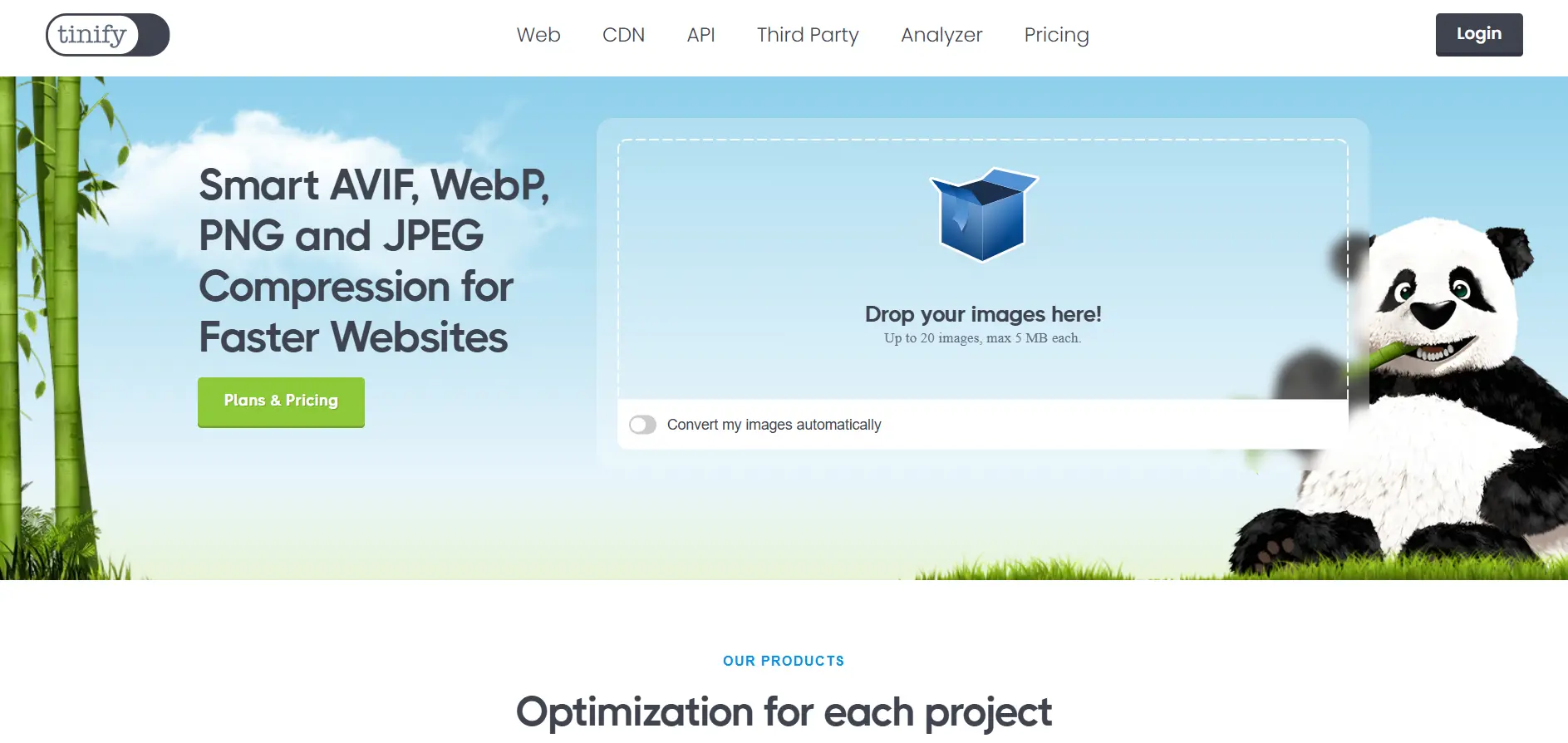
- Compress with TinyPNG, ShortPixel, or Smush.
- Convert large images to WebP format (smaller and faster).
- Enable lazy loading so images load only when visible.
When I switched my homepage banner from JPG to WebP, my load time dropped by 1.5 seconds instantly.
Step 4: Use a Lightweight WordPress Theme
Your theme defines how your site looks and how fast it runs.
Avoid flashy multipurpose themes that load hundreds of scripts.
Instead, go for lightweight and performance-optimized themes like:
- Astra
- GeneratePress
- Kadence
They’re clean, fast, and compatible with any page builder — especially Elementor.
If you haven’t designed your homepage yet, check my post on How to Design a Website Layout with WordPress — it’s the perfect follow-up after this.
Step 5: Install a WordPress Caching Plugin
Caching is one of the most powerful ways to make your WordPress site faster.
What caching does is store static versions of your web pages so that your server doesn’t rebuild them every time someone visits.
The best WordPress caching plugins include:
- WP Rocket (paid but easiest)
- LiteSpeed Cache (best free option)
- W3 Total Cache (powerful but complex)
When I installed LiteSpeed Cache, my site speed improved by 35% immediately — no coding required.
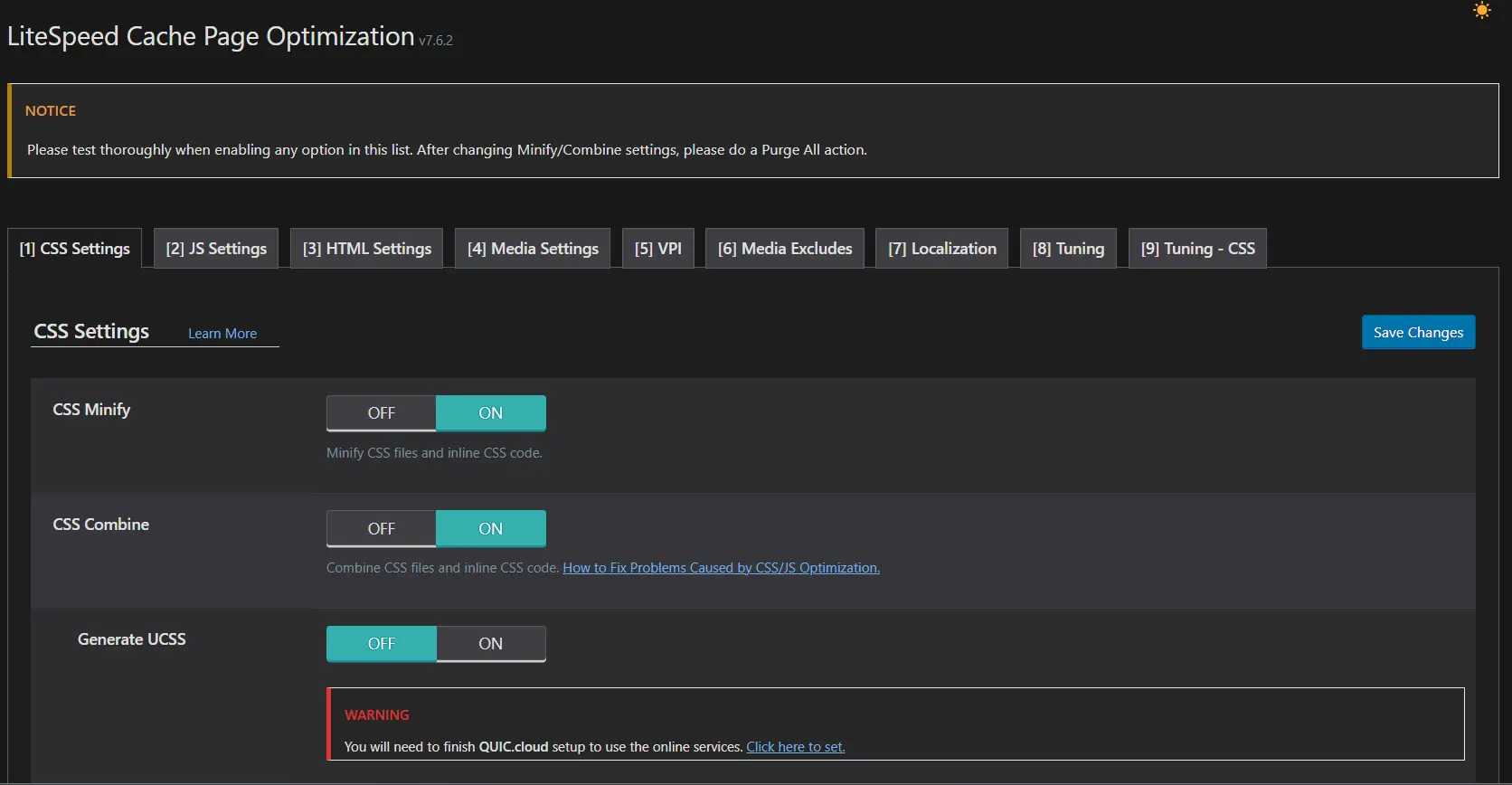
Step 6: Minify and Combine CSS and JavaScript Files
Every extra script adds milliseconds to your page load.
Minification removes unnecessary spaces and comments from your code.
Try plugins like:
- Autoptimize
- LiteSpeed Cache
- Asset CleanUp
Pro Insight: Minifying and combining files can improve your PageSpeed score by up to 10 points instantly.
Step 7: Use a CDN (Content Delivery Network)
A CDN stores copies of your website on multiple servers around the world.
When someone visits your site, they’re served the data from the nearest server — making your site load faster everywhere.
Best free CDN: Cloudflare
Best premium CDN: BunnyCDN
If your audience is global (especially in the US or Europe), a CDN is a must for improving WordPress performance.
Step 8: Clean Up Your WordPress Database
Over time, your WordPress database fills with:
- Revisions
- Spam comments
- Temporary data
This digital clutter slows everything down.
To clean it safely, use:
- WP-Optimize
- Advanced Database Cleaner
Run it monthly for best results.
Step 9: Limit Plugins and Optimize Scripts
“How many plugins are too many?” — I get this a lot.
In general:
- Keep fewer than 15 active plugins.
- Avoid plugins that overlap in features.
- Regularly test using Query Monitor to find slow ones.
Remember: Fewer plugins = faster site = better SEO.
To keep your website fast and efficient, it’s important to limit unnecessary plugins and optimize your scripts. For a curated list of must-have plugins, check out my guide on essential WordPress plugins for beginners.
Step 10: Regularly Test and Maintain Your Site’s Speed
Speed isn’t a one-time setup — it’s a routine.
Check your site’s speed monthly using GTmetrix or PageSpeed Insights.
Create a simple checklist:
- ✅ Compress new images
- ✅ Clear cache
- ✅ Update plugins
- ✅ Run database cleanup
This ensures your website stays optimized all year long.
Advanced Optimization Tips (2025 Edition)
If you’ve already covered the basics, here are advanced methods to push your site further:
- Use server-level caching (Redis, LiteSpeed)
- Host Google Fonts locally
- Disable emojis and embeds
- Implement HTTP/2 or HTTP/3 protocols
- Reduce redirects
Each small tweak stacks up for massive performance gains.
Examples of Fast WordPress Websites Done Right
Let’s look at a few live examples:
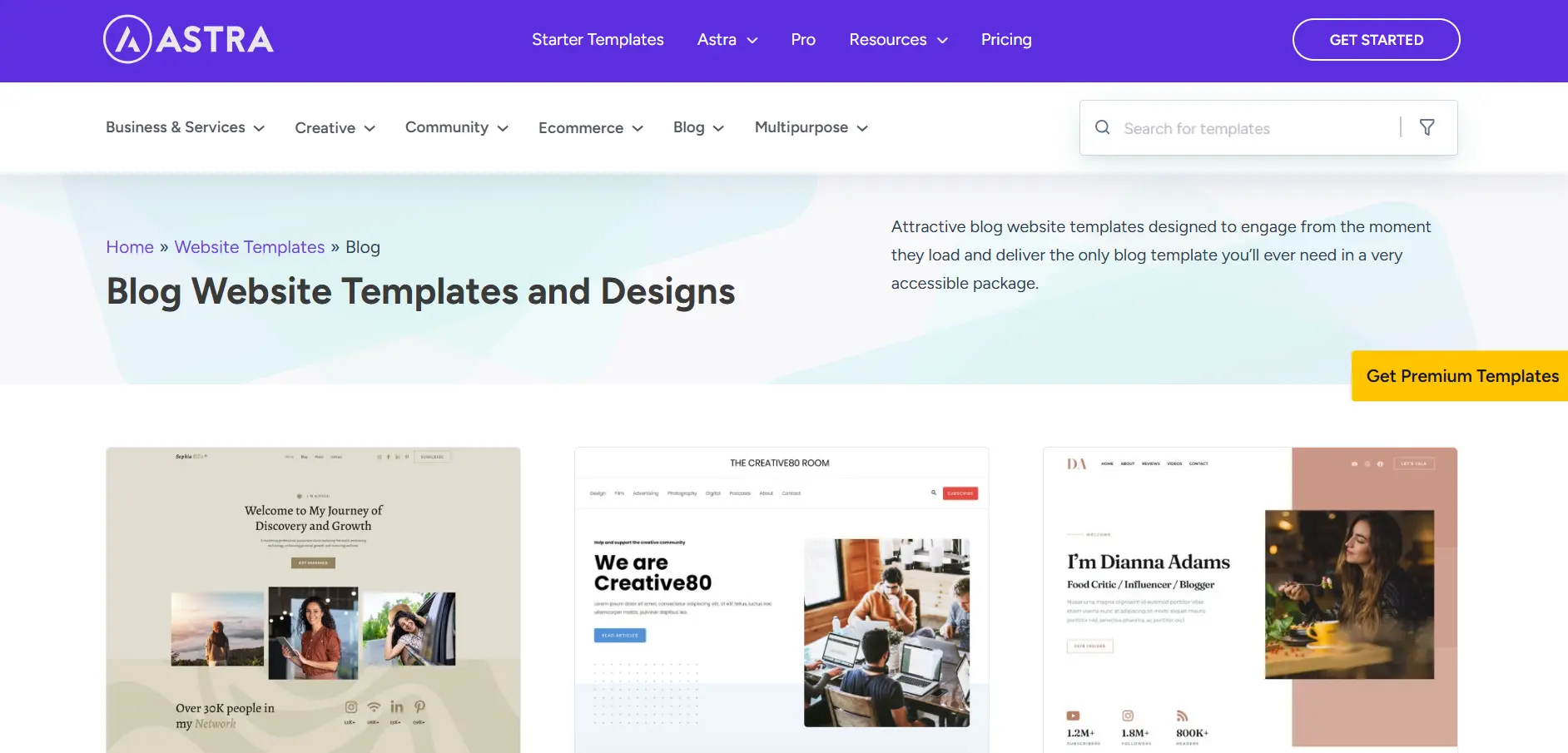
- Astra Blog Demo — minimalist, clean, and lightning-fast.
- Perfect typography and balanced white space.
- Focused single-column layout.
- OceanWP Business Demo — simple yet professional.
- Great header hierarchy and clear CTA.
- Excellent use of lightweight visuals.
Check them on GTmetrix — both score A for performance!
WordPress Speed Optimization Checklist
WordPress Speed Optimization Checklist ⚡
Check off each step as you optimize your website — your progress is saved automatically in your browser.
What is the fastest way to speed up a WordPress website?
The fastest way is to use a caching plugin like WP Rocket or LiteSpeed Cache, optimize your images, and choose a high-performance hosting provider. These three steps alone can cut loading time by over 50%.
How can I improve WordPress performance without coding?
You can easily improve performance by using plugins such as Autoptimize, Smush, and WP-Optimize. They handle caching, image compression, and database cleanup — no coding required.
Which is the best WordPress caching plugin for beginners?
WP Rocket is the best all-in-one caching plugin for beginners. If you prefer free options, W3 Total Cache or LiteSpeed Cache are also powerful and easy to configure.
How do I make my WordPress site faster on mobile devices?
Use a responsive theme, compress your images, and enable lazy loading. Also, test your mobile speed using Google PageSpeed Insights to fix specific performance issues.
Does a slow website affect SEO rankings?
Yes. Google considers page speed a ranking factor, and slow sites often experience lower search visibility and higher bounce rates. Faster websites keep users engaged longer.
How often should I optimize my WordPress website?
Run speed tests and clean your site every month. Regular maintenance ensures your plugins, database, and caching stay optimized as your site grows.
What’s a good loading time for a WordPress website?
Aim for under 3 seconds. Anything longer may reduce conversions and increase bounce rates — especially on mobile.
Final Thoughts
When I optimized my first WordPress website, I realized something powerful — speed is invisible, but its impact isn’t.
A fast website tells your audience:
“I respect your time.”
By following these steps on how to speed up your WordPress website, you’ll not only improve SEO and performance — you’ll create a smoother, more enjoyable experience for every visitor who lands on your page.
Remember: building a fast website isn’t about perfection — it’s about progress and consistency.
If you’re ready to take your WordPress journey further, explore my related posts:
How to Design a Website Layout with WordPress for tips on creating an engaging layout to get step-by-step guidance on setting up your first site.”