No-code web design – WordPress
Create a No-Code Website with WordPress : The Step-by-Step Blueprint to Launch Your Site Without Coding
When I launched my first site, I spent three painful nights hunched over my desk breaking code because every online tutorial assumed I already understood advanced programming syntax. Since fixing those early mistakes, I have spent hundreds of hours testing theme frameworks and visual setups to discover how to bypass the technical friction completely. This master category roadmap skips the textbook jargon to show you exactly how to create a no-code website with WordPress that looks highly professional, loads fast, and remains completely under your control.

By MRD- Malaka
Last verified : june 05, 2026
Read time – 14 minutes
- Hosting & Domain: Secure a fast server and a memorable brand name.
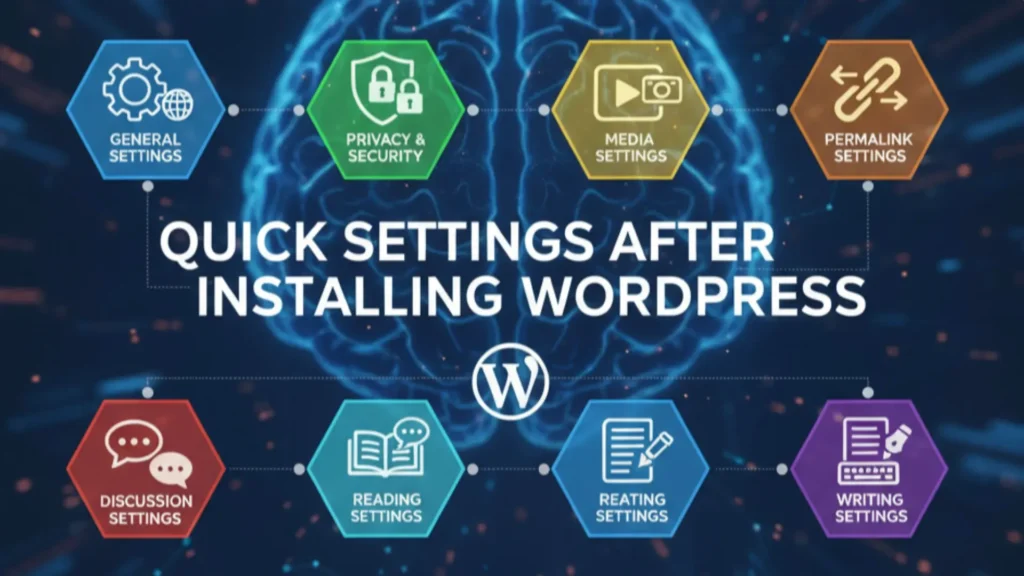
- Core Foundation: Install WordPress cleanly with optimal dashboard settings.
- Visual Design: Build consistent page layouts using global design rules.
- User Experience: Structure reader-friendly articles built for high engagement.
The ultimate 2026 blueprint to build without coding
Look, I know how overwhelming this stage feels because I’ve been there. But here is the good news: the modern web design ecosystem has completely evolved. Today, learning how to create a no-code website with WordPress isn’t about memorizing complex programming scripts or fighting with backend files – it’s about mastering digital leverage.
Over the last few years, I’ve broken down the exact structural principles, lightweight theme frameworks, and visual layout systems that remove the technical guesswork entirely. This guide gives you the precise step-by-step roadmap to skip the traditional development phase entirely, allowing you to launch a fast, highly secure, and professional online business asset completely on your own terms.
The Action Trap
“The biggest mistake I see beginners make is spending weeks comparing page builders, adjusting tiny design details, and researching tools before publishing a single page.
The reality is that your first website will never be perfect. The page builder you choose matters far less than getting your core pages online, collecting feedback, and improving your site over time.
Once your foundation is live, nearly every design decision can be refined based on real visitor behavior instead of assumptions.”
This guide is designed as a practical wordpress website builder tutorial for beginners. If you’re searching for a reliable way to learn how to build a wordpress site without coding, this blueprint removes much of the guesswork, reduces unnecessary development costs, and helps you build a performance-focused website that follows modern SEO best practices.
If you’d like a transparent look at my own journey, lessons learned, and early mistakes, read How to Create a Website with WordPress (Beginner’s Guide + My Journey) to see how a complete beginner can turn a blank website into an active online business.
Before diving into execution, understand that learning how to create a no-code website with WordPress is about shifting your focus from complex development rules to building high-value business systems.
-
The Programming Myth
Modern visual builders generate the underlying code for you, allowing most beginners to build and manage a professional website without learning programming languages. -
Migration Freedom
With self-hosted WordPress, you maintain control of your content and database, making it possible to move between hosting providers without rebuilding your website from scratch. -
Performance Matters More Than Complexity
A well-configured no-code website can achieve excellent loading speeds and strong Core Web Vitals scores when built with lightweight themes, quality hosting, and carefully selected plugins. -
Scalability From Day One
You can start with a simple business website today and later expand into a blog, membership platform, portfolio, booking system, or eCommerce store without changing platforms.
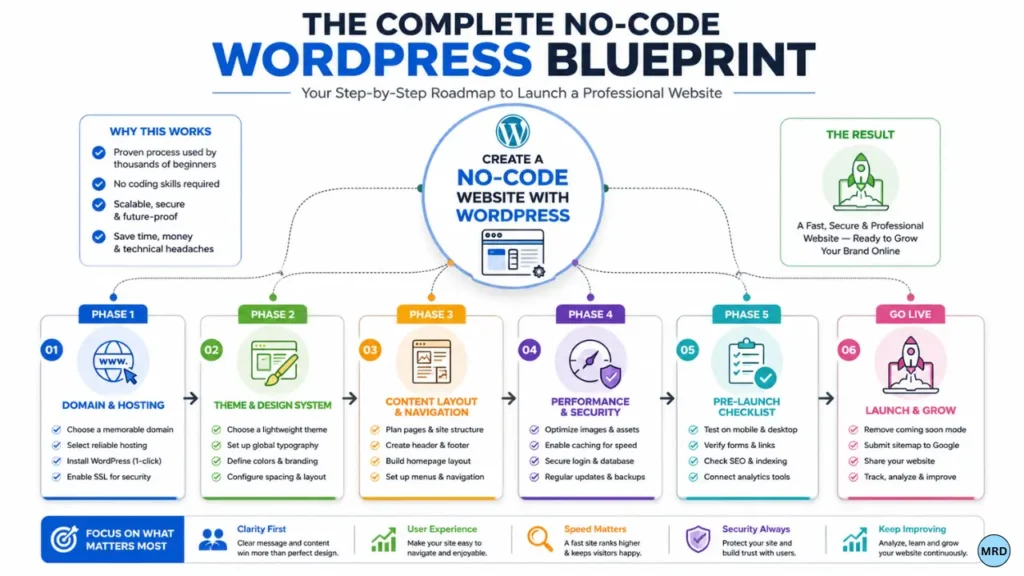
Reality check before we start
It’s important to set realistic expectations before diving into the process.
Choosing a no-code path does not mean there is zero learning involved. You’ll still need to understand basic website structure, navigation, content creation, branding, and search engine optimization.
The difference is that WordPress allows you to focus your energy on building your business and publishing content instead of spending months learning HTML, CSS, PHP, or JavaScript before you can launch.
By the end of this guide, you’ll know how to choose a domain name, purchase reliable hosting, install WordPress, select the right theme, configure essential settings, secure your website, improve loading speed, install the plugins you actually need, and launch confidently without writing code.
The No-Waste Infrastructure Stack
Stop drowning in tool choices. To match the exact speed, security, and ranking performance scores of this roadmap, this is the lean, battle-tested stack I run. No bloated extras.
Hostinger Premium
Core Foundation • Hosting
The exact hosting environment fueling this setup. Delivers ultra-fast LiteSpeed server caching, free SSL shields, and automatic backups without expensive retainers.
Deploy ServerAstra Pro
UI Engine • Core Theme
Zero code-bloat theme framework that achieves perfect performance out of the box. Fully optimized to handle advanced element structures cleanly.
Get Astra ProElementor Pro
Layout Engine • Page Builder
Unlocks advanced loop grids, custom single-post template builders, and absolute pixel layout control over your entire affiliate marketing structure.
Unlock BuilderRank Math Pro
SEO Optimizers • Rank Tracker
Handles rich schema markup configurations, automatic link parsing, local SEO maps, and advanced tracking to dominate search metrics cleanly.
Optimize SEO💡 Transparency Note: Some links above are affiliate pathways. If you use them, I earn a small commission at zero absolute extra cost to you. I only recommend the infrastructure I actively use to scale my own web properties.
Is This Milestone Roadmap For You?
Before you commit to this deep-dive strategy blueprint, let's verify you're in the right room. This implementation engine is hyper-optimized for two distinct pathways:
The Solo Creator & Beginner
For those building from complete absolute zero scratch.
- Zero Code Barriers: Skip complex programming scripts. Every step uses visual drag-and-drop frameworks built for rapid execution.
- Escape Tutorial Loops: Stop watching endless videos without shipping. This acts as a linear, milestone-driven execution sequence.
- Tiny Starter Budgets: Eliminate expensive software suites. Build, host, and launch your entire system safely for less than the price of a coffee.
The Solopreneur & Business Owner
For those scaling high-value content assets long term.
- 100% Platform Ownership: Completely avoid closed ecosystem builders like Wix or Squarespace that lock down your raw database structure.
- Scalable Content Systems: Deploy structured content architecture designed to easily support tens of thousands of unique monthly views.
- Complete Commercial Control: Retain full rights to inject your custom affiliate funnels, membership layers, and ad matrix engines without penalties.
Why no-code WordPress has changed website creation?
The biggest misconception I had when building my first website was believing that coding knowledge automatically created a better website. I assumed professional-looking websites were built by developers and that beginners like me had no realistic way to compete.
In reality, successful websites are built on clear navigation, helpful content, fast loading speeds, and a positive user experience – factors that can all be achieved through modern visual editing tools.
For many years, the advice given to beginners was intimidating. You either had to spend months learning HTML, CSS, and PHP or pay a developer to build and maintain your site. Early page builders reinforced this belief because they often generated inefficient layouts that could negatively impact website performance.
Today, WordPress has evolved significantly. Modern visual editors allow you to design pages visually while the platform handles the underlying structure and formatting behind the scenes.
Learning how to build a wordpress site without coding is no longer a shortcut or compromise. It has become a practical and widely adopted approach used by bloggers, creators, freelancers, and small business owners who want full control over their websites.
By following a practical wordpress website builder tutorial for beginners, you eliminate much of the technical complexity involved in managing source files and code, allowing you to focus on content, branding, and user engagement instead.
What actually determines website performance?
If coding isn’t the deciding factor, what actually makes a website fast?
In my experience, a carefully built no-code WordPress website can outperform many beginner-built custom websites because most performance problems come from poor optimization decisions rather than the absence of code.
When you create a no-code website with wordpress, your loading speeds and search visibility are primarily influenced by five factors:
- Hosting infrastructure
The speed and reliability of the server responsible for processing requests and delivering content to visitors. - Theme framework efficiency
Starting with a lightweight, well-optimized theme instead of a feature-heavy design that loads unnecessary assets. - Plugin management
Using a focused set of plugins that serve a clear purpose without creating conflicts or excessive database activity. - Image optimization
Compressing images and using modern formats such as WebP to reduce page weight without sacrificing quality. - Caching strategy
Serving pre-generated versions of pages so the server doesn’t need to rebuild content every time someone visits your site.
In my experience, hosting quality and theme efficiency usually produce far larger speed improvements than obsessing over small design tweaks. Many beginners focus heavily on visual elements while overlooking the infrastructure that actually determines performance.
Bypassing the technical friction
Want to make sure you don’t skip a critical step while executing the framework below? Secure your interactive copy of the roadmap companion tracker to audit your system live:
FREE RESOURCE
The no-code WordPress launch checklist
Don’t miss a critical setting. Skip the technical friction with this step-by-step checklist to launch a secure, lightning-fast WordPress site on your own terms.
🔒 Zero Spam. Unsubscribe with 1-click anytime.
PHRASE 01 . Secure your digital real estate ( Domain and Hosting )
Setting up your digital real estate is the first practical step when learning how to launch a professional website on wordpress.
When I purchased my first domain name, I chose an unbranded and confusing name simply because it was heavily discounted. Within a few months, I realized people struggled to remember it, and the name did very little to communicate what the website was actually about.
Taking the time to create a clear and memorable brand name is a critical step when learning how to choose a domain name for a blog that gets traffic.
Fortunately, these decisions become much easier when you approach them one step at a time. Start by choosing a domain that supports your long-term brand goals, then focus on hosting quality because even the best-designed website cannot overcome a poor server environment.
Many beginners spend days comparing page builders while paying little attention to their hosting provider. In reality, a slow hosting environment can hurt website performance before your theme even has a chance to load.
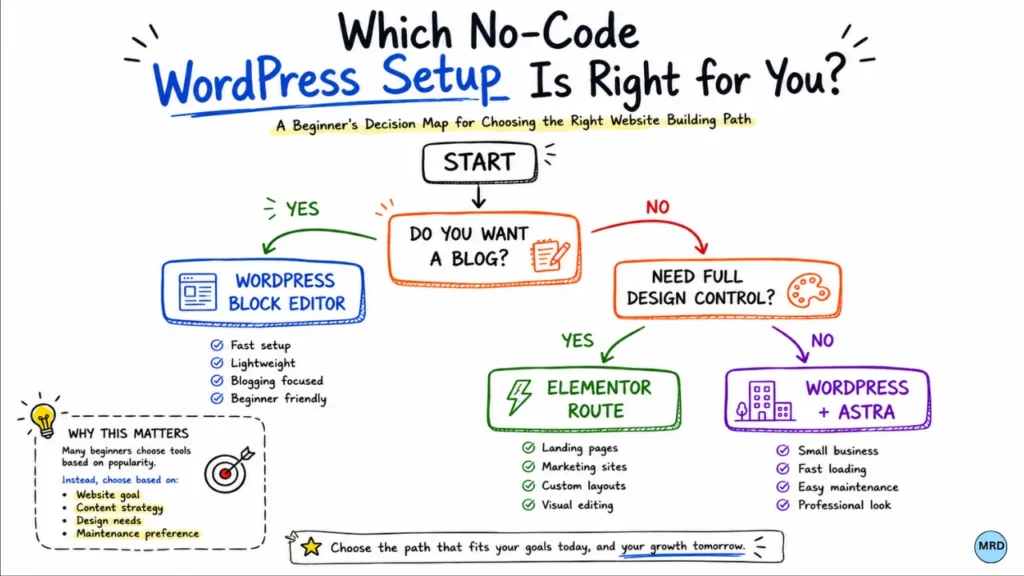
That is why I recommend that choosing the best website hosting for small business is often more important than choosing a visual page builder. A quality hosting provider delivers the resources, stability, and reliability needed to keep your website fast and responsive as traffic grows.
During my early projects, I frequently dealt with frustrating database connection and timeout issues because I relied on low-cost hosting plans that placed thousands of websites on the same server environment.
Moving to a better-optimized hosting platform solved most of those issues immediately and provided a far more reliable foundation for growth.
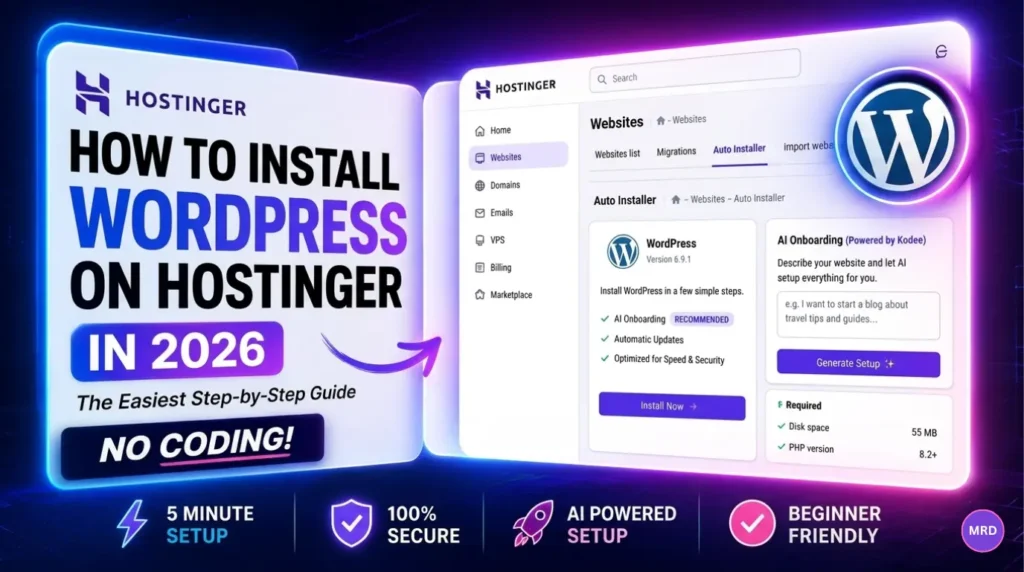
If you’re ready to get your website online, follow the complete setup process in How to install WordPress on Hostinger 2026 to create a clean WordPress installation and launch your site in just a few minutes.
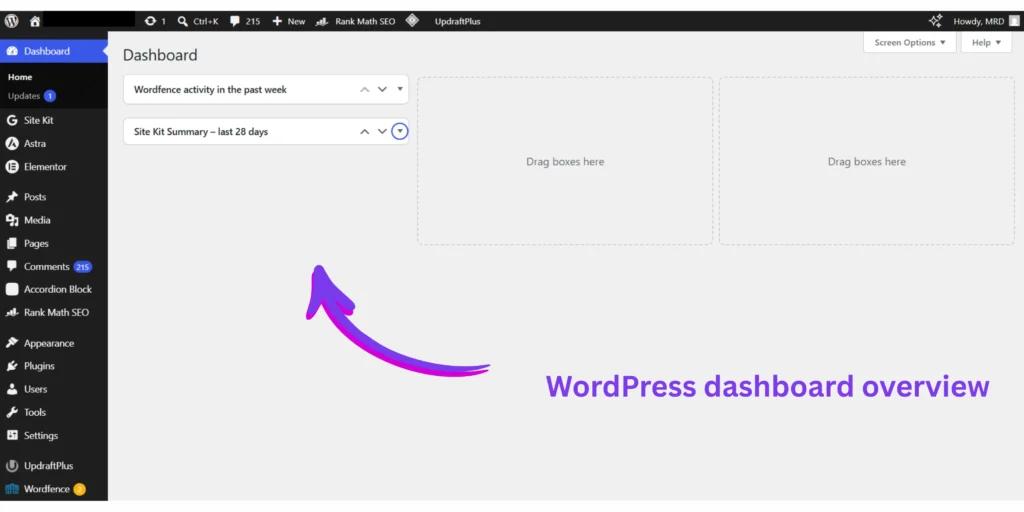
PHRASE 02 . Why most beginners choose the wrong theme?
The biggest trap I fell into when learning how to build a wordpress site without coding was treating my theme choice like a finished website.
I remember spending nearly two weeks browsing theme marketplaces, searching for a pre-made design that already had the exact colors, layouts, and visual style I wanted for my business.
That turned out to be a massive mistake.
Eventually, I chose a feature-packed theme simply because the demo version looked impressive.
However, the moment I started customizing it, I ran into problems. Changing a button color required digging through multiple settings panels. Rearranging page sections felt unnecessarily complicated. Every time I tried to adapt the template to fit my content, something seemed to break.
After days of frustration, I scrapped the entire setup and started over.
That experience taught me an important lesson: a WordPress theme should not be your final website design.
Instead, think of your theme as the foundation of a house. It provides the structure, while your page builder controls how the rooms look and function.
Today, the smartest approach is to choose a lightweight, performance-focused theme and let your visual builder handle the design experience.
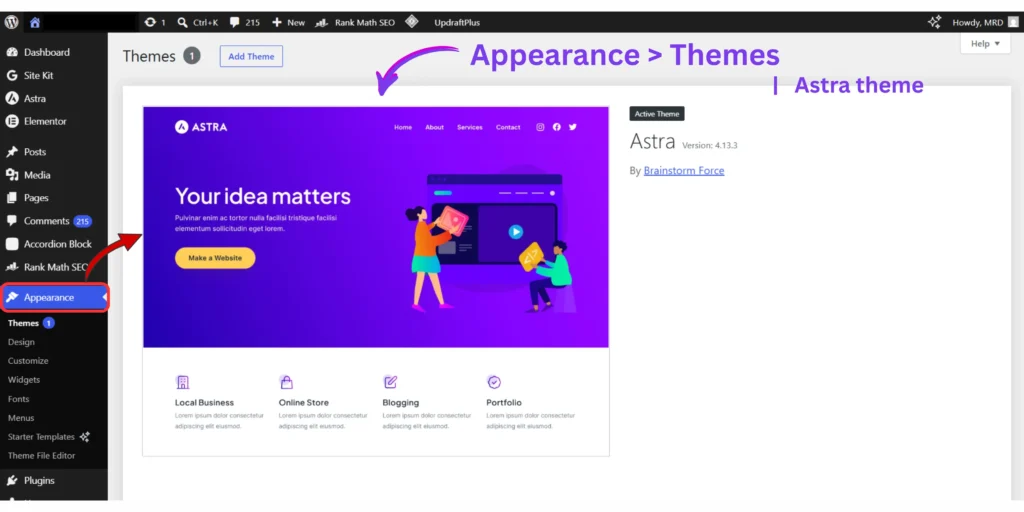
If you’re unsure where to start, check out How to Choose the best WordPress themes for your website to select a lightweight foundation that works well with modern page builders.
Starting with a minimal theme gives you far more flexibility and prevents your design tools from fighting against unnecessary built-in styling.
The cycle of endless rebuilding (Why consistency matters)
One mistake I repeatedly see beginners make is rebuilding pages every time they discover a new design idea on another website.
Without a consistent visual system, every page becomes a separate project.
A heading gets changed here. A color gets adjusted there. A new spacing pattern appears somewhere else.
Over time, the entire website starts to feel disconnected. I made this exact mistake on one of my early websites.
At one point, the site was using five different heading sizes and several slightly different shades of blue because I kept making individual adjustments whenever inspiration struck.
Each page looked acceptable on its own. Viewed together, the website felt inconsistent and unprofessional.
One of the biggest surprises I discovered was that professional-looking websites rarely rely on complicated design features or flashy animations.
Most successful websites use the same fonts, the same spacing patterns, and the same color palette throughout the entire experience.
Consistency builds trust far more effectively than complexity.
What I look for in a WordPress theme today ?
After years of testing different themes, these are the qualities I prioritize:
- Lightweight performance
- Regular updates
- Compatibility with popular page builders
- Clean documentation
- Strong user reviews
- Minimal unnecessary features
A theme doesn’t need to do everything. It simply needs to provide a reliable foundation.
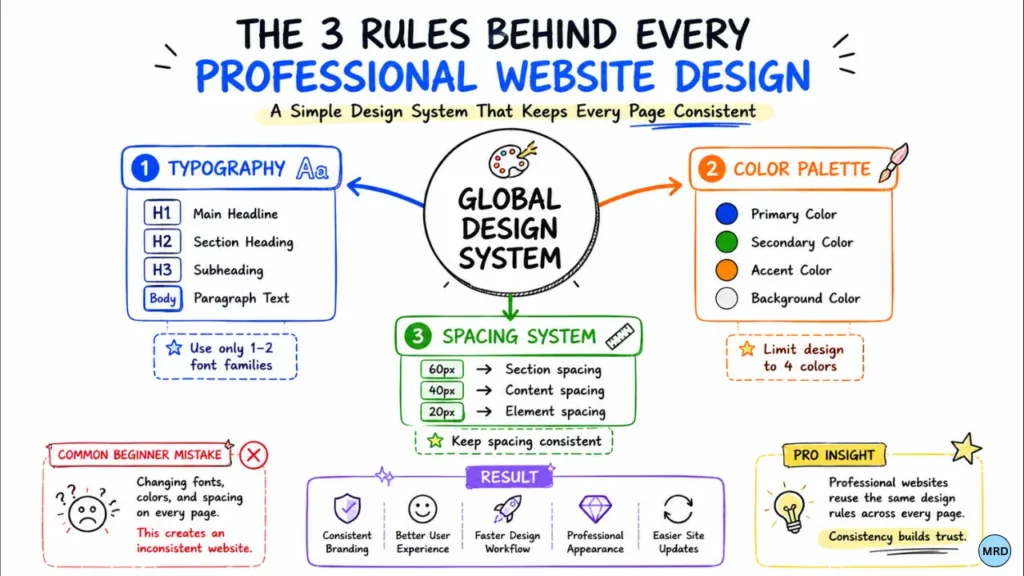
Create your global rules before touching the canvas
Experienced website builders avoid making styling decisions page by page. Instead, they establish a set of global design rules that automatically apply throughout the website.
Many page builders refer to these settings as global styles, global fonts, or global colors. Before you start building pages, define three core design systems:
A fixed typography scale
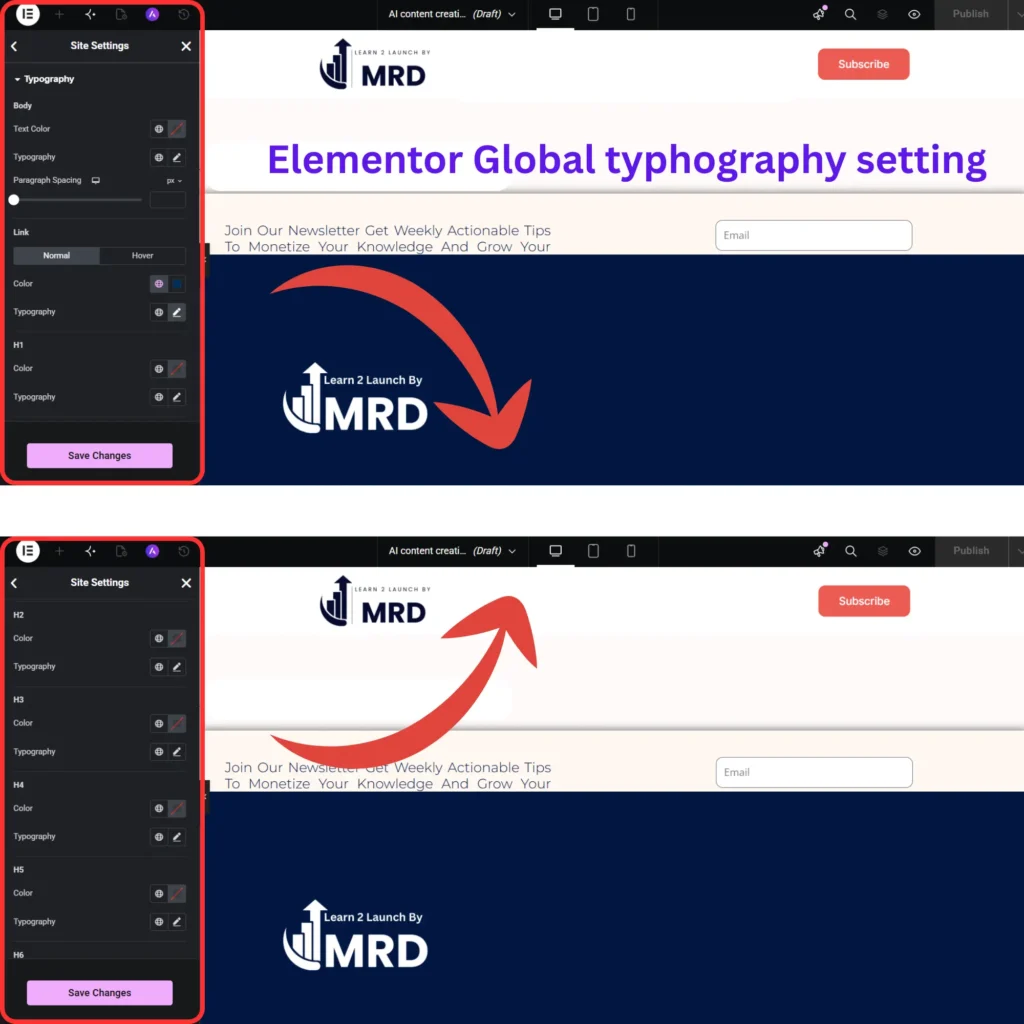
Choose your font families, heading styles, and line spacing for H1, H2, and H3 headings as well as your body text.
Whenever possible, limit yourself to two font families across the entire website.
A four-color brand palette
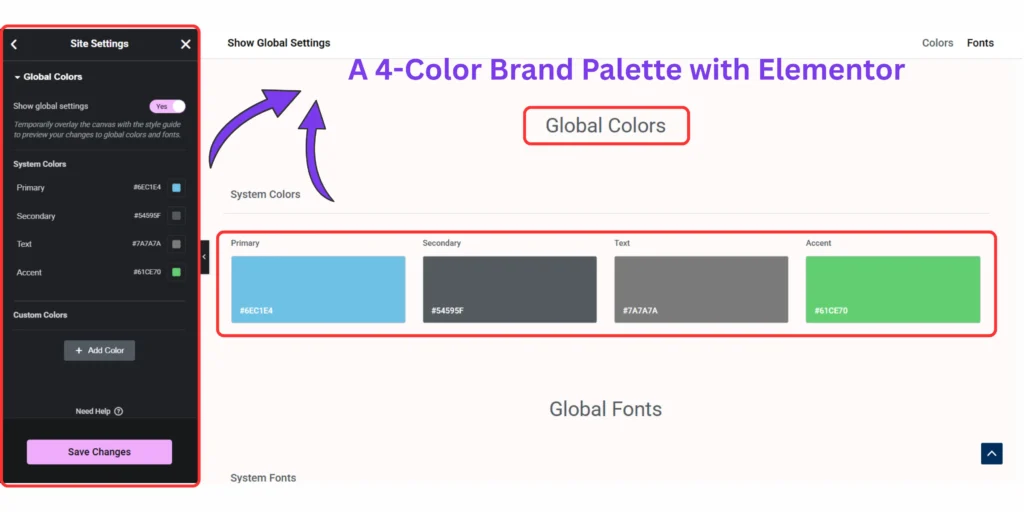
Keep your design simple. Most websites only need:
- A background color
- A primary text color
- A secondary brand color
- A high contrast button color
Uniform spacing rules
Establish a consistent spacing system for all major content sections.
For example, use the same top and bottom padding values throughout your site instead of creating custom spacing for every page.
[Individual editing]
- Edit everything manually
- Inconsistent design
- Time-consuming updates
[Global design system]
- Set rules once
- Automatic consistency
- Site-wide updates in minutes
One final reality check: your first design system doesn’t need to be perfect. The goal is consistency, not perfection. You can always refine your colors, typography, and spacing later as your brand evolves.
By spending just a few minutes creating these global rules upfront, every page you build inside a WordPress website builder tutorial for beginners automatically follows the same visual standards.
The result is a website that is easier to manage, easier to scale, and more trustworthy to visitors because every page feels like part of the same brand experience.
PHRASE 03 . Design a blog layout that readers actually use
When I first transitioned from building standard website pages to creating an actual blog section, I assumed that keeping people engaged was purely a writing challenge. I believed that if I simply published comprehensive, in-depth articles and included helpful resource links throughout the content, readers would naturally follow along and find what they needed.
That assumption led to months of disappointing engagement.
I could see people arriving from search engines and reading parts of my guides, but very few were interacting with the resources and recommendations I had carefully included throughout the articles.
One of my earliest tutorials contained more than 2,000 words of research-backed content, yet almost nobody clicked the helpful links inside the post.
When I finally reviewed the article from a mobile phone instead of my desktop monitor, the problem became obvious.
Visitors had to scroll through long blocks of text before reaching the practical solutions they came for. Important information was buried too deep, and the page demanded far more effort than most readers were willing to invest.
That experience taught me an important lesson: many traditional blog layouts make it unnecessarily difficult for readers to find answers quickly.
If a page feels overwhelming, visitors rarely struggle through it. They simply leave and look for a resource that gets to the point faster. However, there is an equally important reality check.
Good design cannot rescue weak content. If your article doesn’t solve the reader’s problem, no layout adjustment, button color, or visual element will keep people engaged for long. Effective design simply makes valuable content easier to consume.
Designing for scanners : The anatomy of a reader friendly layout
One thing I noticed after reviewing how people interacted with my own websites is that most visitors do not read online content from top to bottom like a book.
Instead, they scan headings, jump between sections, and slow down only when they find information that directly matches their question.
Once I started designing for this behavior instead of fighting against it, user engagement improved dramatically.
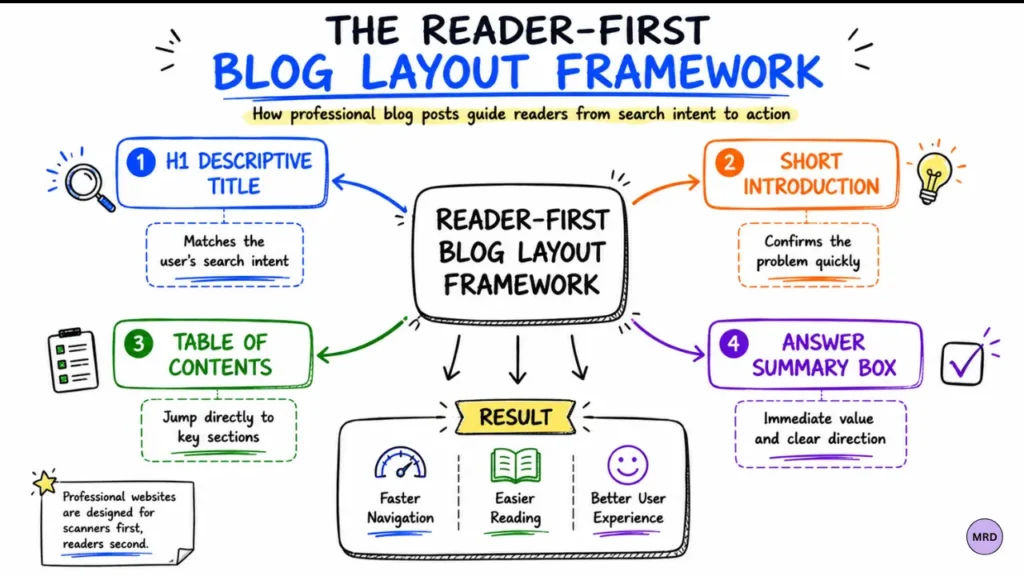
When you are exploring how to build a WordPress site without coding, you can create a highly effective blog layout by organizing your content around a few simple structural principles.
The intent-matching answer box
Immediately after your introduction, include a clearly styled summary box. This section should provide a concise answer to the primary question the article is solving.
Doing this helps readers confirm they are in the right place and can also make it easier for search engines to understand the main topic of your content.
The interactive table of contents
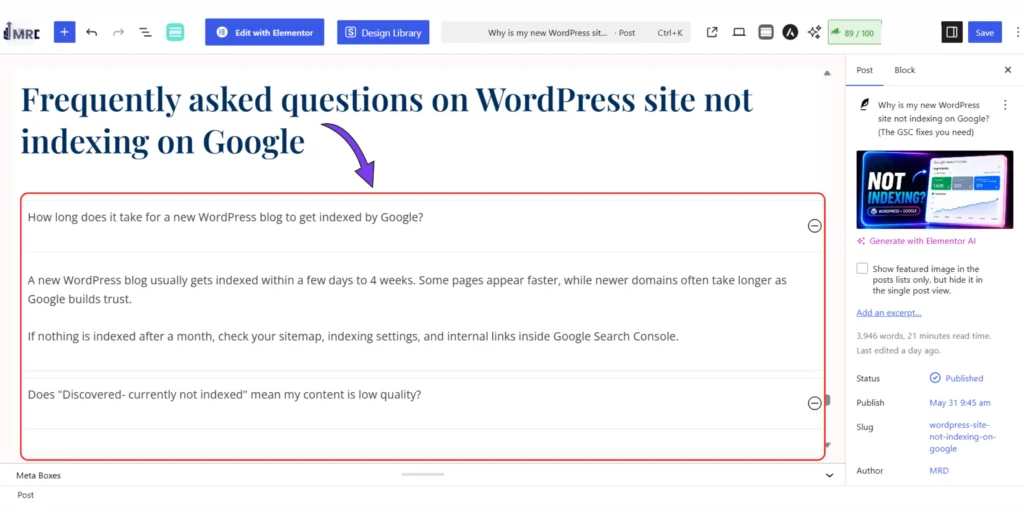
Place a table of contents near the top of the article before your first major section. Readers appreciate having a roadmap.
It allows them to skip information they already know and jump directly to the specific solution they need.
The balanced recommendation strategy
For your most important resource suggestions, tools, or product recommendations, consider testing visual callout boxes, comparison sections, or highlighted recommendation blocks alongside traditional contextual links.
Different readers interact with content differently, and offering multiple pathways often creates a better user experience.
Mobile first reality check
One mistake I made early on was designing everything on a large desktop screen. The pages looked fantastic to me. Then I checked them on a mobile phone.
Suddenly I noticed oversized images, excessive spacing, and key information hidden far below the fold.
Since then, I have made it a habit to preview every page on mobile before publishing. A simple question helps:
“Can a visitor find the answer they came for within a few seconds?”
If the answer is no, simplify the layout and move important information closer to the top.
Matching your workflow to the right no-code tool ecosystem
Choosing the right design ecosystem is often more important than chasing dozens of plugins. One of the most common mistakes beginners make is installing multiple builders and design plugins simultaneously because each one offers a feature they find interesting.
Unfortunately, this usually leads to unnecessary complexity, slower workflows, and compatibility issues.
Instead of searching for a single “perfect” tool, evaluate the two most common no-code approaches and choose the one that best matches your goals.
| System Approach | Best For | Popular Options | Trade-Off |
|---|---|---|---|
| Visual Canvas Ecosystem | Designers, marketers, and users who want extensive layout customization |
Elementor
Divi
Breakdance | Greater flexibility but a steeper learning curve |
| Native Block Ecosystem | Bloggers, publishers, and users focused on simplicity and performance |
Spectra
Kadence
GenerateBlocks | Faster workflows but fewer advanced design options |
If your goal is complete control over your website’s visual appearance, a visual builder ecosystem may be the better fit.
If your focus is publishing content efficiently while maintaining strong performance, a native block-based workflow is often the simpler option. Before adding extra design plugins, make sure you have already completed the essential setup, optimization, and performance configurations for your WordPress installation.
The most reliable strategy is to choose one ecosystem, learn it thoroughly, and use it consistently throughout your site. Keeping your setup simple reduces technical headaches, speeds up your workflow, and allows you to focus on what actually grows a website: creating useful content and serving your readers well.
Ultimately, the goal is not to build the most complicated website possible. The goal is to create a website that is easy for visitors to use, easy for you to manage, and flexible enough to grow alongside your content and business.
The goal is to create a website that is easy for visitors to use, easy for you to manage, and flexible enough to grow alongside your content and business.
PHRASE 04 . Beyond the basics : Performance and security essentials
When I first started out, I followed the standard advice found in almost every tutorial: I installed a popular free caching plugin, ran a quick scan, and felt relieved when the dashboard turned green. I assumed my website was fully optimized.
A few days later, I opened my site on my phone while moving through an area with a weak mobile connection. The experience was completely different.
Pages loaded slowly, images appeared in pieces, and the layout kept shifting as the page loaded. That was the moment I realized something important:
Website optimization isn’t about achieving a perfect score inside a plugin dashboard. It’s about how real people experience your site on real devices under real conditions.
The performance illusion (Desktop vs mobile)
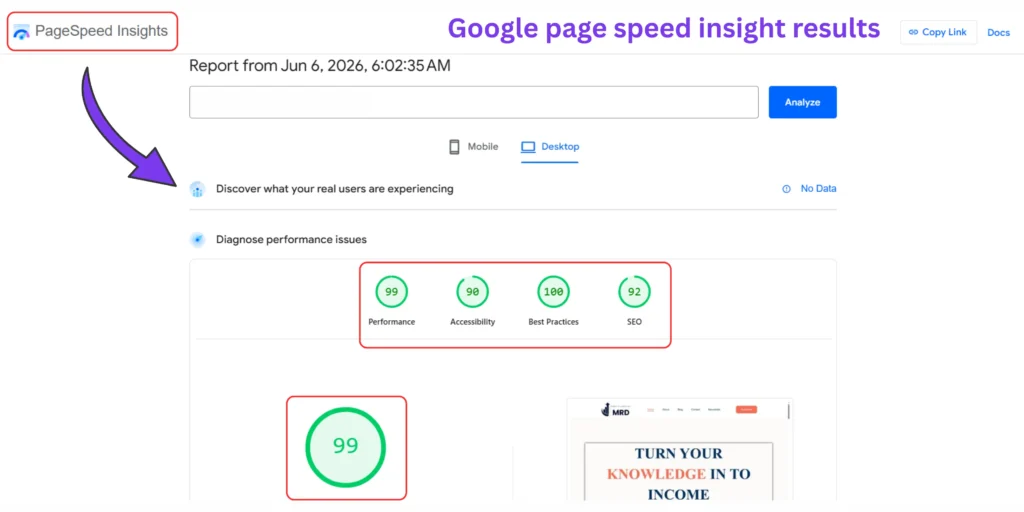
For a long time, I tested my websites only on my own computer. Everything felt fast and smooth, so I assumed visitors had the same experience.
But most users don’t browse websites like that. Many are on mobile devices, slower networks, or older phones. When I started testing from a mobile-first perspective, I noticed a completely different reality:
That shift in perspective changed how I build websites. Instead of designing for my own setup, I started designing for the most common user situation: a mobile visitor trying to find answers quickly.
03 Hidden performance issues most beginners miss
Once I started focusing on real user conditions, I kept seeing the same issues again and again.
01 . Large, unoptimized images
Uploading full-size photos directly from a camera or design tool can slow a website down significantly.
A better approach is to use modern formats like WebP, which reduce file size while keeping good visual quality.
02 . Layout shifting during load
Have you ever tried to tap a button, only for the page to move at the last second? That usually happens when the browser doesn’t know how much space an image or section will take before it fully loads.
The fix is simple: always structure your layout so elements have consistent space reserved before content appears.
03 . Heavy scripts loading too early
Some website features load extra code before your main content appears. When that happens, the page feels slow even if the actual content is small.
Delaying non-essential scripts helps your main content load first, improving the reading experience. One lesson I learned over time is that website speed isn’t really a technical topic- it’s a user experience issue.
Visitors don’t care about optimization reports. They care about whether your content appears quickly and feels smooth to use.
If you want a deeper breakdown of how to improve this, see how to speed up your WordPress website, where I explain the full optimization process step by step.
Security : Prevention is easier than recovery
It’s easy to assume that a new website doesn’t need security because “no one is targeting it yet.” I made that mistake early on.
On one project, I didn’t notice anything at first, but later I saw strange pages and spam content appearing in search results. After investigating, I found that automated bots had exploited an outdated plugin and injected unwanted content into older posts.
That experience changed how I think about website security. Good security isn’t about reacting after something breaks. It’s about reducing risk from the beginning.
The most effective protection steps are often simple:
- Keep WordPress updated
- Use strong, unique passwords
- Enable two-factor authentication
- Remove plugins you no longer use
These basic habits prevent most common issues.If you want a complete setup guide, check how to secure your WordPress website, where I explain the full protection workflow.
Most beginners assume performance and security problems come from complex technical issues. In reality, they usually come from simple choices made during setup, like image handling, plugin overload, or ignoring mobile testing.The good news is that these are easy to fix once you understand what actually causes them. The goal is not to make your website “perfect.” The goal is to make it fast, stable, and reliable for the majority of real visitors.
PHRASE 05 . The pre-launch check (avoiding critical beginner mistakes before going live)
The first time I figured out how to launch a professional website on WordPress, I was so excited that I immediately made the site public and started sharing it with others.
But after a few days, I noticed something strange. I wasn’t getting any traffic from search engines at all.
It took me far too long to realize that a small setting in my WordPress dashboard was blocking search engines from indexing the entire website. I had essentially built and published a website that no one could discover.
That experience taught me something important: The final stage before launch is just as important as building the website itself.
The pre-launch reality check
Before you start sending traffic or expecting search engine visibility, you need to make sure your website is fully ready for real users. Here’s the simple launch sequence I now follow before every site goes live:
This simple process prevents most beginner-level website failures.
01 . Search engine visibility (Most common mistake)
Inside your WordPress settings, there is an option that controls whether search engines can index your site. Make sure this setting is OFF:
“Discourage search engines from indexing this site”
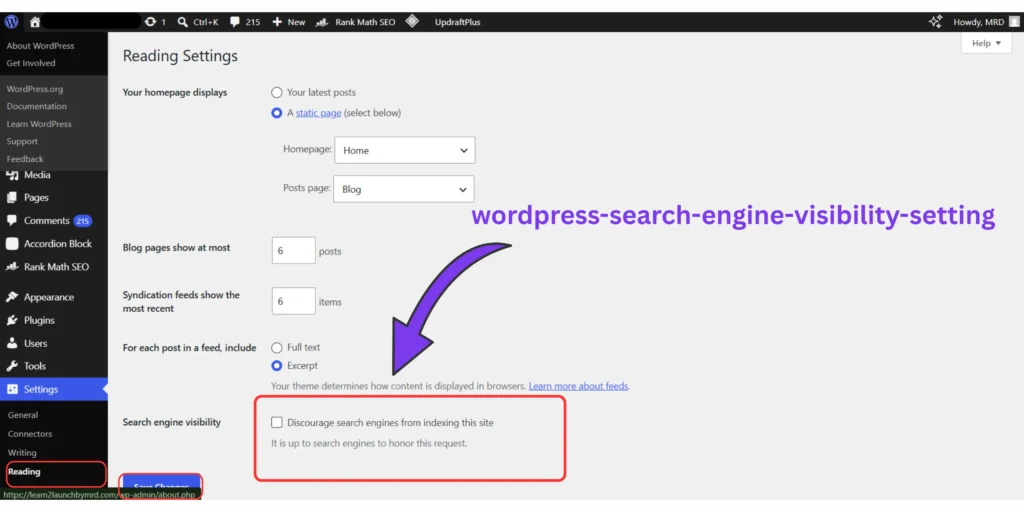
I have seen this single checkbox prevent entire websites from appearing in Google search results. It’s one of the easiest mistakes to make and one of the hardest to notice if you don’t know where to look.
02 . Test your website like a real user
Before launch, don’t assume everything works just because the pages load on your computer. Test your site properly:
- Send test messages through contact forms
- Check if emails actually arrive in your inbox
- Open key pages on both mobile and desktop
- Make sure buttons are easy to tap on smaller screens
One of the biggest beginner mistakes is assuming forms and features “just work” without testing them end-to-end.
03 . Mobile experience check
Most visitors will likely use a mobile device. Before going live, open your website on at least one Android and one iPhone (or different screen sizes if possible). Check for:
- Broken layouts
- Overlapping text
- Hart to click buttons
- Images that don’t resize properly
If something feels frustrating to use on mobile, fix it before launch.
04 . Connect Google Search Console ( Important for SEO )
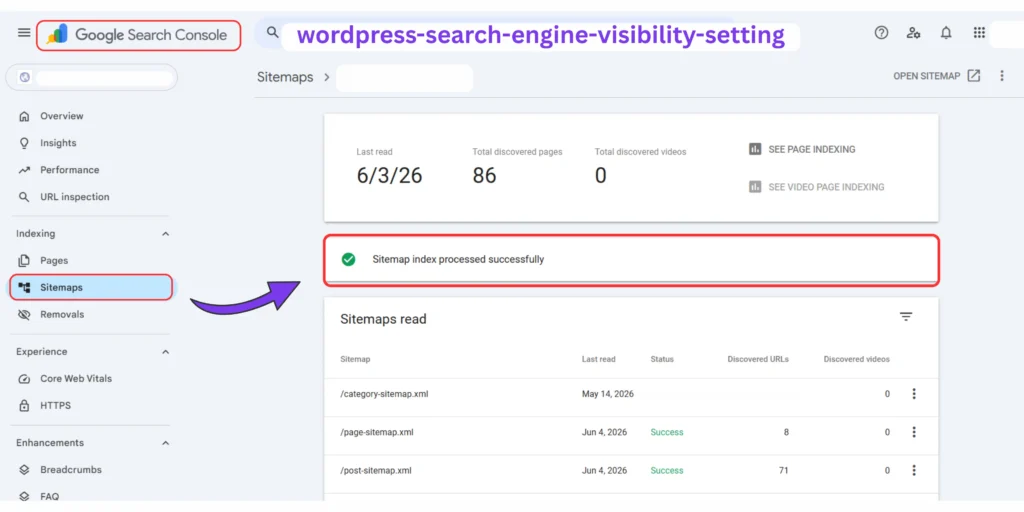
Google Search Console is what allows you to communicate directly with search engines. It helps you:
- Submit your website for indexing
- Track how your pages appear in search results
- Identify indexing or crawling issues
Setting this up early ensures your website doesn’t stay invisible after launch.
A key lesson I earned ;
One of the biggest beginner mistakes is thinking that launching a website automatically means it will appear in Google. That’s not true.
If indexing is disabled or your sitemap is not submitted, your website can remain invisible even after publishing. This is why pre-launch checks matter.
Final step : Don't skip your checklist
Before going live, take a few minutes to review a structured launch checklist. You can use:
These help you ensure nothing critical is missed before your website goes public.
A successful website launch is not about excitement or speed. It’s about ensuring that everything is correctly configured so real users and search engines can actually find and use your website without issues.
MRD
Common No-Code Obstacles and Solutions
Answers about visual page building infrastructure, launch budgets, platform ownership, and mobile rendering optimization.
Yes, you can build a professional WordPress website without writing any code. Modern WordPress tools like block editors and visual page builders let you design everything visually while the system generates the code automatically in the background.
Most beginner and even business websites today are built this way. The key difference in quality comes from using a lightweight theme and clean layout structure, not coding.
WordPress is free, but you still need hosting and a domain to make your website live. The software itself is open-source, but a domain name and hosting are required to store and display your site online. Most beginners start with low-cost plans and upgrade later.
In practice, you can launch a basic website with a very small initial budget if you stick to essential tools only.
WordPress is best for long-term flexibility, while Wix is simpler and Shopify is focused on online stores. Wix is easier for quick drag-and-drop sites, and Shopify is designed specifically for e-commerce.
However, WordPress gives you full control over your content, design, and hosting. That is why most blogs, content sites, and long-term projects are built on WordPress.
A simple WordPress website can be launched in a few hours. Installation and basic setup are very fast with modern hosting tools. The real time is spent organizing content, choosing layouts, and adjusting design settings.
From experience, beginners save a lot of time by setting global fonts, colors, and spacing before building pages instead of editing each section individually.
No, page builders do not hurt SEO if the website is properly optimized. Search engines care more about speed, structure, and user experience than how the site was built. Performance issues usually come from heavy images, too many plugins, or poor hosting.
A well-optimized no-code WordPress site can perform just as well as a custom-coded website when built correctly.
Your no-code WordPress launch framework
If there is one lesson this entire process makes clear, it is this: Building a successful website is not about complexity- it is about structure, clarity, and execution.
Most beginners get stuck not because WordPress is difficult, but because they try to learn everything at once instead of building step by step.
Now that you understand how to launch a professional website on wordpress, you already have a complete system in place. The next step is not more research—it is structured execution.
The simple framework you now have
To make everything easier to remember, your workflow now looks like this:
Each stage builds on the previous one. Skipping steps is what causes most beginner websites to fail or remain invisible.
What actually matters most
Across all the technical steps, tools, and settings, one principle consistently determines success: Your website must be built for real users first, not just for design preferences or plugin settings. If your pages are:
- easy to read on mobile
- Fat to load
- Structured for scanning
- and focused on solving a clear problem
then everything else – SEO, traffic, and monetization becomes significantly easier over time.
Final reality check
No WordPress setup is ever “perfect” at launch. Even experienced builders continue refining layouts, improving speed, and adjusting content based on real user behavior. The goal is not perfection. The goal is to build a stable foundation that you can improve over time without rebuilding everything from scratch.
Your next steps
If you are ready to continue building, the most logical next steps are:
Each of these builds directly on the foundation you’ve already created.
A successful website is not built in one perfect attempt. It is built through a clear system, consistent improvements, and real-world feedback over time. Start with structure. Launch early. Improve continuously.
Malaka Dharmarathne - MRD
Digital Marketing & Blogging growth specialist
” I help beginner bloggers build high-converting, no-code WordPress websites and master the fundamentals of SEO and content distribution. Through actionable blueprints on affiliate marketing and high-income monetization, I turn simple blogs into profitable digital businesses.“
Popular Blueprints
Table of Contents - Create a no-code website with WordPress
Build & Scale a High-Converting Blog Platform
Join thousands of creators getting actionable breakdowns on affiliate monetization, clean UX design, and growth strategy delivered straight to your incbox.
- Step-by-Step Guides: Proven traffic & monetization tactics.
- Tech Stack Curations: The exact tools & plugins to build faster.
- Zero Spam: Unsubscribe in 1 click at any time.
🔒 We respect your privacy. No spam, ever.

” I’m MRD, a digital entrepreneur specializing in building lightweight, automated systems for solo creators. I founded Learn2Launch to share the exact AI orchestration protocols and framework setups I use every day—helping you launch a profitable one-person business completely free of technical overwhelm or backend bloat.“