
I was 21 and starting my first website and I was completely overwhelmed. I remembered sitting for hours staring at the screen, terrified that one click would destroy it all. I even made the classic beginner mistake of using “admin” as my username, a move that almost cost me my site a week later!
But here is the truth I wish I knew back then, learning how to install WordPress on Hostinger in 2026 is actually the easiest part of your journey. While the web has changed, with new AI-assisted setups and WordPress 6.9 features, the core process is faster than ever.
After this my updated guide, I will show you the easiest way to setup WordPress site without coding 2026 has to offer. Whether you are launching a side hustle or a professional blog, we can get your foundation laid in less than 5 minutes.
How to install WordPress on Hostinger?
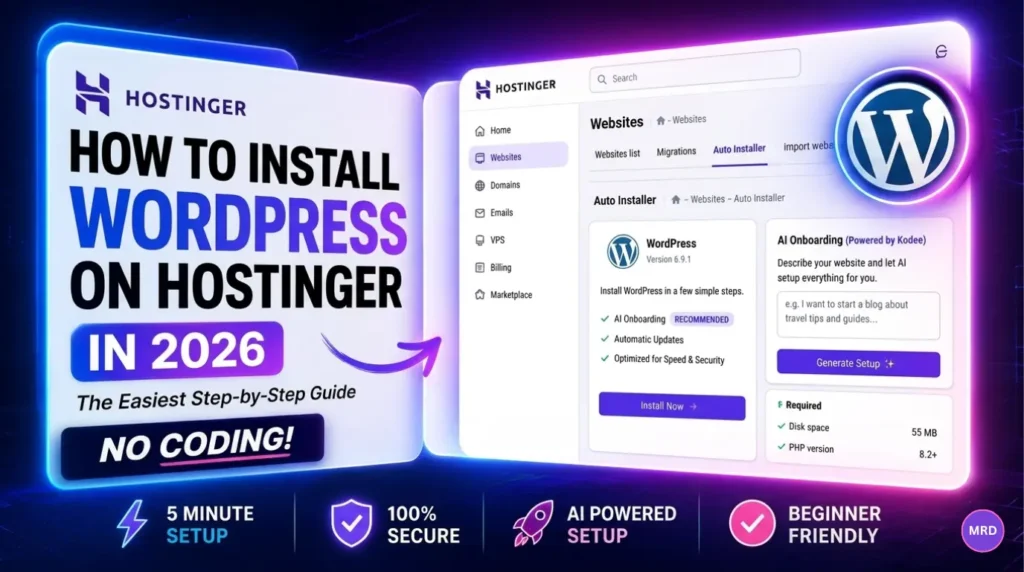
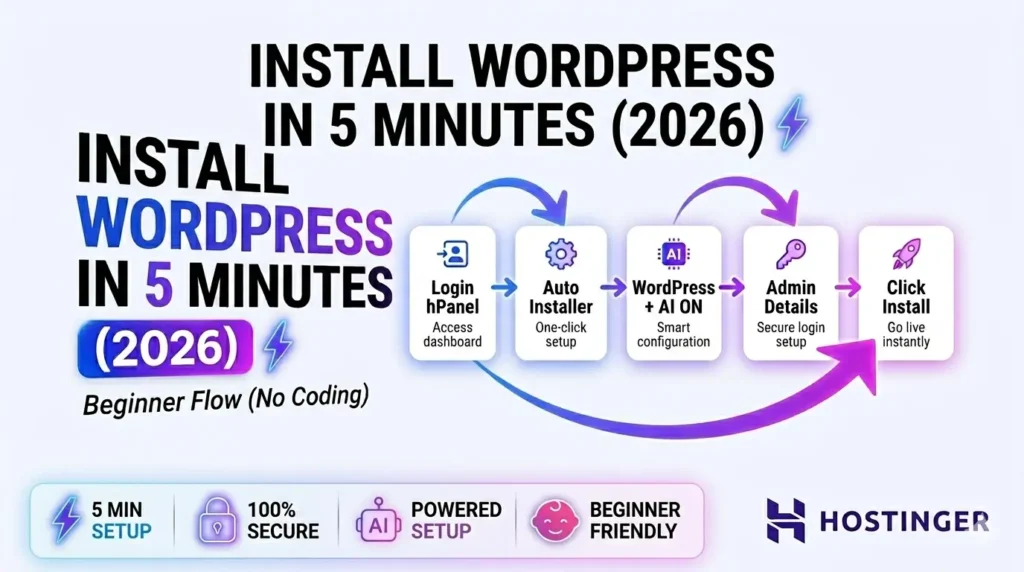
To install WordPress on Hostinger in 2026, log into your hPanel, navigate to Websites, and select Auto Installer. Choose WordPress, fill in your site details (use the AI Onboarding assistant for a custom setup), and click Install. Your site will be live with an automatic SSL in minutes.
The 2026 AI onboarding edge
One thing I love about the current setup is how much the “technical” fear has been removed. In 2026, Hostinger’s AI onboarding assistant (Powered by Kodee) and the new WordPress abilities API do the heavy lifting for us.
Now you can tell the AI about your idea when installing instead of choosing themes and settings by fingertips. It will automatically suggest a layout, colors and even essential plugins for your niche. This is like having a professional developer next to you for a beginner. However, even with AI, it is easy to trip up, I actually wrote a guide on the 15 common WordPress mistakes beginners make and how to avoid them to help you stay safe from day one.
In this guide, we will cover,
- The “Zero-Budget” checklist you need before hitting install.
- A step-by-step walk-through of the 2026 Hostinger hPanel.
- WordPress installation checklist for new bloggers 2026 to ensure you are secure
- My personal “Post-Install” routine for maximum speed.
WordPress.org VS WordPress.com in 2026 : Which one should you choose?
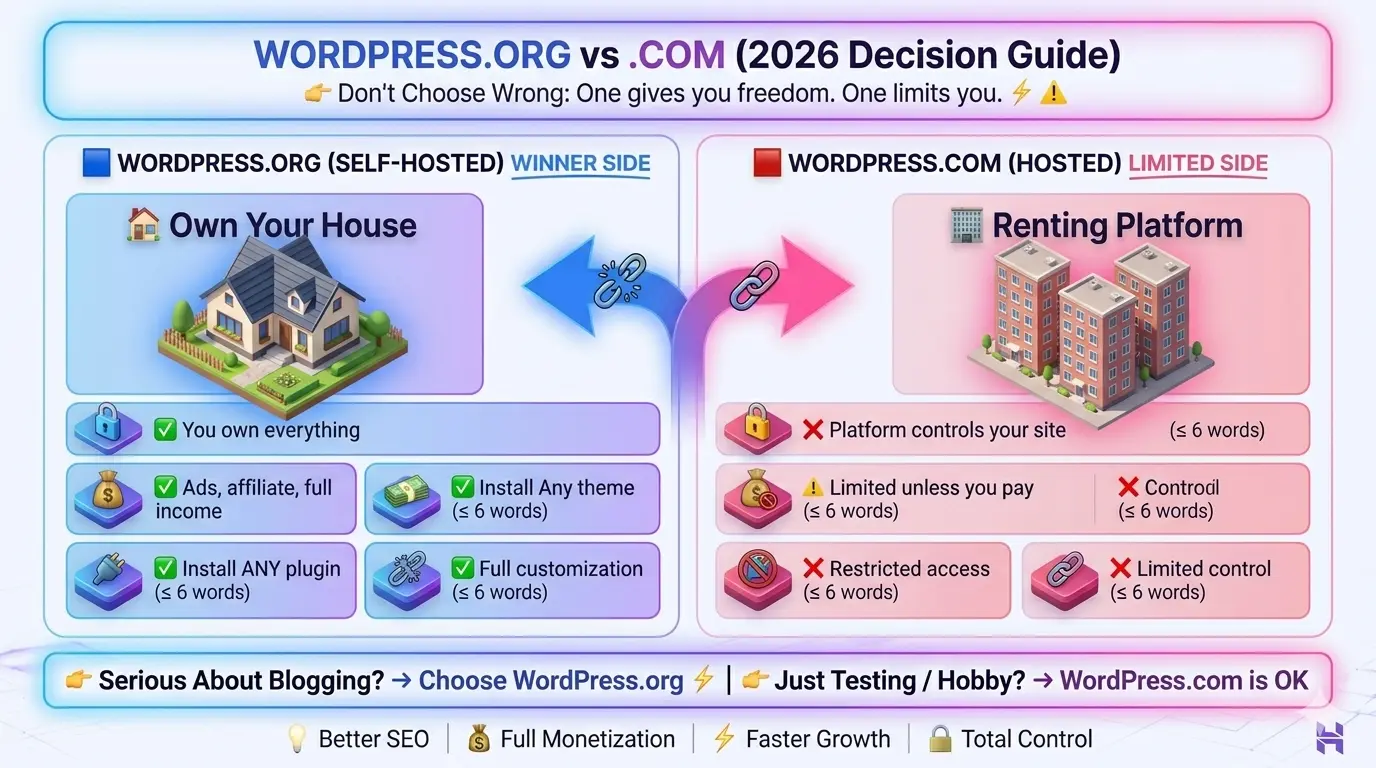
When I first started, I was constantly confused by these two. It felt like they were the same thing, but they are actually worlds apart. If you’re going to build a brand or business, the decision you make now will affect the amount of control you have later.
In 2026, the difference between WordPress.org and WordPres.com comes down to freedom. WordPress.com is like renting an apartment, it’s managed for you, but you can’t change the paint or the floor without permission. On the other hand, WordPress.org is like owning the house. Since we are using Hostinger today, we are going the “.org” route (Self-Hosted), which I always recommend for entrepreneurs.
| Feature | WordPress.org (Self hosted) | WordPress.com (Hosted) |
| Ownership | You own 100% of your data | You are a tenant on their platform |
| Monetization | Total freedom (Ads, Affiliate, Shop) | Limited unless you pay for top tiers |
| Plugins | Install anything you want | Restricted on lower plans |
If you are still feeling a bit lost on the very basics, I highly suggest you read my full guide on how to create a website with WordPress to see the big picture before we dive into the technical setup.
Your WordPress installation checklist for new bloggers 2026
Before we hit that “Install” button, we need to make sure your foundation is solid. I’ve seen so many runs that result in a disappointing domain name or hosting that crashes on their first traffic spike.
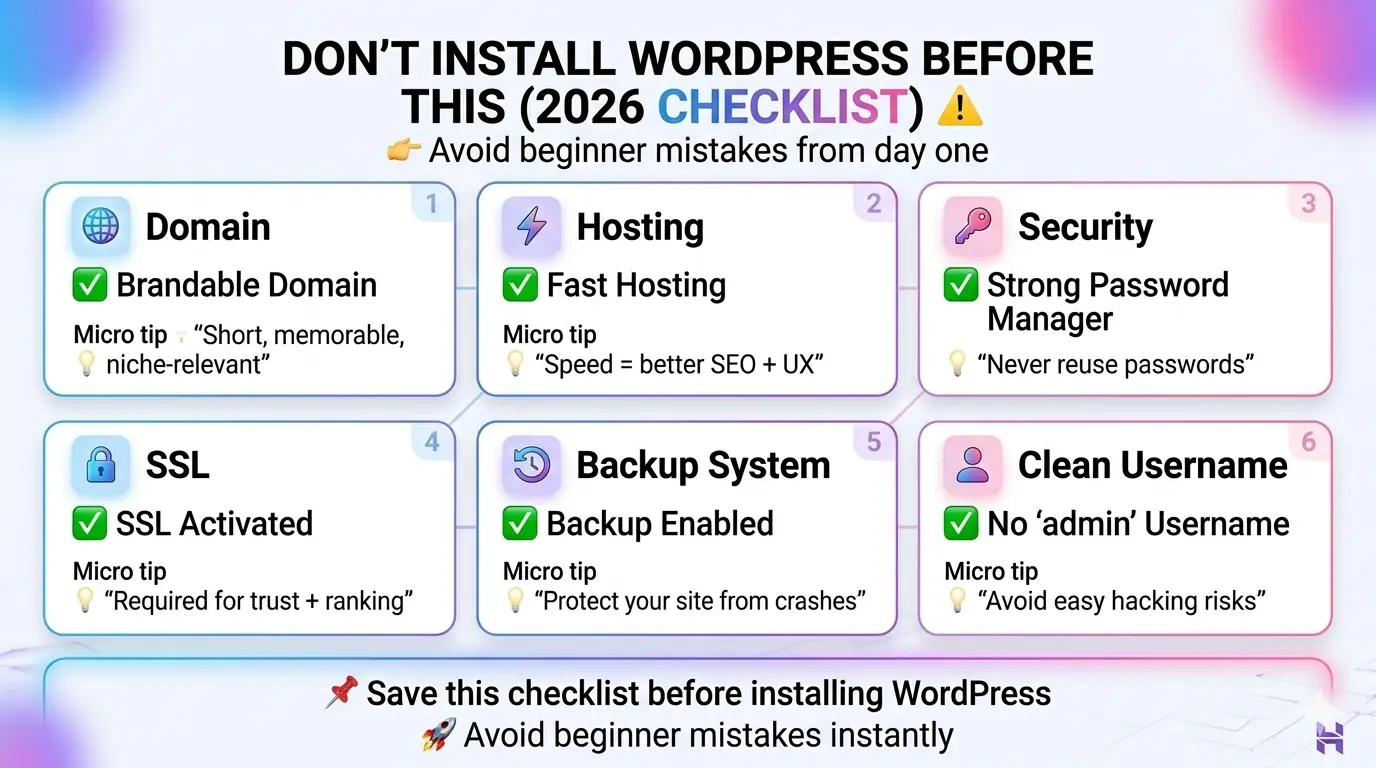
This is the WordPress installation checklist for new bloggers 2026 that I personally use for everyone of my projects,
- A “brand-able domain” : Don’t just pick something random. If you’re stuck, I’ve got you covered with my tips on how to choose a domain name for a blog that gets traffic.
- Reliable hosting : We are using Hostinger because it’s the best website hosting for small business owners who need speed without a massive price tag.
- A secure password manager : Stop using the same password for everything! Use a tool like Bitwarden or LastPass.
- An SSL certificate : Hostinger provides this for free, but make sure it’s active to see that “Padlock” icon in the browser.
How to install WordPress on Hostinger for beginners 2026 (Step by step)
I remember the first time I saw the Hostinger dashboard, I was so afraid to click on the wrong button and lose my money. I’ve set up dozens of sites for friends and clients, and I can tell you that 2026 hPanel is super user-friendly. In fact, with the new AI Onboarding assistant, you don’t even need to know what a “database” is to get started.
Here is the exact workflow I use today. It’s the easiest ways to setup WordPress site without coding 2026 has seen yet.
Step 01 – Access the auto installer
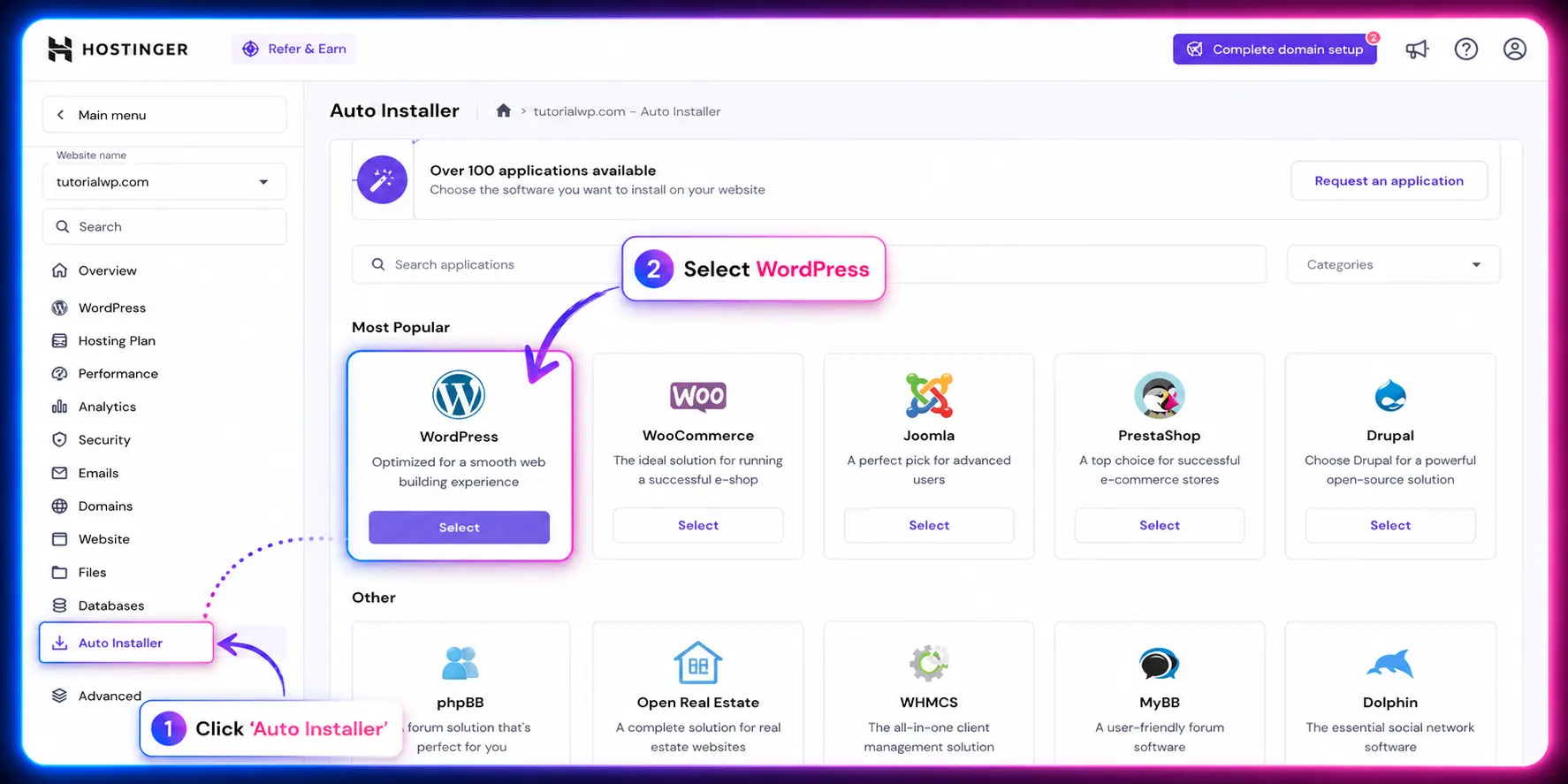
Once you log in to your Hostinger account, look for the Websites tab on the left sidebar. From there, click on Auto Installer. I always recommend this over the manual method because it automatically handles the technical backend, like creating a MySQL database and setting up your file permissions.
Step 02 . Select WordPress (with AI features)
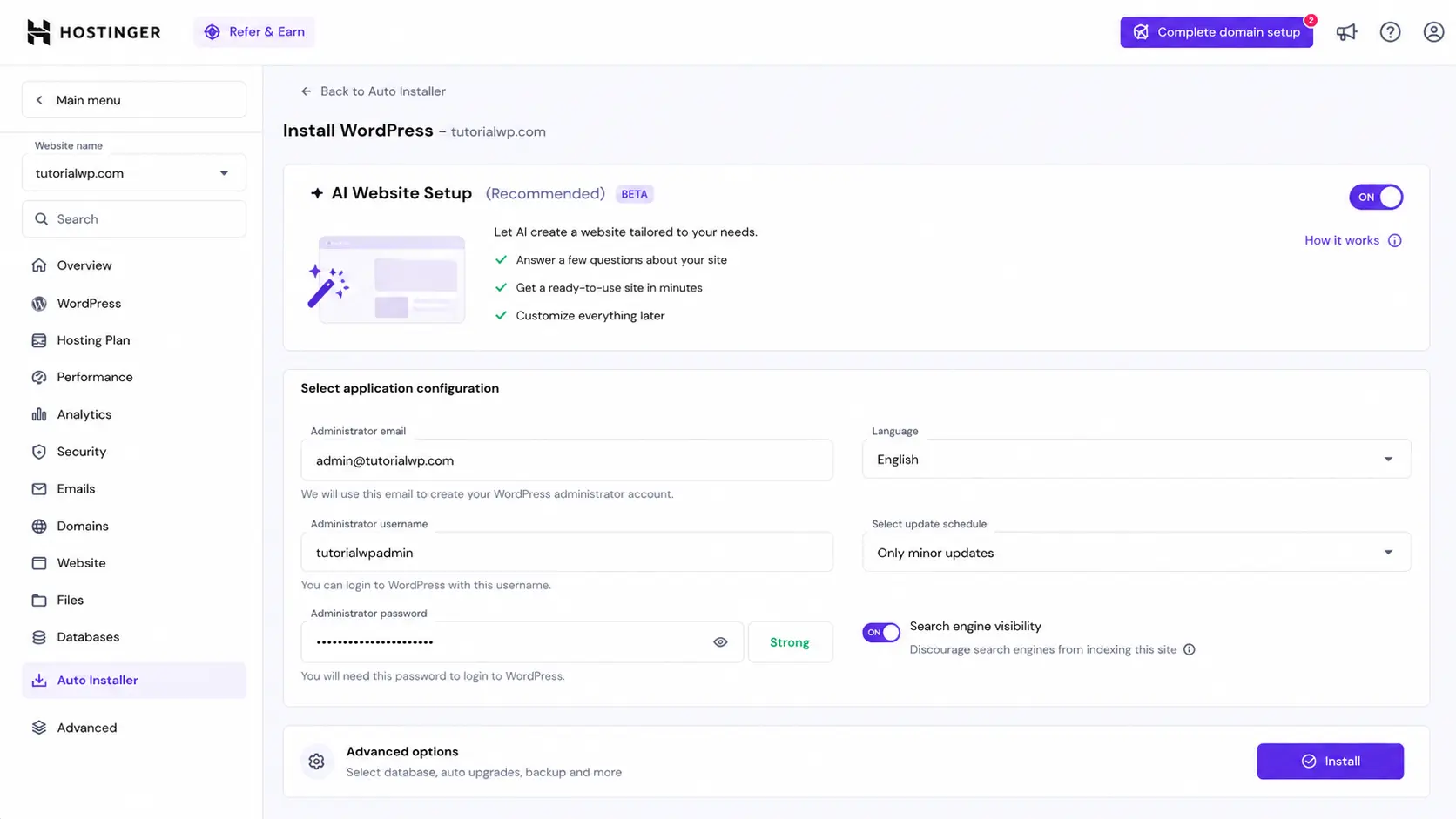
You will see a few options, but you want to choose WordPress. In 2026, you will see a new toggle for “AI-Assisted” Setup. I highly recommend keeping this on. It uses the Hostinger AI builder to help pre-configure your initial settings based on your niche, which is a huge time-saver.
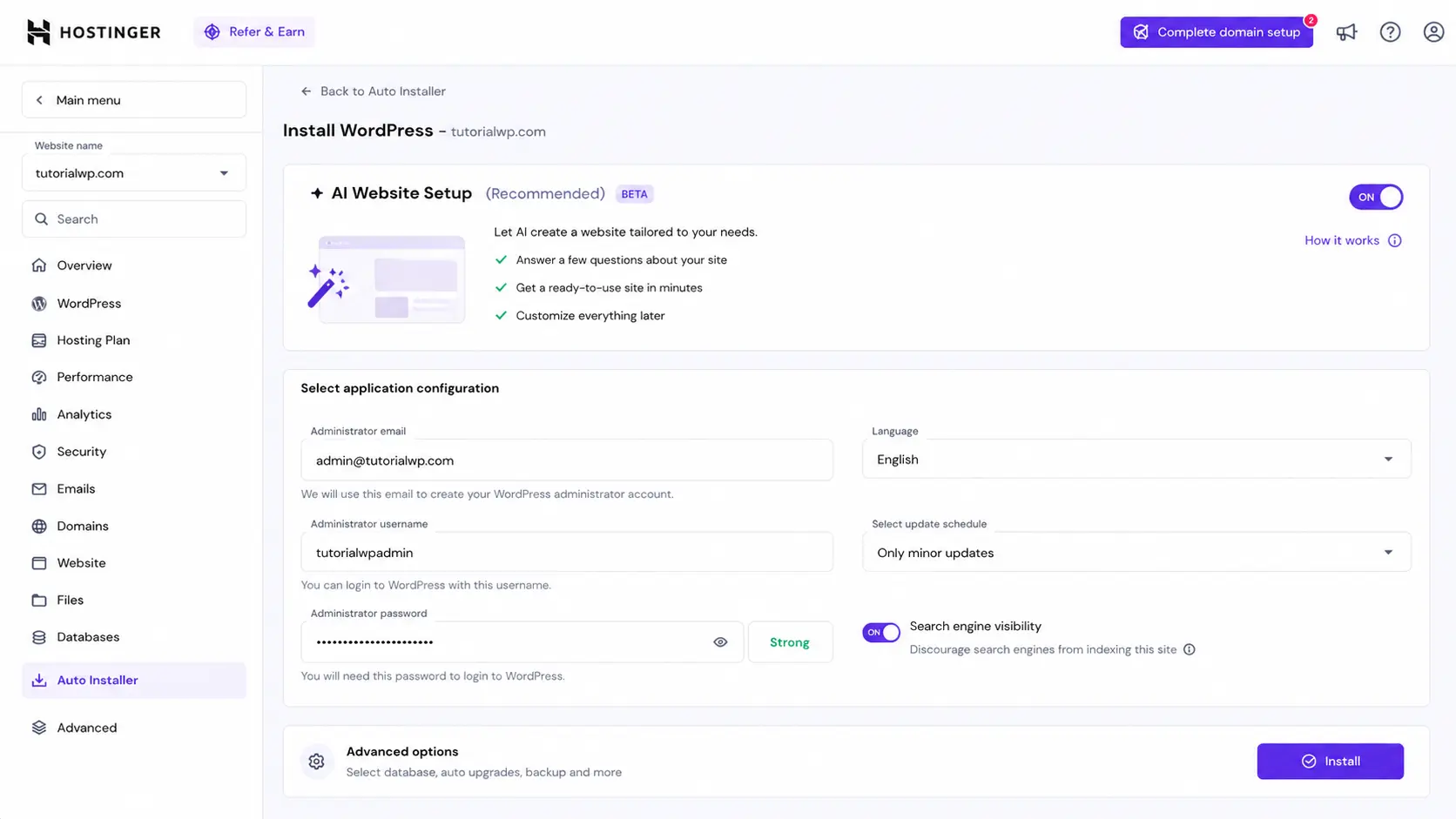
Step 03 . Configure your administrative details
This is the most important part of the WordPress installation checklist for new bloggers 2026. You will be asked for :
- Site title – Don’t worry, you can change this later.
- Admin username – STOP , Do not use “admin.” Pick something unique like your name or a custom brand ID.
- Admin password – Use a mix of symbols and numbers.
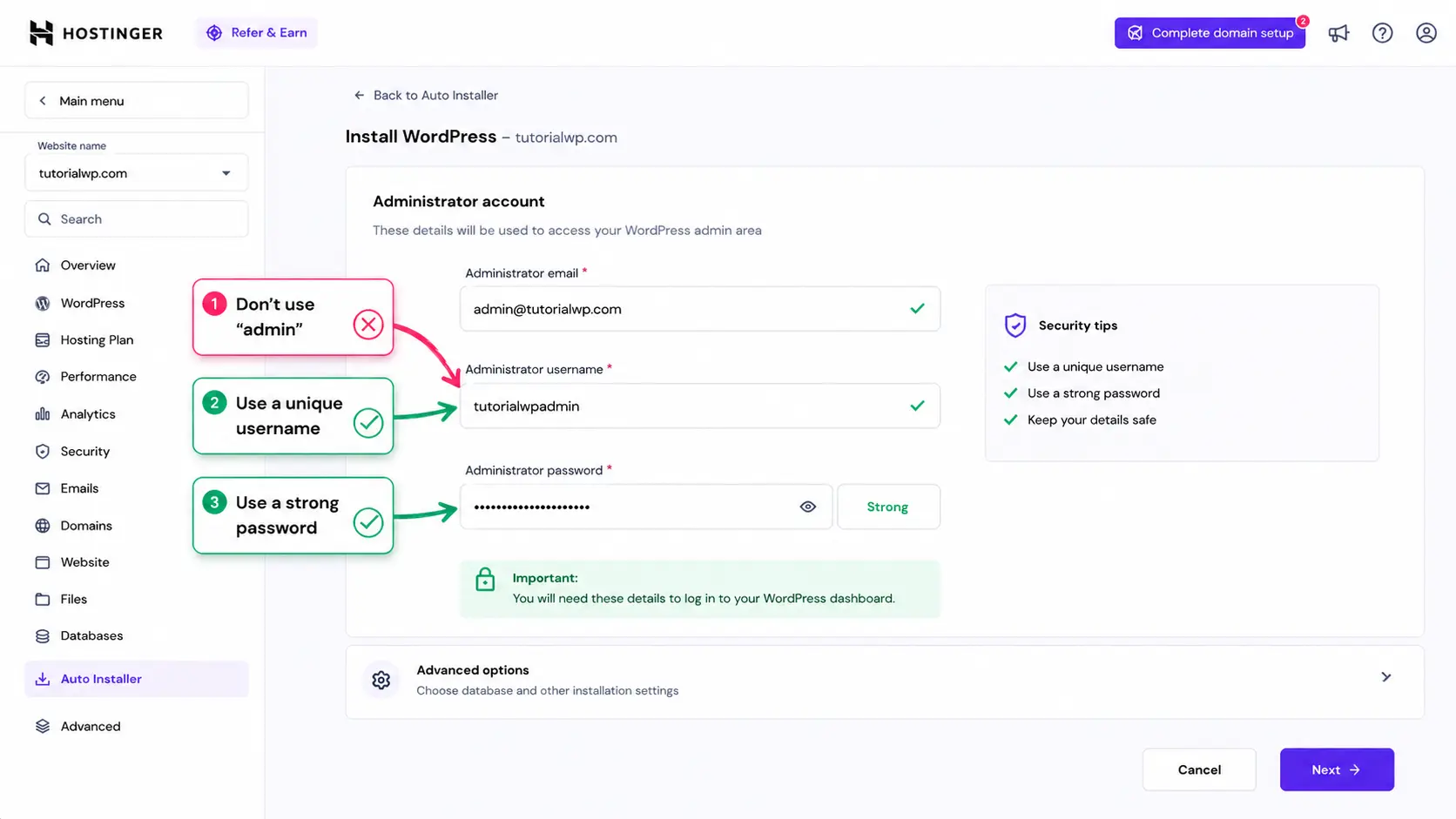
My pro tip : Hostinger now offers an “Advanced” section during install. I always tick the box for “Update only to minor version” for automatic updates. This keeps your site secure without the risk of a major update breaking your layout while you sleep.
Step 04 . Finalize and install
Hit that Install button. Generally takes 30 to 90 seconds or so. And when the bar reaches 100% your site is live! You’ve just built the foundation of your digital empire. Live site is going live. To make sure you don’t miss a single detail, I recommend keeping my ultimate WordPress launch checklist for beginners : 25 things to do before going live open in a separate tab as you move forward.
How to log into WordPress dashboard after installation?
Once the installation is finished, you might be wondering, “Okay, I have a site… but where do I actually go to write my first post?”
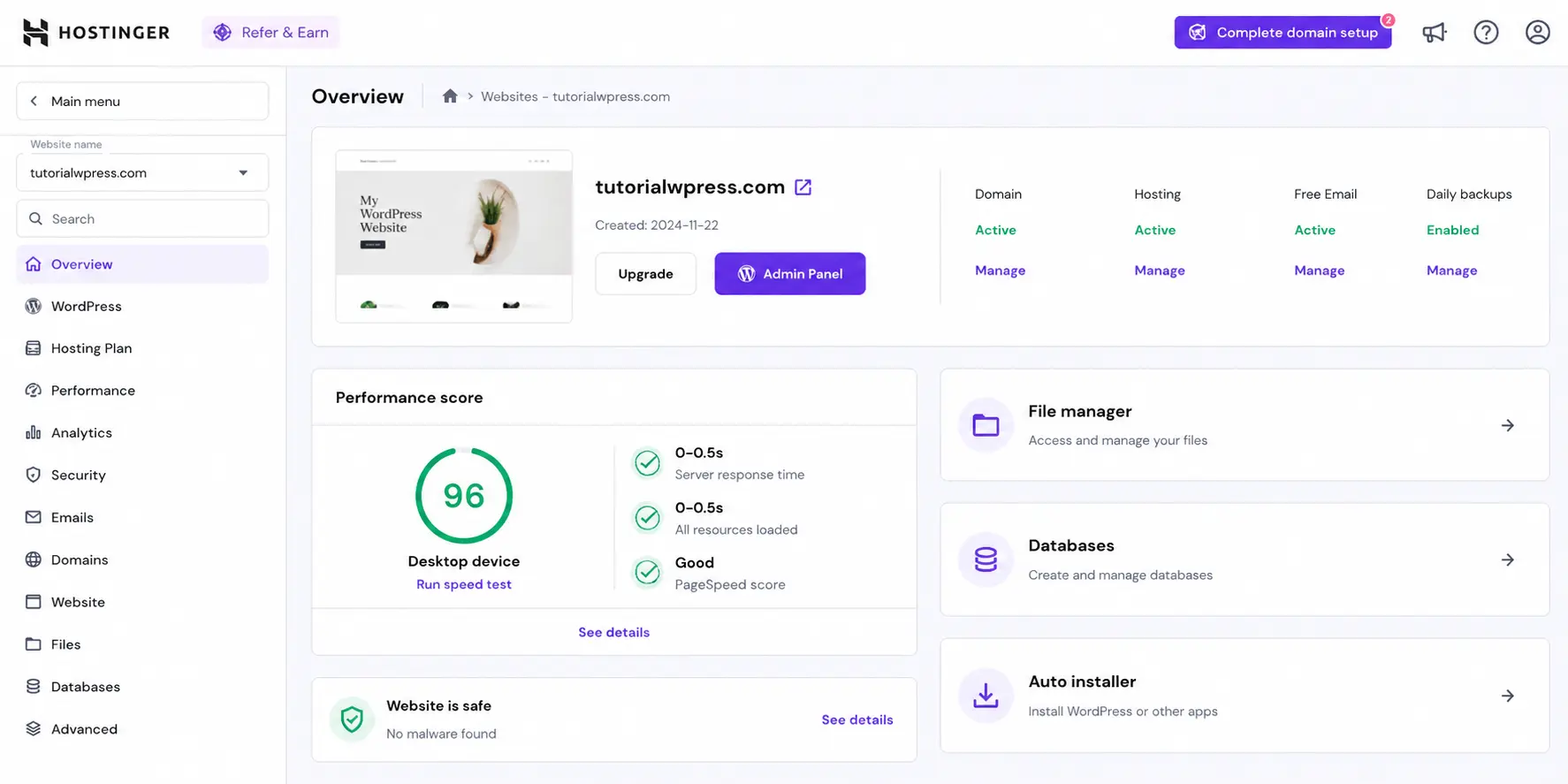
There are two ways I do this. The first is through the Hostinger hPanel by clicking the Admin panel button. But the “pro” way and the one you should memorize, is by adding /wp-admin to the end of your domain.
Example : yourdomain.com/wp-admin
This takes you to your login screen. Enter that unique username and strong password we just created. I always tell my students: Bookmark this page immediately. You will be spending a lot of time here as you how to design a website layout with WordPress that reflects your unique brand.
My experience with the first login –
The first time I logged in, it felt like I came into the cockpit of a spaceship. There are so many buttons! If you feel overwhelmed, that’s fine. Most of those buttons are for settings you just touch once. To get you comfortable quickly, you should check out my guide on the quick settings after installing WordPress that every beginner should change right away.
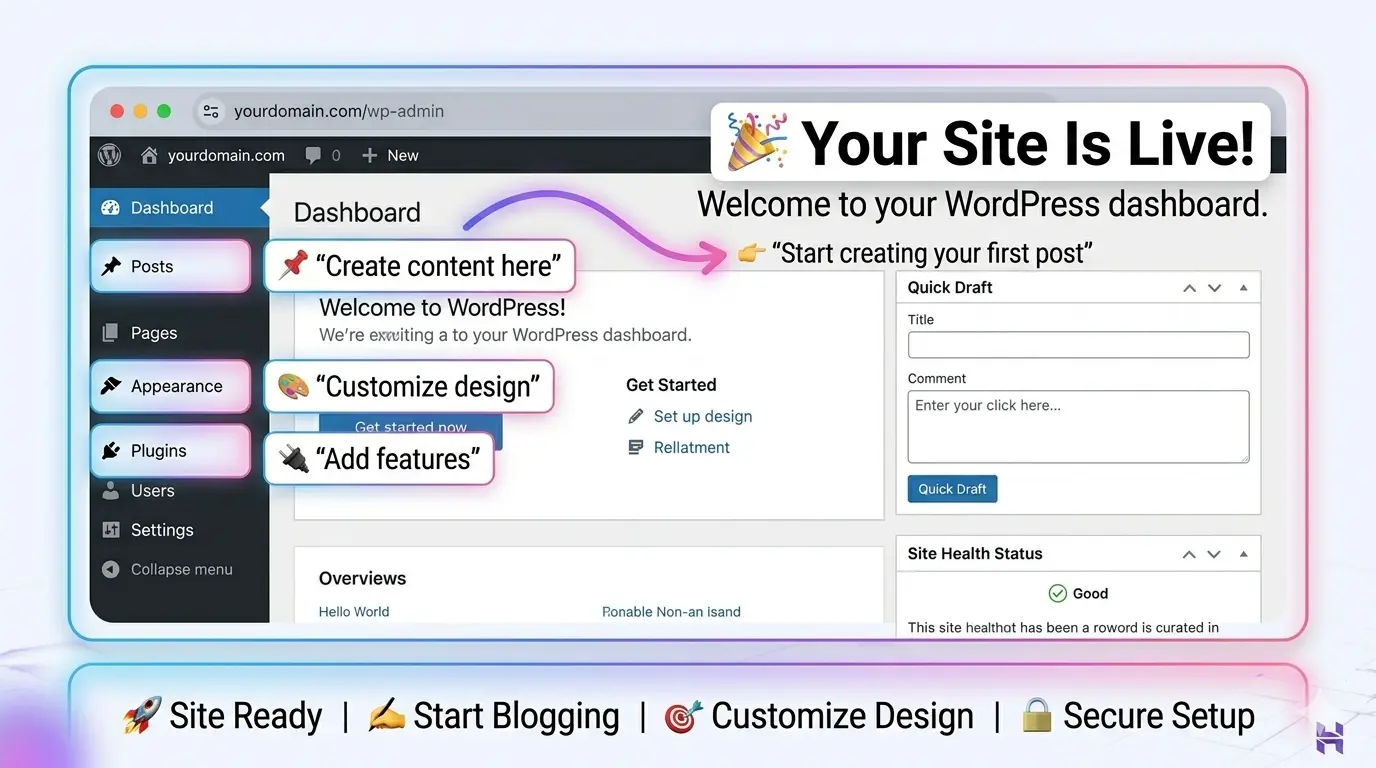
After your site is live and the excitement has become off, it’s easy to just start writing. But hold on! Based on my experience, these five small tweaks make a massive difference in how Google sees your site. If you don’t do these, you will probably spend hours fixing these later.
Now I will show you the WordPress 2026 best practices I follow every new launch:
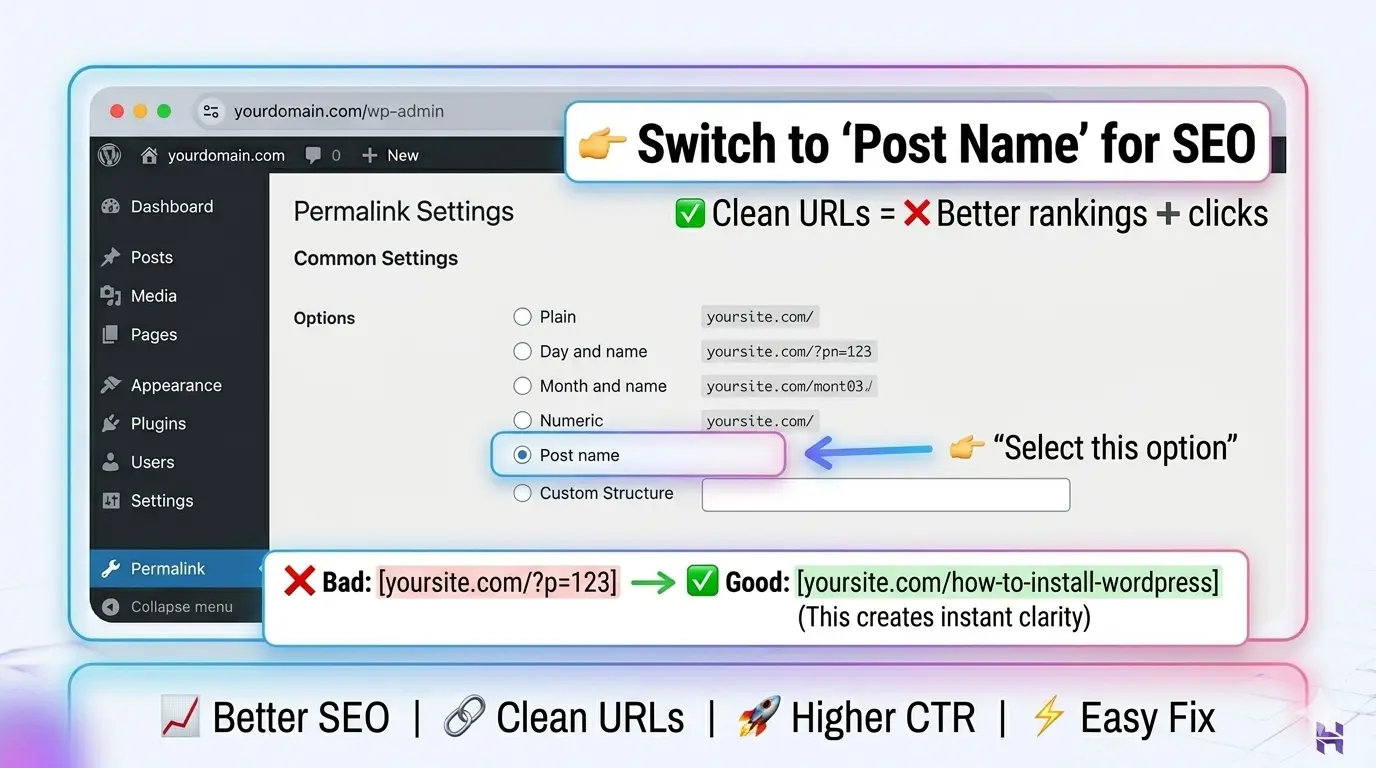
- Optimize your permalinks : By default, WordPress uses messy URLs. Go to Settings > permalinks and select “Post Name“. This ensures your links look clean (e.g., yoursite.com/how-to-install-wordpress/) instead of a string of random numbers.
- Delete the “Ghost” content : Every installation comes with a “Hello World” post and a “Sample Page”. Delete these immediately so they don’t get indexed by Google.
- Install a lightweight theme : A fast site is a ranking site. I always recommend starting with a high-performance theme. If you aren’t sure which one to pick, I have a guide on how to choose the best WordPress themes for your website to help you decide between Astra, Kadence, or GeneratePress.
- Set your site health to “Exellent” : se the built-in Site Health tool to ensure your server is running PHP 8.2 or higher. Speed is a huge factor, and I’ve shared my secrets on how to speedup your WordPress website to help you hit that 90+ score on PageSpeed Insights.
- The “Golden” plugins : Don’t bloat your site. I stick to a strict list of essentials for SEO, security, and performance. In fact, don’t launch your website without these 10 WordPress plugins if you want to stay ahead of the competition.
My recommendation – In 2026, I also recommend checking your “Site Language” and “Timezone” in General Settings. It sounds small but it ensures your scheduled posts go live exactly when your audience is awake!
Frequently asked questions on How to install WordPress on Hostinger in 2026
How long does it take to install WordPress on Hostinger 2026?
In 2026, installing WordPress on Hostinger takes less than 3 minutes via the hPanel Auto-Installer. By utilizing the integrated AI Onboarding assistant, your entire site structure, including essential SEO and security plugins is fully configured and live in under 5 minutes.
Speed in 2026 is no longer just about the script execution; it’s about “deployment readiness.” When I set up sites today, I use Hostinger’s new ai-assisted setup which handles the manual labor of provisioning SSL certificates and configuring Global CDNs simultaneously. This means by the time you reach your dashboard, your site isn’t just “installed”, it’s globally optimized and secure, a process that used to take me an hour of manual tweaking.
Grab my ultimate WordPress launch checklist for beginners to see exactly what to do in those first 5 minutes.
Is WordPress free to use in 2026?
Yes, the WordPress.org software is 100% free and open-source. However, to make your site accessible on the internet, you must pay for a domain name and a hosting provider like Hostinger. In 2026, self-hosting remains the most cost-effective way to maintain full ownership of your digital assets.
Think of WordPress as the engine of a car; it’s free, but you still need the chassis (Hosting) and the license plate (Domain) to get on the road. Many beginners fall into the “free platform” trap, only to realize they don’t own their content. By choosing the self-hosted route we discussed, you avoid the “Renter’s Tax” of proprietary builders and keep 100% of your ad and affiliate revenue.
Compare the real costs in my guide on the best website hosting for small business.
Do I need coding skills to install WordPress in 2026?
No, you do not need any coding skills to install WordPress. Modern 2026 hosting environments use “No-Code” visual installers and AI agents like Kodee that handle database creation, PHP configurations, and script execution entirely in the background.
We have officially entered the era of the “AI-Orchestrator”. Instead of writing lines of code, you now use conversational prompts and “Command Palettes” (Ctrl+K) to manage your site. When I started at 19, I had to fearfully edit .php files, today, I simply tell the AI what I need, and it executes the technical backend. This shift allows you to focus on being a “Content CEO” rather than a technician.
See this in action in my guide on how to design a website layout with WordPress.
Can I change my WordPress username from “admin” after installation?
You cannot directly rename a username, but you can create a new administrator user with a unique ID and then delete the original “admin” account. In 2026, this remains the #1 security protocol to prevent automated “Brute Force” attacks.
Using “admin” is like leaving the key in your front door with a sign that says “Welcome.” Hackers use bots to scan millions of sites for that specific username. In my own journey, I almost lost a client site because of this one mistake. Today, I use a unique, brand-specific username during the Hostinger setup to ensure the login path is invisible to intruders from second one.
Follow my high-level security protocol in how to secure your WordPress website
What is the difference between WordPress.org VS WordPress.com in 2026?
The core difference is ownership vs tenancy. WordPress.org is a self-hosted platform where you own 100% of your data and monetization rights. WordPress.com is a hosted service where you “rent” space and face significant restrictions on plugins and ads unless you pay for expensive enterprise tiers.
In 2026, this choice is more critical than ever due to AI integration. On WordPress.org (the version we used with Hostinger), you can install any AI content creator or custom API you want. On the “.com” version, you are often locked into their specific ecosystem. If your goal is to build a scalable business that you can eventually sell, the freedom of a self-hosted site is non-negotiable.
Read the full breakdown in how to create a website with WordPress
You have takes the first step : What’s next for your WordPress site?
Congratulations! If you’ve followed along, you’ve officially mastered how to install Hostinger for beginners 2026. I still remember the rush of adrenaline I felt when my first site went live, it’s the moment your ideas stop being “just a dream” and start being a digital reality.
But as I’ve learned over the years, the installation is only the base of your house. If you want to really stand out in 2026 you need a site that is fast, beautiful and most importantly secure. Now that you’ve bypassed the easiest way to setup WordPress site without coding 2026 offers, your next goal is to turn that blank canvas into a professional brand.
My personal advice for your first 24 hours
If I was sitting next to you right now I’d tell you to breathe, take it one step at a time. Don’t try to do everything now. My “Success Blueprint” for you in 2026 is simple:
- Secure the perimeter : Use my guide on How to secure your WordPress website to make sure you never have to deal with the “admin” username mistake I made.
- Focus on speed : A slow site is a dead site. Follow my steps on how to speedup your WordPress website before you start adding heavy images.
- Find your aesthetic : Start exploring how to design a website layout with WordPress so your site feels like you.
WordPress install is the spark but consistency is the fuel. Whether you are building this for your business or any special audience, the tools are now in your hands. I can’t wait to see what you launch!
Have you any question about your WordPress installation? Drop a comment below! I read every single one and love helping fellow entrepreneurs get their start. And don’t forget to grab your ultimate WordPress launch checklist for beginners : 25 things to do before going live so you can launch with 100% confidence.