
You’ve built your WordPress website — and it looks amazing. But here’s the thing: if your site isn’t secure, everything you’ve worked hard for could disappear overnight.
From malware attacks to brute-force logins, thousands of WordPress sites are hacked daily. The truth is, website security isn’t just for tech experts — it’s for every website owner, especially beginners who are just starting out.
That’s why today, we’re diving deep into how to secure your WordPress website using easy, beginner-friendly steps you can apply right now — even if you’ve never touched code before.
By the end of this guide, you’ll understand:
- The common security risks WordPress users face.
- The best WordPress security practices that actually protect your site.
- The top security plugins every beginner should install.
- How to keep hackers and malware away — without spending a fortune.
If you haven’t set up your site yet, check out “how to create a website with WordPress” — it’s the perfect foundation before diving into security.
explaining…..
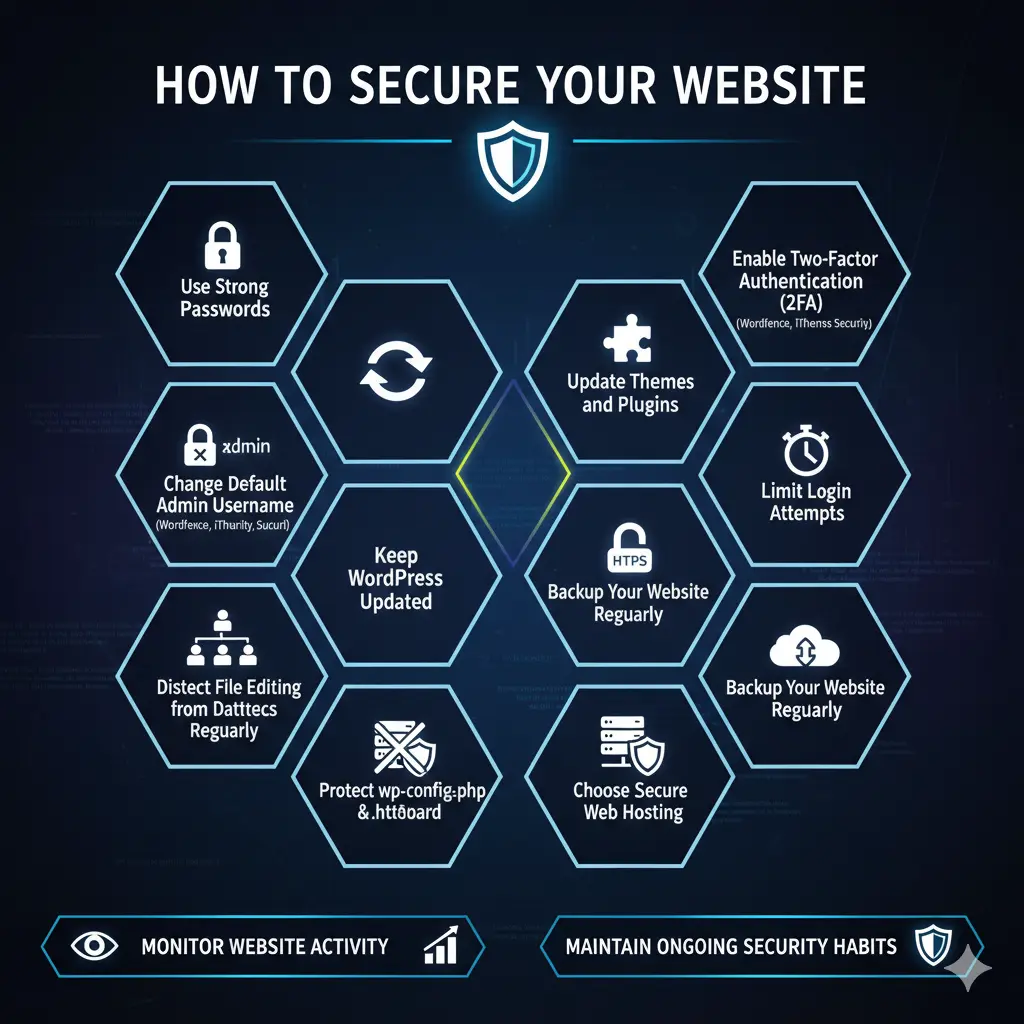
1. Understanding how to secure your WordPress website and Why WordPress Security Is So Important
WordPress powers over 40% of the internet. That’s huge — and it’s also why hackers love targeting it.
When you install WordPress, you get an open-source platform that’s powerful but flexible. The same flexibility that makes it easy to build your dream site also means security depends on how you manage it.
Here’s why securing your WordPress website is non-negotiable:
- Data protection: If your site collects user data (emails, contact forms, or payments), a breach can expose sensitive information.
- SEO reputation: A hacked site can be blacklisted by Google — and your hard-earned traffic will vanish.
- Customer trust: Visitors won’t return to a website flagged as “unsafe.”
- Financial stability: If you’re running an affiliate blog or online business, one attack can cost you revenue, time, and credibility.
prevention is easier than recovery. A few proactive steps now can save you from future chaos.
2. Keep Everything Updated (Core, Themes, and Plugins)
One of the simplest and most effective WordPress security tips is keeping your site updated.
Every WordPress update includes security patches to fix known vulnerabilities. When you ignore them, you’re basically leaving the door open for hackers.
Here’s what you should regularly update:
- WordPress core files: Major and minor releases often fix security loopholes.
- Themes: Outdated themes can contain unpatched vulnerabilities.
- Plugins: Even one outdated plugin can compromise your whole website.
Enable automatic updates for minor WordPress releases. For major updates, test them in a staging environment first.
If you’re still exploring WordPress essentials, read “What Are the Useful WordPress Plugins?” — it explains which plugins are worth keeping updated.
3. Use Strong, Unique Passwords and 2 Factor Authentication
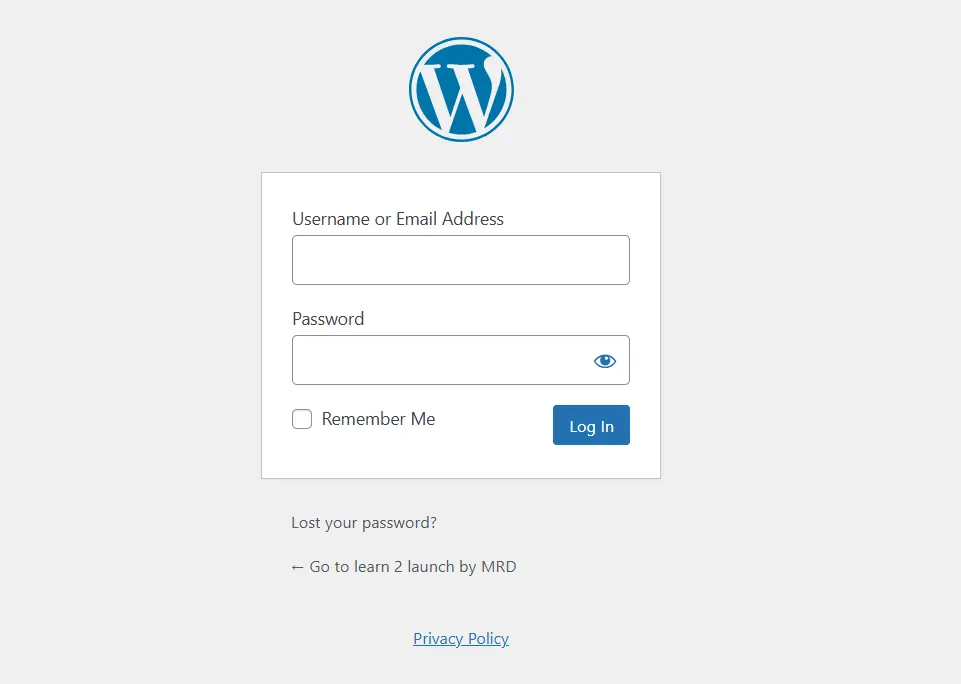
This sounds basic — but it’s where most beginners slip up. Weak passwords are the easiest way for hackers to gain access.
Follow these WordPress security best practices for passwords:
- Use at least 12 characters combining uppercase, lowercase, numbers, and symbols.
- Avoid using your site name, admin, or birth year in your password.
- Use a password manager like 1Password or Bitwarden to store them safely.
Add 2 Factor Authentication (2FA)
2FA adds another verification step when logging in — like entering a code from your phone. This drastically reduces unauthorized access.
Popular plugins for 2FA include:
- Wordfence Login Security
- WP 2 Factor Authentication
- Google Authenticator – Two Factor Authentication
4. Change the Default “Admin” Username
During installation, WordPress often defaults your username to “admin.” Hackers know this — it’s the first username they try in brute-force attacks.
To protect your WordPress site from hackers, change the default admin username:
- Create a new user with administrator privileges.
- Log in with the new account.
- Delete the old “admin” account.
- Assign all old posts to the new user.
It’s a quick change that blocks one of the most common attack routes.
Website speed and security go together — a faster site is harder to attack. Here’s my step-by-step guide to speeding up your WordPress website.
5. Install a Reliable WordPress Security Plugin
If you’re not a technical person, security plugins are your best defense. They handle scanning, firewall protection, and malware removal automatically.
Here are some of the best WordPress security plugins:
- Wordfence Security – Great all-around protection, includes firewall and malware scanner.
- iThemes Security – Focuses on locking down login attempts and hiding sensitive files.
- Sucuri Security – Offers monitoring, malware cleanup, and protection from DDoS attacks.
Plugin Settings Checklist:
- Enable firewall and real-time scanning.
- Turn on login attempt limits (e.g., block after 3 failed tries).
- Set up email alerts for suspicious activity.
- Schedule automatic malware scans weekly.
6. Limit Login Attempts and Use Login Lockdown
Hackers use brute-force attacks — where they try multiple password combinations until they get in.
Limit login attempts so users can only try a few times before being temporarily locked out.
Recommended plugins:
- Limit Login Attempts Reloaded
- Login LockDown
Combine this with two-factor authentication for maximum protection.
7. Secure Your Website with an SSL Certificate (HTTPS)
If your site still uses HTTP, switch to HTTPS immediately.
SSL (Secure Socket Layer) encrypts data between your website and visitors, preventing hackers from stealing sensitive information.
Why HTTPS Matters:
- Builds trust with your audience.
- Prevents data interception.
- Boosts Google rankings (Google prioritizes secure sites).
Most web hosts offer free SSL certificates via Let’s Encrypt. You can also use plugins like Really Simple SSL to set it up in one click.
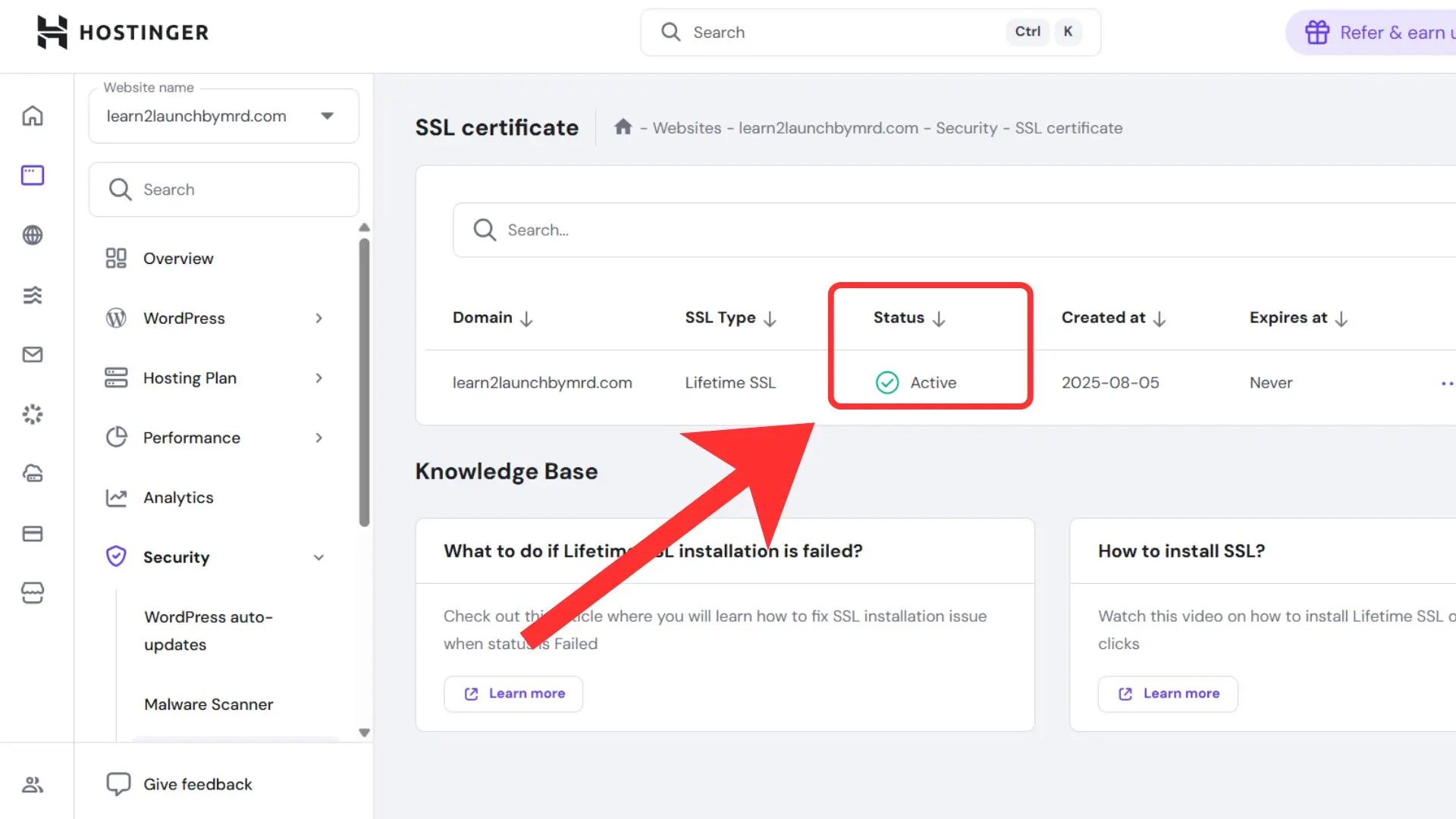
If you followed our earlier post how to create a website with wordpress ?”, this is the perfect next step to professionalize your site.
8. Backup Your Website Regularly
Even the most secure websites can face unexpected problems — and backups are your insurance policy.
Use automated backups so you can restore your site anytime.
Top backup plugins include:
- UpdraftPlus – Free and beginner-friendly.
- BlogVault – Great for managed backups and staging.
- Jetpack VaultPress Backup – Real-time cloud storage.
Backup Tips:
- Schedule daily or weekly backups.
- Store copies in multiple locations (e.g., cloud + local).
- Test restore options periodically.
9. Disable File Editing from the WordPress Dashboard
By default, WordPress lets admins edit theme and plugin files directly from the dashboard. While convenient, it’s risky — if a hacker gains access, they can inject malicious code instantly.
To disable file editing:
- Access your wp-config.php file.
- Add this line of code:
define('DISALLOW_FILE_EDIT', true); - Save the file and upload it.
Simple yet powerful — this blocks anyone (including hackers) from editing files through the dashboard.
10. Use Secure Web Hosting
Not all hosting providers are equal. A secure host provides built-in protection against attacks and ensures your website’s uptime.
Look for hosts that offer:
- Free SSL certificate
- Firewall and DDoS protection
- Automatic backups
- 24/7 monitoring and support
Some of the most secure WordPress hosting providers are:
- SiteGround
- Hostinger
- Bluehost
- WP Engine
- Kinsta
11. Protect the wp-config.php and .htaccess Files
Your wp-config.php file holds your database login details and critical configuration data. Protect it by limiting access.
Add this code to your .htaccess file:
<files wp-config.php>
order allow,deny
deny from all
</files>
This makes the file inaccessible to anyone from the web.
You can also secure your .htaccess by disabling directory browsing:
Options -Indexes
Even the most secure WordPress site can become vulnerable if it’s built on top of common beginner mistakes — like using “admin” as the username, ignoring updates, or installing too many unnecessary plugins. If you’re just starting out, it’s worth learning what to avoid before you dive too deep into security tweaks. You can check out my full guide on 10 Common WordPress Mistakes Beginners Make (and How to Avoid Them) — it walks you through the most overlooked setup errors and how to fix them step by step.
12. Scan for Malware and Security Threats Regularly
Regular malware scanning is a must — it helps detect infected files before they spread.
Use these WordPress security best practices:
- Schedule weekly scans with plugins like Wordfence or Sucuri.
- Review reports for suspicious file changes.
- Clean up or quarantine infected files immediately.
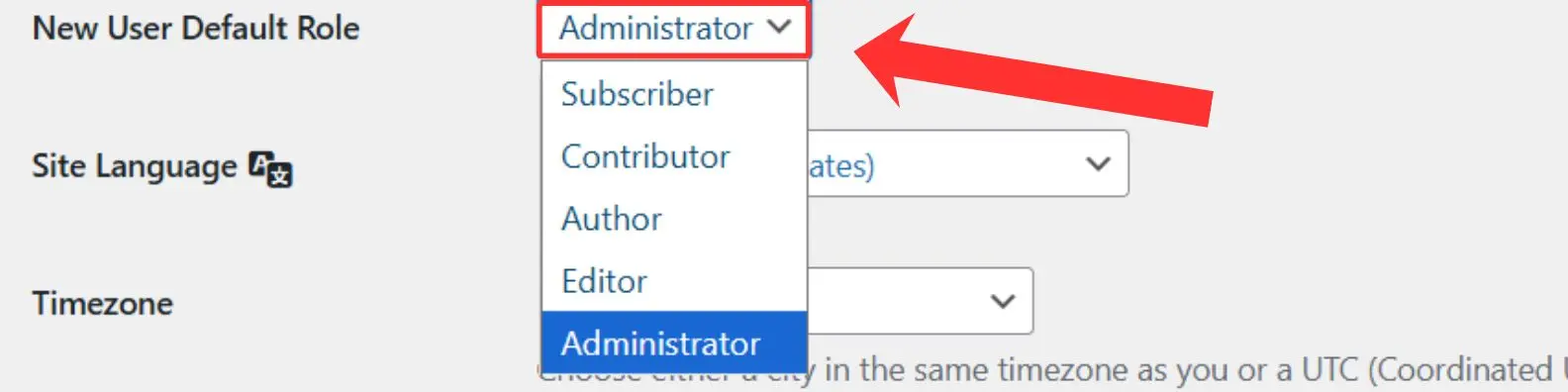
13. Limit User Roles and Permissions
If multiple people manage your site, don’t give everyone admin rights.
Assign roles carefully:
- Administrator: Full access — reserve for yourself.
- Editor: Content management only.
- Author/Contributor: Limited publishing rights.
This ensures no one accidentally (or intentionally) compromises your website security.
14. Monitor Your Website Activity
Keep an eye on what’s happening behind the scenes.
Activity log plugins like WP Activity Log or Simple History show:
- Who logged in/out
- What files were changed
- What plugins were updated
This transparency helps you detect suspicious actions fast.
15. Keep Learning and Stay Proactive
WordPress security is not a one-time task — it’s an ongoing process. The more your website grows, the more you need to update, audit, and adapt.
Ongoing Security Routine:
- Review your plugins monthly.
- Run manual malware scans.
- Keep backups offsite.
- Rotate passwords every 3–6 months.
✅ WordPress Security Checklist
Check off each step as you implement it to secure your website:
Why should I secure my WordPress website?
Securing your WordPress website protects your data, visitors, and reputation. Following WordPress security best practices prevents hacks, malware, and data loss.
What are the top WordPress security tips for beginners?
Key beginner-friendly tips include:
Enable SSL (HTTPS) and schedule backups
Keep WordPress, themes, and plugins updated
Use strong passwords and two-factor authentication
Install a security plugin like Wordfence or iThemes Security
Which WordPress security plugins are best?
Popular options: Wordfence, iThemes Security, and Sucuri Security. They help scan, monitor, and protect your site automatically.
How often should I back up my site?
Backup weekly or daily if you update content frequently. Use plugins like UpdraftPlus or BlogVault for automated backups.
Can I secure my WordPress site without a plugin?
Yes. Update core files, use strong passwords, limit login attempts, and protect wp-config.php and .htaccess. Plugins simplify monitoring and protection.
Final Thoughts
Securing your WordPress website isn’t about being a tech genius — it’s about being proactive and consistent.
Each small step you take — from installing a security plugin to enabling SSL — strengthens your website’s armor against hackers and threats.
So, start today. Update your plugins, set up backups, and protect your site like the digital home it is.
Because when your website is safe, your ideas, your content, and your business stay safe too.