
So, you’ve just finished installing WordPress — that’s a huge first step!
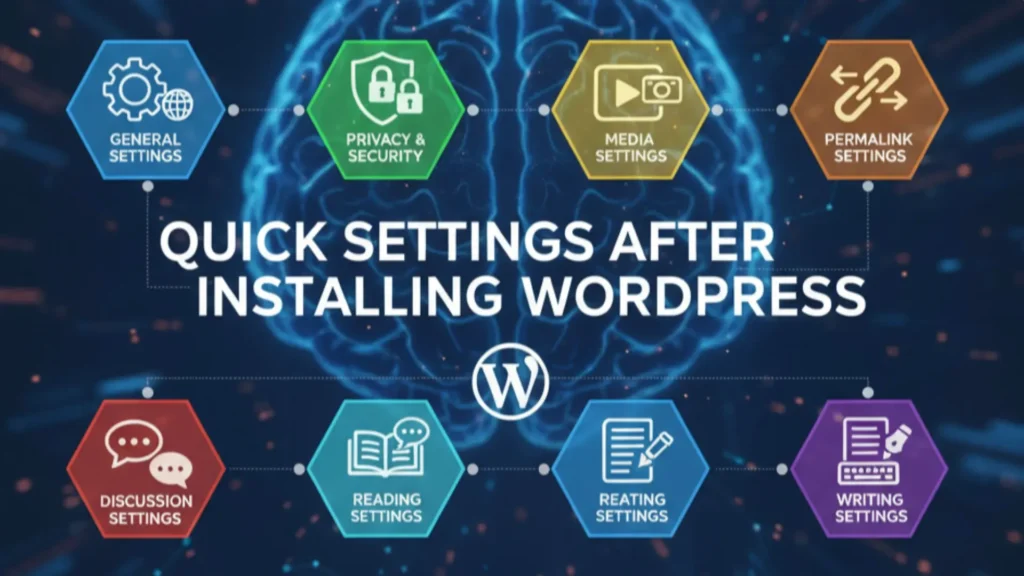
But before you rush to publish your first post or design your homepage, there’s something equally important: configuring the Quick Settings After Installing WordPress.
These simple tweaks decide how fast your site loads, how secure it is, and even how well it ranks on Google. Many beginners skip this stage — and end up facing slow performance, spam issues, or SEO problems later.
If you’ve followed my earlier guide on How to Create a Website with WordPress (Beginners Guide 2025), you already know how to set up WordPress correctly. Now, this post will help you take the next smart step — optimizing your site with the right settings for long-term success.
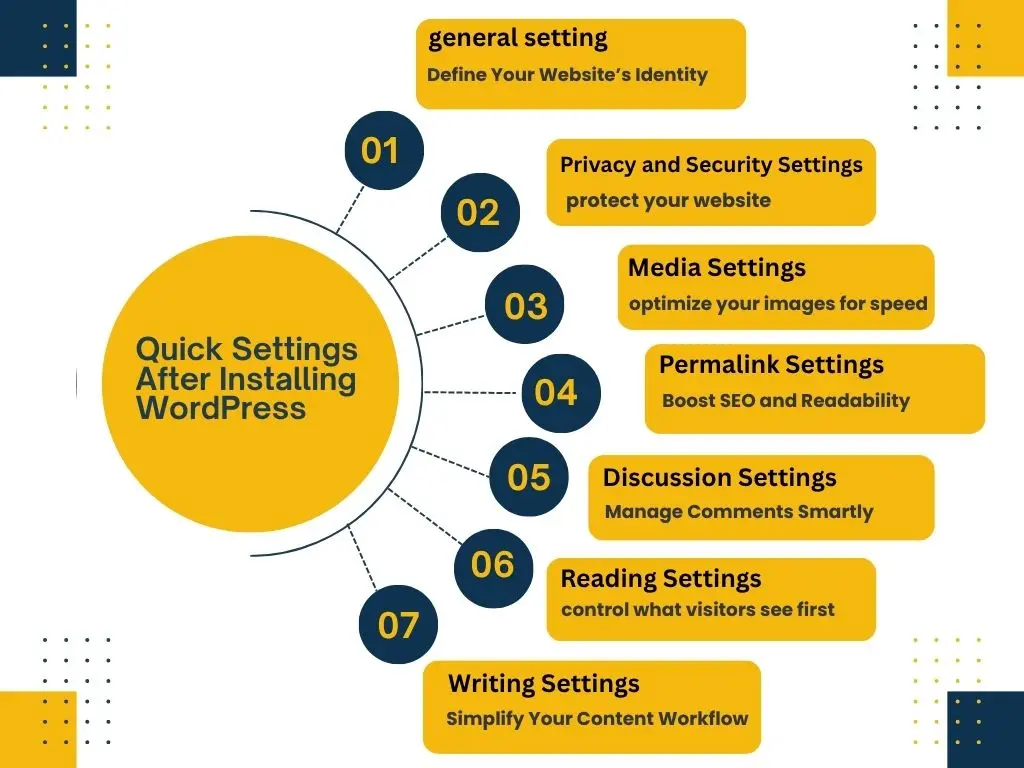
Table of Contents
1. General Settings in WordPress – Define Your Website’s Identity
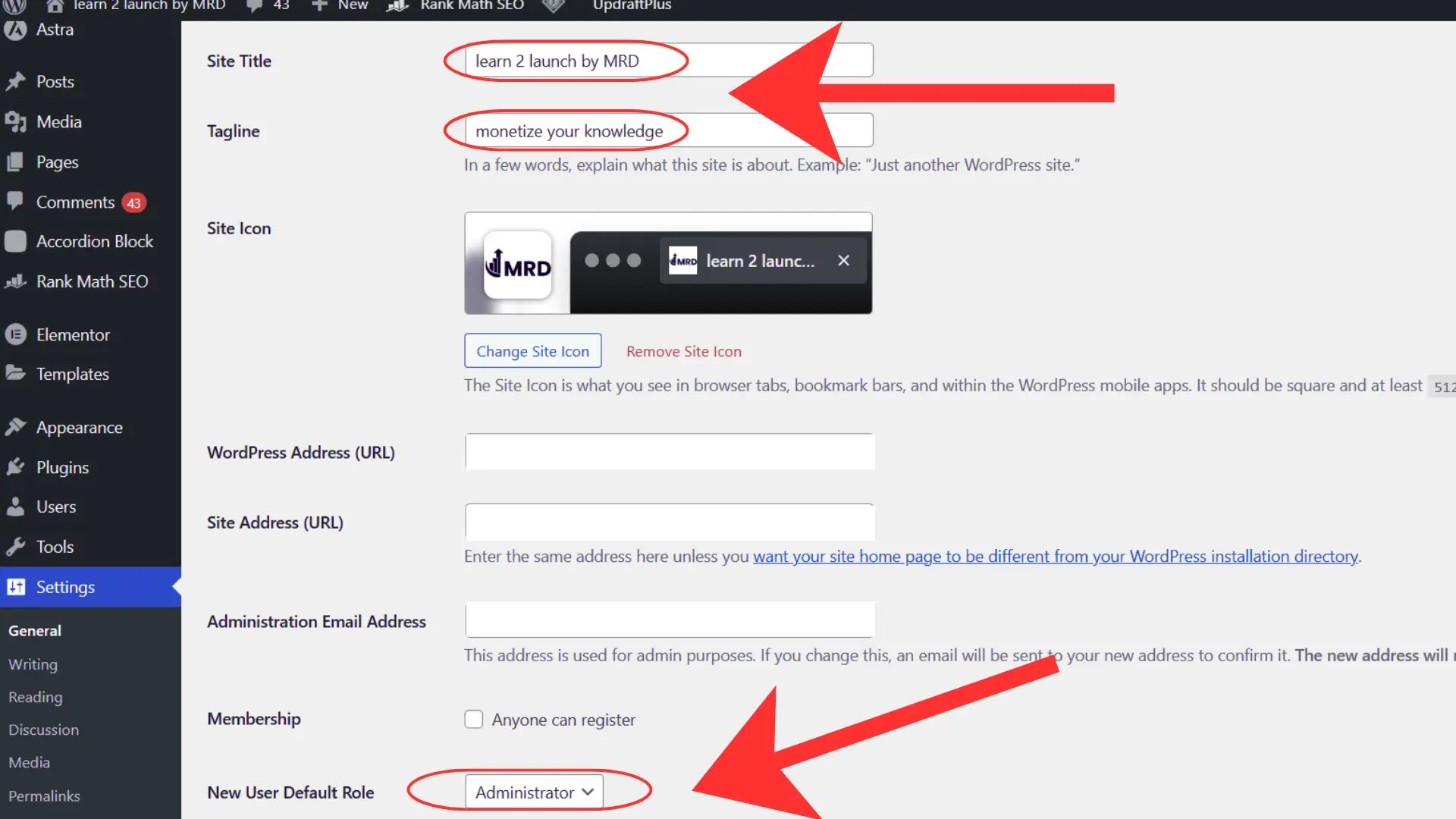
The first thing you’ll want to adjust after installation is your General Settings.
This section defines your site’s identity — your Site Title, Tagline, Admin Email, and Timezone.
Think of it as introducing your blog to the world. Your title and tagline should clearly describe what your site is about. For example, if your focus is “Smart Living and Tech,” include that theme in your tagline to attract the right audience.
You can also ensure both your WordPress Address (URL) and Site Address (URL) use HTTPS — this small detail builds trust and helps with SEO.
If you haven’t yet decided how to structure your homepage and content, check my earlier article on How to Design a Website Layout with WordPress— it’ll help you organize your site visually before you dive deeper into customization.
2. Privacy and Security Settings – Protect Your Website
Security is one of the most important Quick Settings After Installing WordPress, and it should never be ignored.
Start by creating a Privacy Policy Page using WordPress’s built-in template. Then, install a security plugin like Wordfence or iThemes Security to monitor your site for suspicious activity.
Also, enable automatic updates for plugins and themes — this prevents vulnerabilities — and use a backup plugin such as UpdraftPlus to save your site regularly.
If you remember our previous discussion in Most Useful WordPress Plugins for Beginners, you’ll notice that these security and backup plugins were top recommendations there. This is exactly where they come into play — to protect your new website right from the start.
3. Media Settings – Optimize Your Images for Speed
Images make your website come alive, but if you upload large files without optimization, your site can become painfully slow.
Go to Settings → Media, and adjust your image sizes (thumbnail, medium, and large). Then, use a plugin like Smush or ShortPixel to automatically compress images.
This simple step drastically improves page speed, which is a crucial ranking factor.
I’ve explained more speed-boosting strategies in my post on How to Speed Up Your WordPress Website, so make sure to check it out after setting your media preferences.
4. Permalink Settings – Boost SEO and Readability
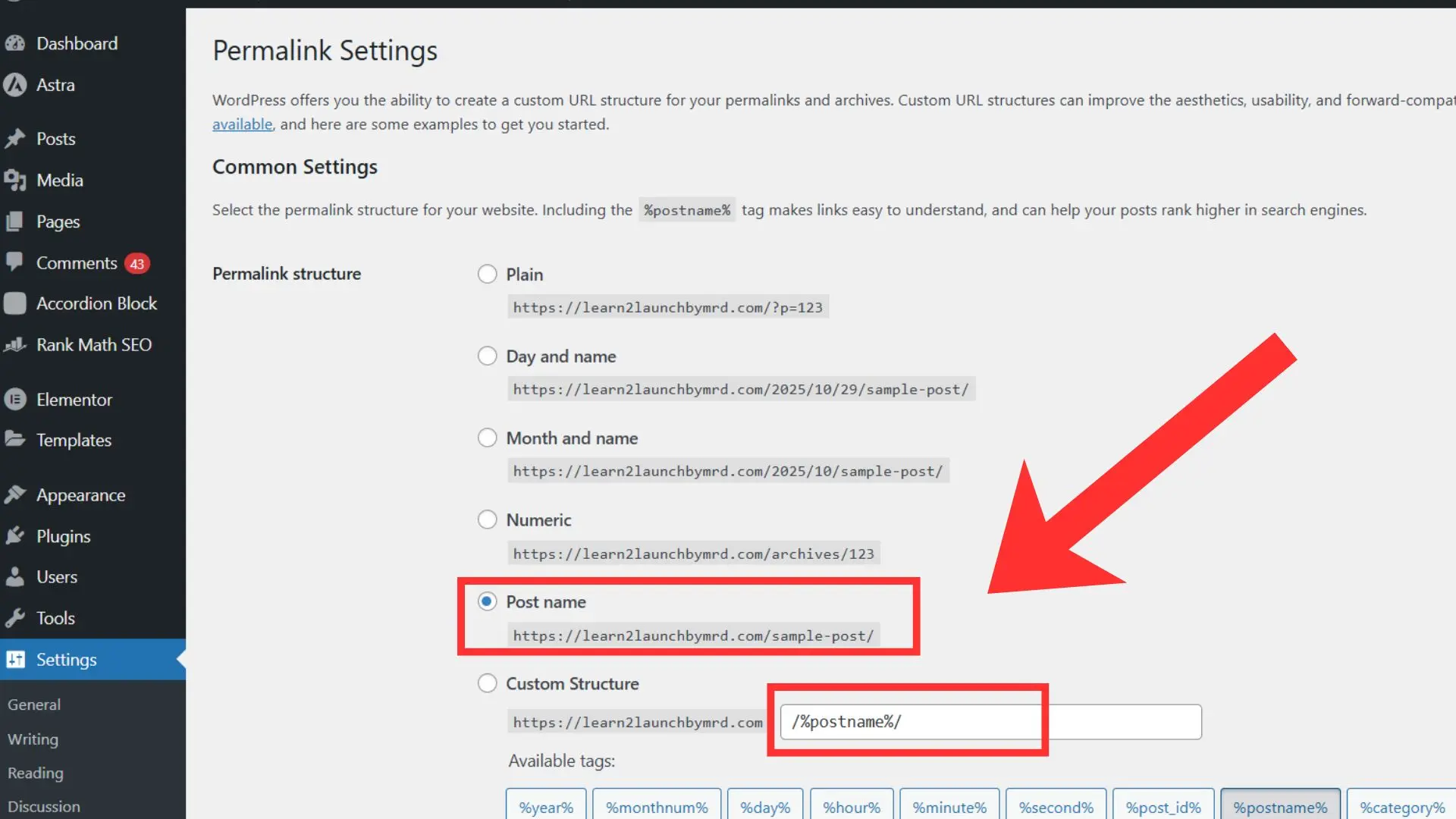
Your permalinks decide how your URLs appear — and this directly impacts your SEO.
By default, WordPress gives you messy URLs like:
Example – https://yourwebsite.com/?p=123
Instead, go to Settings → Permalinks → Post Name, which changes it to:
Example – https://yourwebsite.com/quick-settings-after-installing-wordpress/
This format is clear, user-friendly, and keyword-rich.
As I mentioned in Best WordPress Themes for Beginners, choosing simplicity and readability always improves your user experience — and the same logic applies here. Clean permalinks not only boost SEO but also make your blog look professional and trustworthy.
5. Discussion Settings – Manage Comments Smartly
Comments can be great for engagement — or a nightmare if not managed properly.
In Settings → Discussion, review your comment options.
You can choose to approve comments manually, close comments on older posts, and use Akismet Anti-Spam to keep bots away.
This helps you maintain a clean and engaging comment section without dealing with junk content.
Once you grow your audience through your blog or Quora posts, you’ll appreciate having a well-organized comment section that builds community instead of chaos.
6. Reading Settings – Control What Visitors See First
Your Reading Settings decide what people see when they land on your website.
You can either display your latest posts or set a static homepage.
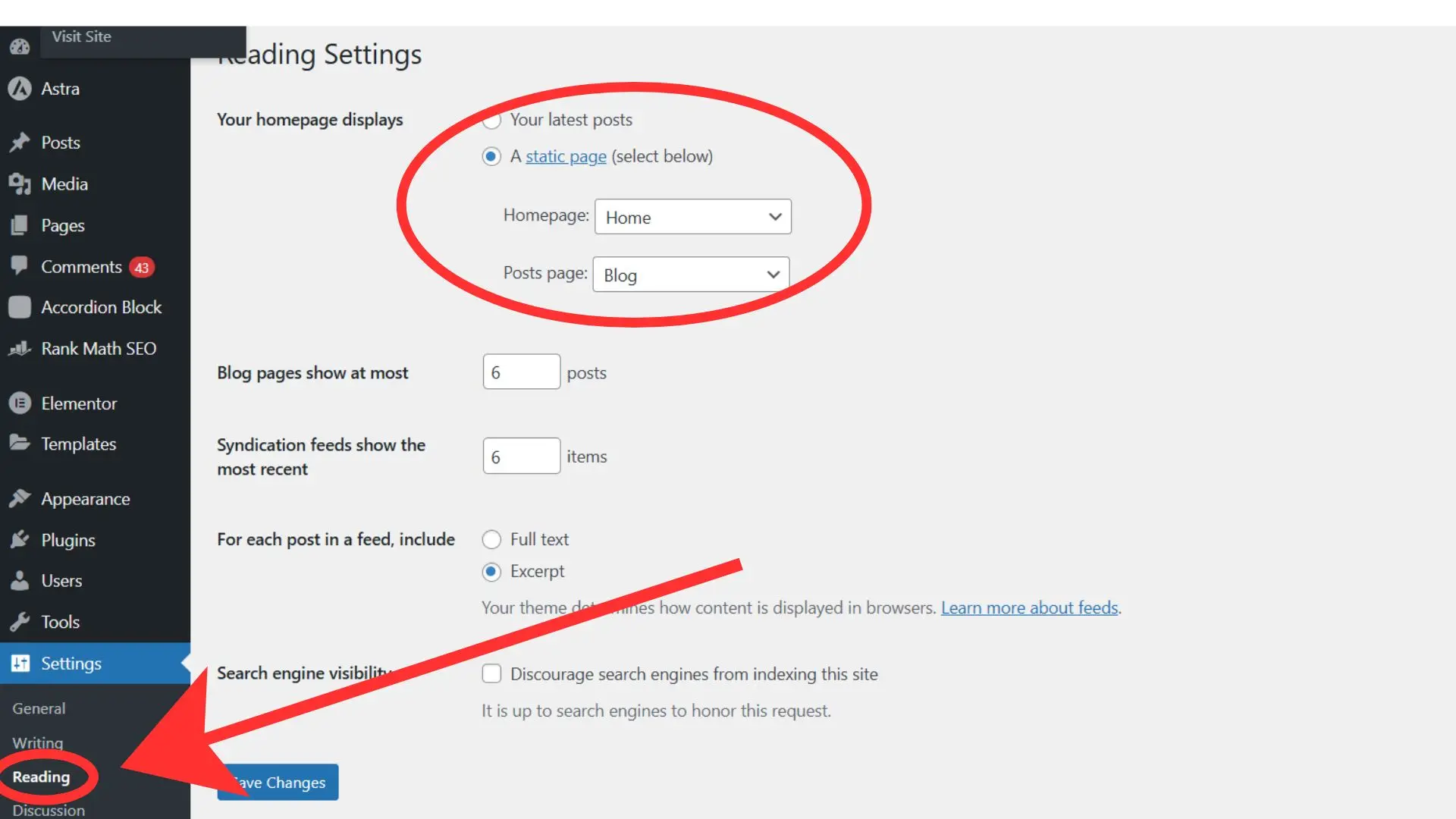
If you want your blog to look more polished and goal-driven (like a brand site or business page), create a custom homepage and a separate blog page for your posts.
In my earlier article on How to Create a Website with WordPress (Beginners Guide 2025), I explained how this setup makes your site structure cleaner and easier for visitors to navigate — now’s the perfect time to apply that tip here.
7. Writing Settings – Simplify Your Content Workflow
Under Settings → Writing, you can set your default post category and post format.
This may sound minor, but it’s a great time-saver. For example, if your blog focuses on “Smart Home Tips,” you can set that as your default category so that new posts automatically get sorted correctly.
Once you move into creating consistent content — like in my post about Useful WordPress Plugins for Beginners, where I discussed tools for easier blogging — having proper writing settings keeps everything organized and efficient.
Common Mistakes to Avoid After Installing WordPress
Many beginners rush through their WordPress setup and accidentally skip a few critical steps. Here are some of the most common mistakes to watch out for:
- Forgetting to update the site title and tagline, leaving “Just another WordPress site” visible to everyone.
- Keeping the default admin username, which makes your site an easy target for hackers.
- Not updating the WordPress URL or timezone, which can confuse visitors and mess up scheduling.
- Leaving “Anyone can register” checked, allowing unwanted users to sign up.
- Skipping the permalink structure update, which later causes broken links and poor SEO performance.
- Ignoring comment moderation settings, leading to spam-filled discussions.
- Forgetting to adjust media settings, resulting in oversized image uploads that slow down your website.
These are simple oversights, but they can cause real frustration later.
If you want to explore these mistakes in more detail — including how to fix each one — check out my full guide:
10 Common WordPress Mistakes Beginners Make and How to Avoid Them
What are the most important WordPress settings to change after installation?
Right after installation, update your general settings (site title, tagline, timezone), set up permalinks for SEO, review privacy and security settings, adjust media sizes, and configure discussion and reading settings for better performance and engagement.
Why should I change the default permalink structure in WordPress?
Changing the permalink structure to “Post name” makes your URLs shorter, keyword-friendly, and easier for both search engines and visitors to understand — which improves SEO and click-through rates.
How do I secure my WordPress website after installation?
Immediately change the default admin username, set strong passwords, disable directory browsing, and install a reliable security plugin. Also, review privacy settings and create a privacy policy page to protect user data.
What media settings should I configure in WordPress?
In Settings → Media, adjust the default image sizes and enable automatic image optimization. This ensures your images load faster, improving both site speed and user experience.
What are the best WordPress settings for SEO?
Use SEO-friendly permalinks, set your site title and tagline carefully, optimize image sizes, and ensure your reading settings display valuable content on your homepage. These small tweaks help search engines understand your site better.
Why These Quick Settings After Installing WordPress Matter
Configuring these Quick Settings After Installing WordPress ensures your site is secure, optimized, and reader-friendly right from the start.
Here’s what you gain when you set them up properly:
01 . A stronger SEO foundation
02 . Better website speed and performance
03 . Improved security
04 . A professional first impression
And most importantly, these small settings will help your content — whether it’s your blog, affiliate reviews, or travel posts — perform better without extra effort later.
Here’s a quick recap before you go:
Every great blog begins with a solid foundation.
Before you get creative with design or content, take the time to fine-tune these Quick Settings After Installing WordPress.
You’ve already learned how to install WordPress, choose themes, and explore plugins in your earlier journey. Now, by mastering these quick settings, you’re making your site ready for SEO success and long-term growth.
Your next step? Dive into customization!
Stay tuned for my upcoming guide on “How to Customize Your WordPress Design Like a Pro.”
It’ll show you how to style your site visually — without needing coding skills.