

Creating social media content sounds simple until you actually try to do it.
As a beginner, you might struggle with things like
- Not Knowing how to design attractive posts
- Spending too much time on a single graphic
- Posting inconsistently because design feels overwhelming
- Getting low engagement even when you show up regularly
Social media today is highly visual. If your posts don’t look clean, clear and professional, they often get ignored no matter how good your message is.
This is where Canva for social media content creation becomes a game changer. Many beginners ask a common question,
Is Canva good for social media content creation?
The short answer is yes , but only if you know how to use it the right way. Canva removes the biggest design barriers by allowing you to,
- Create professional looking social media posts without design skills
- Use ready made templates instead of starting from scratch
- Design content faster while staying consistent
- Focus more on your message instead of struggling with layouts
Instead of guessing what works, Canva gives beginners a structured, beginner friendly way to design content that actually fits social media platforms.
In this step by step guide, you’ll learn how to use Canva for social media content creation efficiently, without wasting hours or feeling stuck.
If you’ve ever made social media mistakes that led to low engagement or struggled to stay consistent, this guide will help you fix those issues at the design level , where most beginners go wrong.
Table of Contents – How to use Canva for social media content creation
What is Canva and why it’s so popular for social media
Anyone can easily create visual content using Canva, an online design tool, without having any previous graphic design experience. With pre-made templates, fonts, images and layouts created especially for social media platforms, it operates directly within your browser.
For beginners , Canva for social media content creation removes the fear of “ not being a designer ” and replaces it with a simple, drag and drop process.
Canva is designed for,
- Beginners who want to create clean, professional posts
- Content creators who need to design posts quickly and consistently
- Small businesses and personal brands that want strong visuals without hiring a designer
So , is Canva good for social media content creation?
Yes – because it solves the biggest problems most creators face. Canva dominates social media design tools because it offers,
- Pre sized templates for Instagram, Facebook, LinkedIn and more
- Thousands of customizable layouts that save time
- Built in photos, icons and elements
- A simple interface that doesn’t overwhelm beginners
Another reason Canva is so popular is flexibility. With Canva free you can ,
- Create unlimited social media designs
- Access basic templates and elements
- Download high quality posts
With Canva pro , you unlock,
- Premium templates and stock images
- Brand kits for consistent colors and fonts
- Faster content creation through resizing and duplication
All things considered, Canva makes social media design simple, quick, and user-friendly, which is precisely why so many creators depend on it to produce powerful visual content for the internet.
Is Canva good for social media content creation?
Yes , Canva is god for social media content creation , especially for beginners. But like any tool, it works best when you understand both its strengths and its limits.
For beginners, Canva solves the most common problems,
- Not knowing how to design social media posts
- Spending too much time on visuals
- Feeling overwhelmed by professional design tools
That’s why Canva for social media content creation is widely used by new creators, small businesses and personal brands.
Why Canva works so well for beginners
Canva makes social media design simple by offering,
- Ready made templates sized perfectly for social media platforms
- A drag and drop editor that requires no design skills
- Built in photos, icons and elements
- Easy customization without breaking the layout
This allows beginners to focus on content quality and consistency instead of struggling with design from scratch.
Once your Canva designed posts start attracting attention, the next step is turning that attention into long term value. Knowing how to use lead magnet with social media traffic allows you to design visuals that guide followers toward free resources, downloads or sign – ups instead of letting engagement end at likes.
Canva’s Limitations
Being honest matters. Canva may not be ideal if ,
- You need advanced custom illustrations
- You want complex animations or UI-level designs
- You require complete creative control like professional designers
Most beginners don’t need these features , but it’s important to understand where Canva ends.
When Canva is enough?
Canva is more than enough if your goal is,
- Creating clean, professional social media posts
- Posting consistently without burnout
- Designing content quickly and efficiently
However, sophisticated tools might later be required if you’re developing highly complex brand systems or client-level design work.
Canva is not only excellent for beginning and expanding on social media, but it’s also one of the most intelligent tools available to beginners.
What you need before creating social media content in Canva?
Before jumping into Canva for social media content creation , setting a few basics will save you time and prevent common beginner mistakes. Canva is easy to use, but preparation is what makes your content look consistent and professional.
01 . Set up your Canva account
Make a free Canva account first. This provides you with basic elements, design tools and social media templates. There’s no need to start with Pro, you can upgrade later if necessary.
02 . Decide between Canva free and pro
For most beginners,
- Canva free is enough to start creating social media posts
- Canva pro is useful if you want brand kits, premium templates and faster workflows
Choose based on your content volume, not hype.
03 . Prepare your brand basics
Even simple branding helps your content stand out,
- Pick 2 – 3 brand colors
- Choose one or two relatable font colors
- Upload your logo ( If you have one )
This ties directly into personal branding and build trust over time.
04 . Know you social media platform goals
Design changes depending on the platform,
- Instagram prefers visuals and consistency
- Facebook focuses on clarity and engagement
- LinkedIn requires a cleaner professional look
Clear goals support smarter content planning and stronger social media strategy , making Canva far more effective for beginners.
How to use Canva for social media content creation
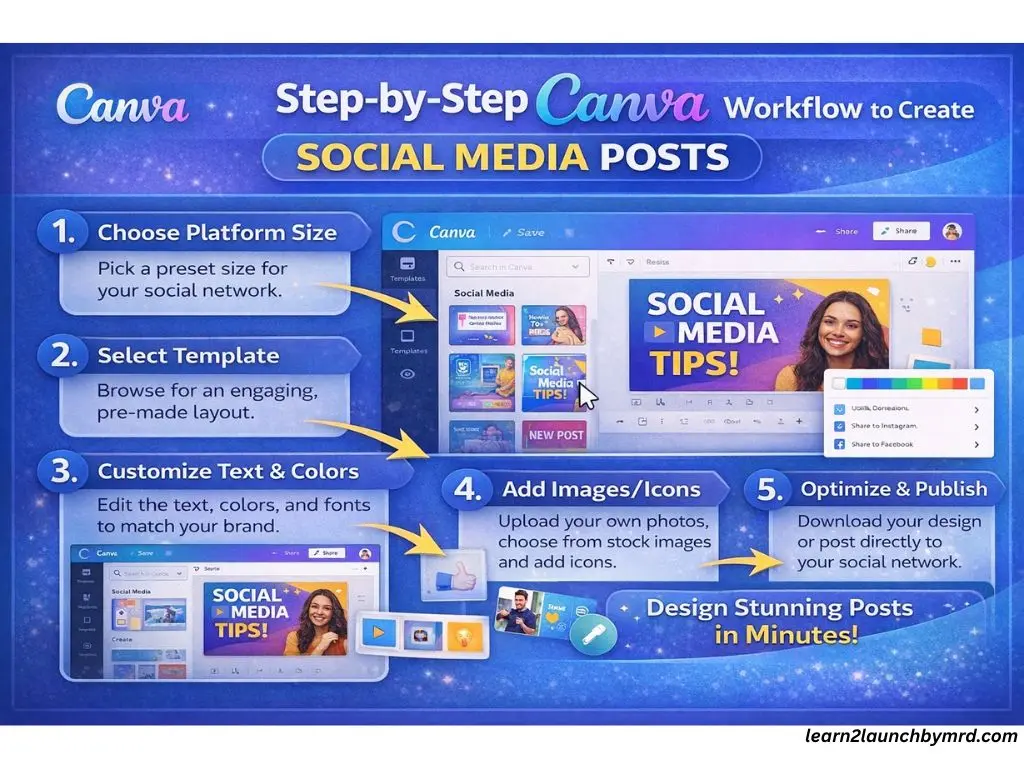
Jumping into design without a clear process is the biggest mistake for beginners. Canva works best when you keep to a simple workflow. This step by step method shows how to design social media posts step by step Using Canva , without wasting time or overthinking.
Step 01 . Choose the right social media design size
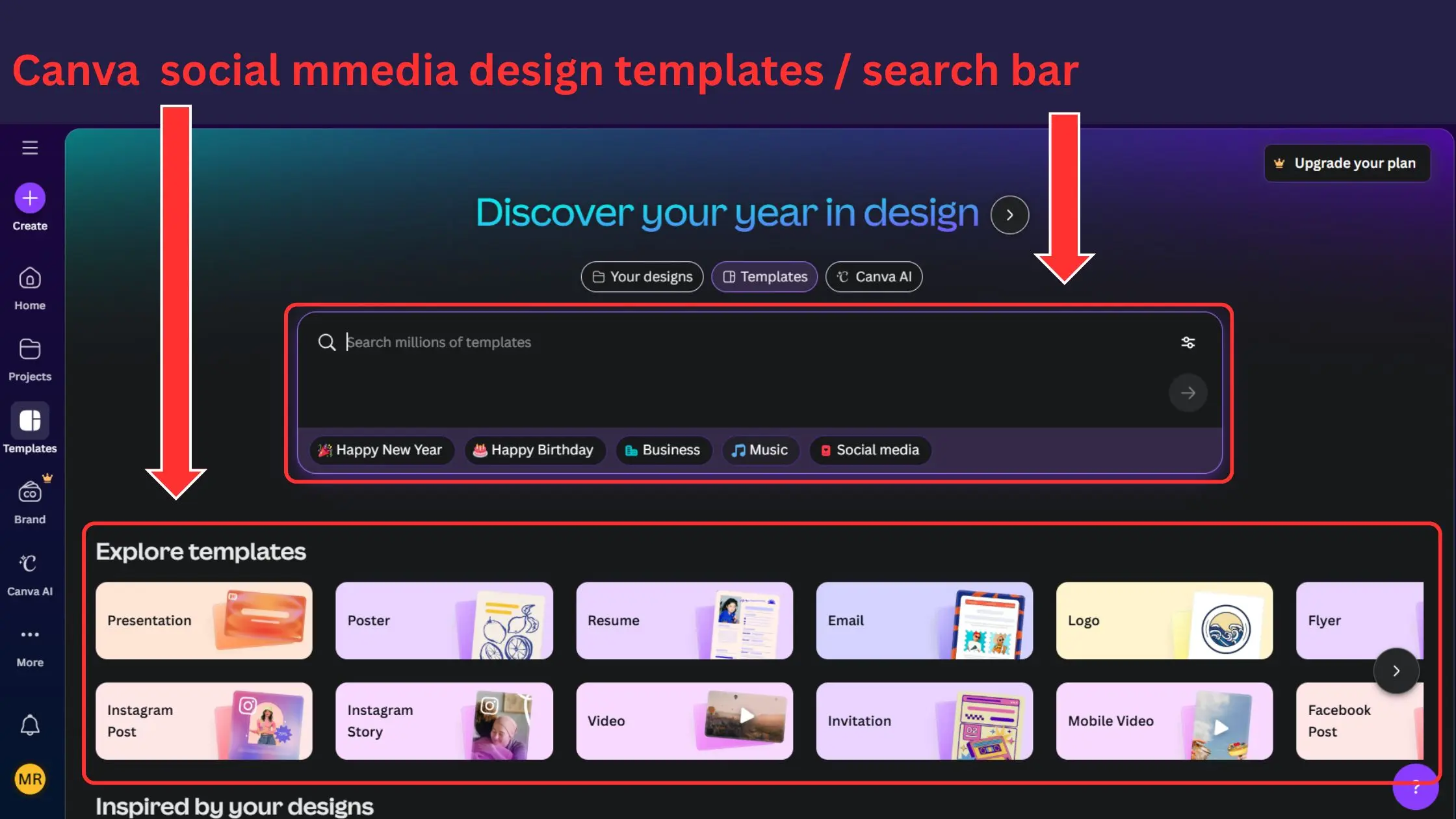
Always choose the appropriate design size before adding text or images. Canva helps your posts display correctly by offering pre-sized templates for all major platforms.
Common Canva sizes include ,
- Instagram post – 1080 × 1080 (square)
- Instagram story / reel cover – 1080 × 1920 (vertical)
- Facebook post – 1200 – 800
- LinkedIn post – 1080 × 1080 or 1200 × 627
Why size matters ,
- Correct sizes prevent cropping and blurriness
- Platforms favor content optimized for their layout
- Proper sizing improves readability and engagement
Starting with the right size ensures your content looks professional from the beginning.
Step 02 . Select a high quality Canva template
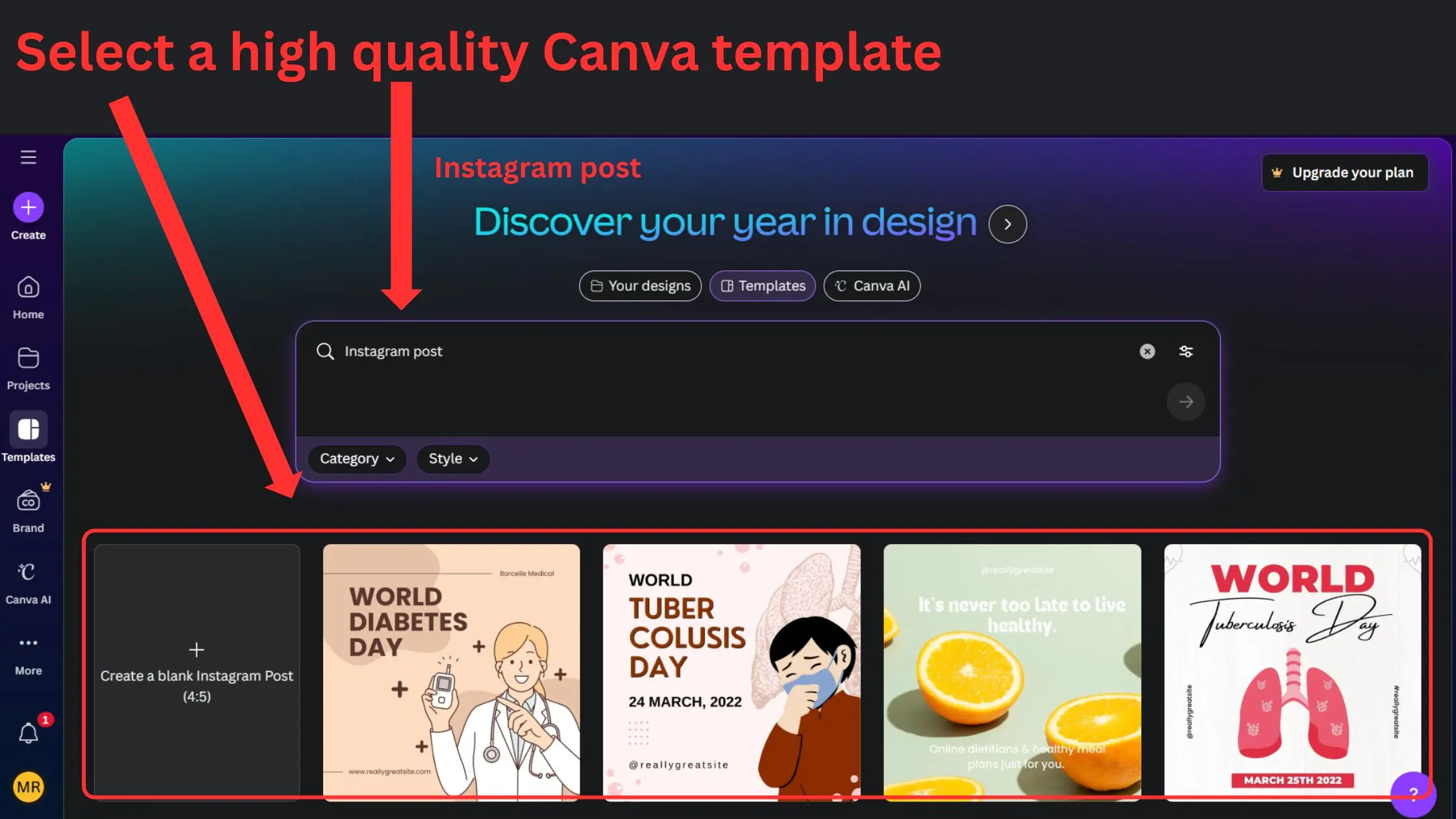
Templates are the fastest way to create social media content , especially for beginners. Canva templates are already designed with spacing, alignment, and balance in mind.
Why templates save time ,
- No need to design from scratch
- Layouts are already optimized
- Easier to stay consistent across posts
How to choose beginner friendly templates,
- Look for clean, simple layouts
- Choose templates with limited text areas
- Avoid designs with too many elements
Over-designed templates often confuse beginners and reduce clarity. Simple designs perform better on social media and are easier to customize.
Step 03 – Customize text , fonts and colors
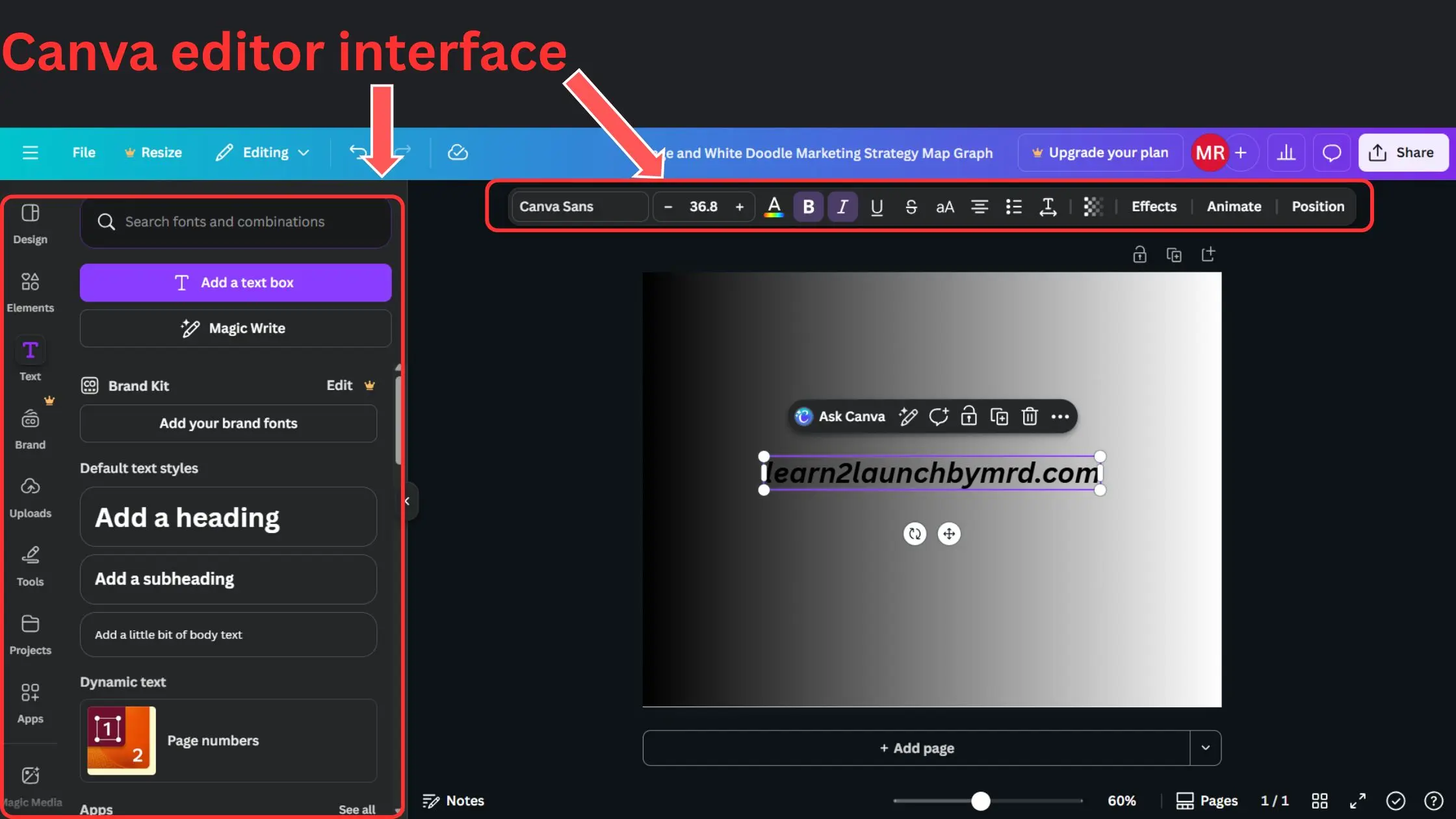
This step turns a generic template into your content . When editing text,
- Keep sentences short
- Use clear , bold headlines
- Avoid placing text too close to edges
Font pairing tips ,
- Use one font for headings and one for body text
- Avoid decorative fonts for long text
- Keep fonts readable on mobile screens
Color and brand consistency basics,
- Stick to 2 – 3 main colors
- Use contrast for readability (dark text on light backgrounds)
- Repeat the same colors across posts to build recognition
Consistent text and color choices help your audience recognize your content instantly.
Step 4 – Add images , Icons and visual elements
Visual elements are what make Canva powerful for social media content creation. Using Canva stock photos ,
- Search by keywords related to your topic
- Choose natural, realistic images
- Avoid overly staged or generic visuals
Icons vs photos,
- Icons work well for tips, lists and educational posts
- Photos work best for storytelling and emotional connection
White space is just as important as visuals,
- Don’t fill every empty space
- White space improves focus and clarity
- Clean designs look more professional and trustworthy
Less clutter means higher engagement.
Step 05 – Optimize for each social media platform
One design does not fit all platforms. Canva makes it easy to adjust your content, but you still need to think about the platform first.
Instagram vs Facebook –
- Instagram prefers bold visuals and minimal text
- Facebook allows slightly more text and explanations
Square vs vertical designs –
- Square posts work well in feeds
- Vertical designs perform better for stories and reels
Mobile first thinking ,
- Most users view content on phones
- Text must readable on small screens
- Avoid tiny fonts or overcrowded designs
Always preview your design before publishing to see how it looks on mobile.
Canva designs aren’t limited to Instagram or Facebook. Many creators use the same visuals to attract long-term traffic. Learning how to drive website traffic from Pinterest shows how Canva graphics , especially pins, can continue bringing visitors to your blog long after a post is published.
Step 06 – Download , schedule or share your post
Once your design is ready, Canva gives you multiple ways to publish. Best file formats ,
- PNG – Best quality for images
- JPG – Smaller file size, faster uploads
- MP4 – For animated designs
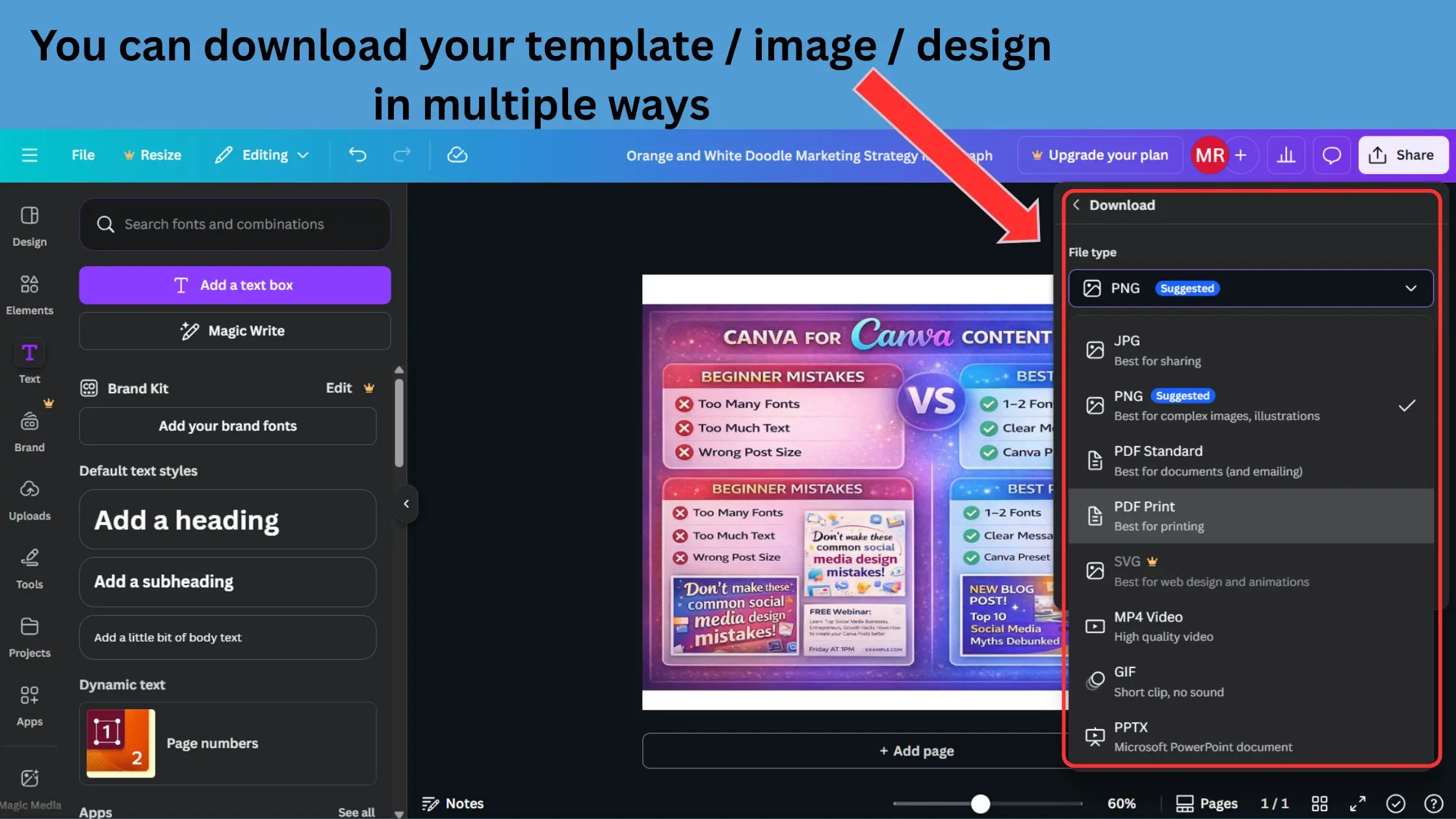
Quality settings –
- Use standard quality for social media
- Avoid unnecessary compression
- Keep file sizes reasonable for fast loading
If you use Canva pro , you can ,
- Schedule posts directly to social platforms
- Resize designs instantly for multiple platforms
- Save time by managing content in one place
This final step completes the process of Canva for social media content creation , from data to publish post.
By following this workflow, you’re no longer guessing. You now have a repeatable system that shows how to design social media posts step by step , create content faster and stay consistent without burnout.
If you’re promoting a new website, visuals play a huge role. Understanding how to get traffic to a new blog helps you use Canva-designed posts strategically to attract visitors from social media and guide them toward valuable blog content.
How to create social media content faster using Canva
One of the biggest challenges for beginners is spending hours on a single post. Learning how to create social media content faster not only saves time but also helps you post consistently , a key factor for growth.
Canva makes this easy with several time saving strategies.
One of Canva’s biggest advantages is reuse. Learning what content repurposing is and how it works allows you to transform a single Canva design into multiple formats posts, stories, pins and graphics saving time while maintaining consistency across platforms.
Use templates smartly
Templates are more than just a starting point , they’re your shortcut to professional designs. Instead of customizing every element from scratch,
- Pick templates that match your content style
- Adjust colors and fonts to fit your brand
- Keep the layout simple for faster edits
Duplicate designs
Once you have a post you like, duplication is a huge time saver
- Create multiple posts from one template
- Swap images and text quickly
- Maintain visual consistency across posts
Utilize brand kits
If you are using Canva pro , brand kits allow you to store your fonts, colors and logos. This ensures every post is on brand and eliminates the repetitive work of manual adjustments.
Batch designing content
Batch designing is a productivity secret used by top creators,
- Dedicate a block of time to create multiple posts
- Focus on one type of content at a time (quotes , tips , promotions)
- Schedule posts in advance to maintain consistency
Time saving psychology: When beginners see results faster, motivation grows and posting becomes less overwhelming. By streamlining your workflow, you’ll spend less energy on design and more on creating engaging content that drives results.
With these techniques, Canva not only makes design approachable but also allows you to create social media content faster , consistently and professionally , without burning out.
Creating visuals is only one part of showing up online. Even with tools like Canva, many creators struggle to post regularly without feeling overwhelmed. Learning how to stay consistent on social media without burnout helps you use Canva as a support system, not a pressure point, by simplifying workflows and reducing creative fatigue.
Common mistakes beginners make when using Canva.
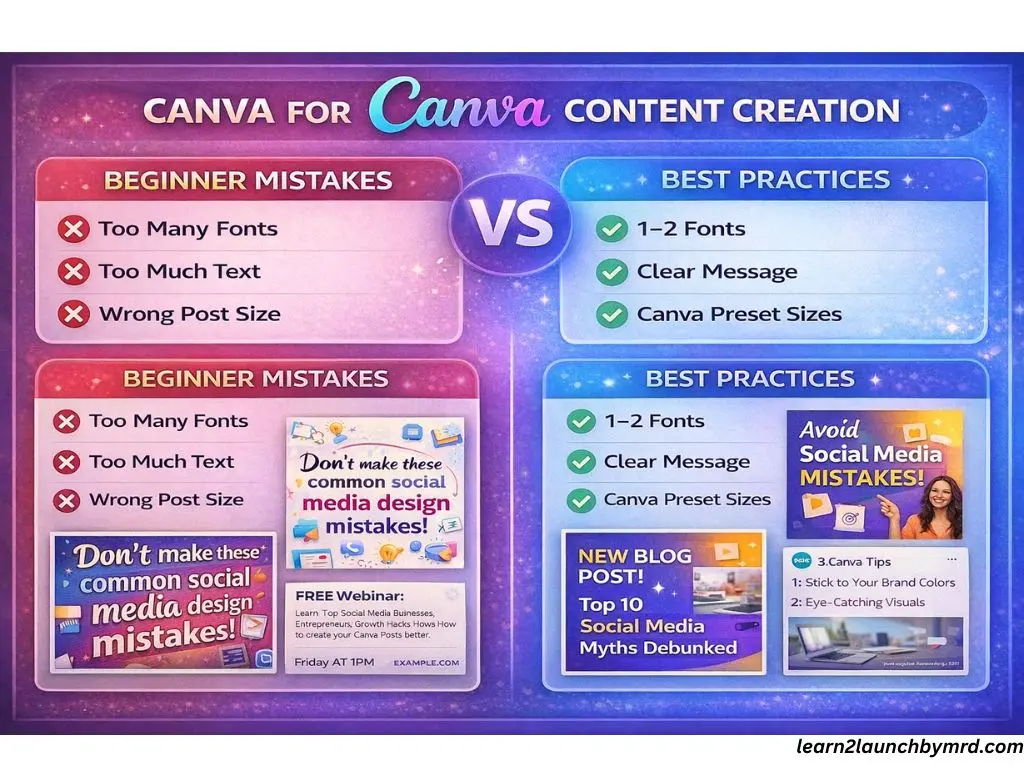
Even though Canva is beginner friendly, many new creators make mistakes that reduce engagement and waste time. Being aware of these pitfalls helps you design content that stands out and performs well on social media.
01 . Overusing fonts
Using too many fonts makes your design look cluttered and unprofessional. Stick to,
- One font for heading
- One font for body text
This creates consistency and improves readability.
02 . Adding too much text
Social media posts should be quick to read. Beginners often cram in too much information, which overwhelms viewers. Keep text,
- Shrt and punchy
- Focused on one key message per post
03 . Ignoring platform size
Each platform has its preferred post dimensions. Posting content in the wrong size can,
- Crop important elements
- Reduce visibility and engagement
Always use Canva’s pre sized templates for Instagram, Facebook, LinkedIn or stories.
04 . Poor contrast
Low contrast between text and background makes your post hard to read. Make sure,
- Text stands out against the background
- Use bold pr highlighted fonts if needed
- Avoid busy backgrounds behind text
Fixing these common mistakes not only improves your design but also increases engagement. Beginners who pay attention to these points will see better results and avoid the most frequent social media mistakes that lead to low engagement posts.
For beginners, growth often feels slow at the start. Understanding how to get your first 1000 followers as a beginner for free shows how consistent posting, clear visuals and beginner friendly Canva designs work together to build momentum without paid ads.
Design alone doesn’t guarantee results. If your posts look good but still receive low interaction, the issue may go deeper. Understanding why people do not engage with your content helps you pair Canva designs with clearer messaging, better hooks and audience focused visuals that actually invite likes, comments and shares.
Many beginners unknowingly hurt their reach with simple errors. Reading 10 social media mistakes beginners must avoid helps you use Canva more effectively by avoiding poor design choices, inconsistent posting and platform-specific mistakes that reduce visibility and engagement.
Canva free VS Canva pro for social media content creation
When starting out, most beginners wonder which version of Canva to use. Understanding the differences helps you make the right choice for your workflow and goals.
What you get with Canva free
Canva Free is surprisingly powerful for beginners. It allows you to,
- Access thousands of free templates for social media posts
- Use a wide range of fonts , icons and basic images
- Create professional looking posts withous paying a cent
- Download designs in PNG, JPG or PDF formats
For most new creators, this is more than enough to start Canva for social media content creation effectively.
What Canva pro adds
Canva Pro unlocks advanced features that save time and elevate your content,
- Premium templates and stock photos
- Brand kits to store colors, fonts and logos
- Magic resize to adapt one design for multiple platforms instantly
- Direct scheduling to social media from Canva
These tools make it easier to create content faster and maintain brand consistency across posts.
Who should upgrade
Canva Pro is worth it if you,
- Post frequently on multiple social media platforms
- Need consistent branding across posts
- Want faster workflows and batch creation
For beginners testing the waters, Free is enough. But if your goal is to grow a brand or business, upgrading can make your social media content creation far more efficient and professional.
Who should use Canva for social media content creation?
Canva isn’t just a tool, it’s a solution for anyone who wants to create professional looking social media content without spending hours or hiring a designer. Understanding who benefits most helps you see why it’s so popular.
Beginners
If you’re just starting out, Canva removes the overwhelm of design. Its drag and drop interface and pre made templates make it easy to create visually appealing posts even with no experience.
Content creators
Bloggers, influencers and social media managers can streamline their workflow. Canva allows you to produce multiple posts quickly, maintain a consistent style and focus more on content strategy than design details.
Visual consistency plays a major role in credibility. Learning how to build trust on social media shows how clean Canva designs, consistent branding and clear messaging help your audience recognize and trust your content over time.
Small businesses
Canva empowers small business owners to create branded graphics for promotions, announcements and social engagement without the cost of a professional designer.
Personal brand
Whether you’re building an online presence, a portfolio or a personal blog, Canva helps you craft content that stands out and aligns with your brand identity.
In short, anyone looking to simplify design while producing high quality posts can benefit from Canva for social media content creation , making it an ideal tool for both beginners and professionals alike.
Growing an audience is important, but results come from conversion. Understanding how to turn social media followers into customers helps you design Canva posts with intention using clear visuals, calls to action and value driven messaging that move people from scrolling to taking action.
Frequently asked questions Using for social media content creation.
Is Canva good for social media content creation for beginners ?
Yes, Canva is perfect for beginners because it removes the need for advanced design skills. With drag and drop tools, ready made templates and pre-sized layouts for Instagram, Facebook, and other platforms, beginners can create professional looking posts quickly and consistently.
Can I design professional social media posts using Canva ?
Absolutely. Canva offers a wide range of templates, fonts, icons and stock images that allow even beginners to produce polished, professional content. By customizing colors, fonts and layout, you can create visually consistent posts that reflect your brand identity.
How long does it take to create a post in Canva?
The time varies depending on your experience and complexity of the design. For beginners using templates, it typically takes 5 – 15minutes per post . Using batch designing and brand kits in Canva Pro can reduce this time further and allow multiple posts to be created efficiently.
Can Canva help create consistent social media content ?
Yes , Canva makes consistency simple with features like brand kits, reusable templates and color/font presets. By maintaining a uniform style across posts, your audience can recognize your content instantly, improving engagement and brand credibility.
Is Canva free enough , or should I use pro for social media content?
Canva Free is enough for most beginners to start creating social media posts. However, Canva pro offers additional benefits like premium templates, stock images, magic resize and direct scheduling ideal for creators aiming to save time and maintain professional level branding.
Start creating social media content the smart way
Now that you know How to use Canva for social media content creation ,it’s time to put these strategies into practice. The key to success isn’t perfection, it’s consistency. Posting regularly, even with simple, well designed graphics, builds recognition and engagement over time.
By following the steps outlined in this guide, you can,
- Create social media content faster using templates and batch designing
- Maintain brand consistency with colors, fonts and layouts
- Focus more on your content strategy rather than struggling with design
Remember, great social media content doesn’t have to be complicated. Even beginners can create visually appealing posts that attract attention and build credibility.
For a deeper understanding of growing your online presence, check out how to use social media to grow your online business. To avoid common pitfalls that slow growth, see 10 social media mistakes beginners must avoid. Both posts complement this guide and help you create a smarter, more effective social media strategy.
Once your content strategy is in place, Canva becomes a monetization tool. Understanding how to monetize your knowledge online helps you design posts that promote digital products, services or expertise without sounding salesy or overwhelming your audience.
Start designing your posts today, stay consistent and watch your social media presence grow one well crafted post at a time.